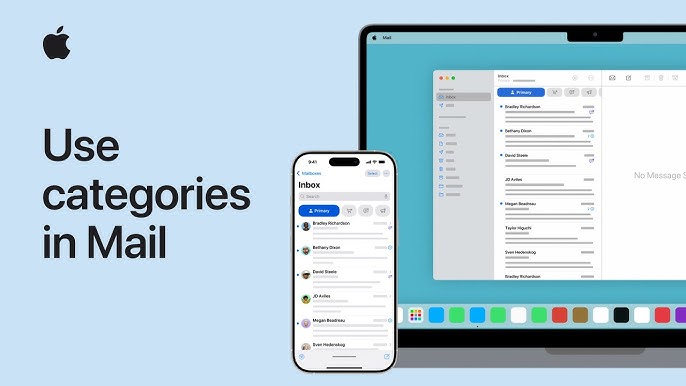
Managing emails can become overwhelming, especially when your inbox is cluttered with multiple threads, promotions, and personal communications. Categories in Mail, available on iPhone, iPad, and Mac, offer a convenient way to organize your messages and keep your inbox tidy. By sorting your emails into different categories, you can quickly find the information you need and streamline your workflow.
In this guide, we’ll walk you through how to use categories in Mail on your iPhone, iPad, and Mac. From setting up categories to managing your emails, we’ll cover everything you need to know to stay organized.
How to Use Categories in Mail on iPhone, iPad, and Mac
1. Enable Categories in Mail
Before you start organizing your emails into categories, you need to enable them in the Mail settings. Categories are part of Organize by Thread, and they help you sort your messages based on labels like “Personal,” “Promotions,” or “Social.”
- On iPhone or iPad
- Open the Settings app.
- Scroll down and tap Mail.
- Tap Organize by Thread, then toggle the switch to On.
- This enables categories in your Mail app.
- On Mac
- Open the Mail app on your Mac.
- In the menu bar, click Mail > Preferences.
- Go to the Viewing tab.
- Check the box next to Organize by Thread to enable category sorting for your emails.
2. View Categories in Mail
Once categories are enabled, Mail will automatically categorize incoming emails into various sections such as Personal, Social, Promotions, Updates, etc. You can view these categories to quickly find specific types of emails.
- On iPhone and iPad
- Open the Mail app.
- In the Mailboxes view, you’ll see a list of categories under your inbox.
- Tap on any category (e.g., Personal, Promotions, Social) to view emails that fall under that category.
- On Mac
- Open the Mail app on your Mac.
- In the Mailbox sidebar, you’ll see the category labels listed under your account or inbox.
- Click on any category (e.g., Personal, Promotions) to see the emails organized by that category.
3. Assigning Categories to Emails Manually
If certain emails aren’t automatically categorized or if you want to change their category, you can manually assign categories to them.
- On iPhone or iPad
- Open the Mail app.
- Select the email you want to categorize.
- Tap Move to (the folder icon), and choose the appropriate category like Personal or Promotions.
- On Mac
- Open the Mail app on your Mac.
- Right-click on the email you want to categorize.
- Choose Move to and select the category from the dropdown menu.
4. Customizing Categories in Mail
While iOS and macOS Mail apps come with default categories, you can customize them to fit your needs by creating new folders or labels.
- On iPhone or iPad
Unfortunately, you cannot create new categories directly in the Mail app on iOS. However, you can create custom folders within your email account for more specific organization.- Open the Mail app and go to your inbox.
- Tap Edit in the top-right corner.
- Tap New Mailbox, then name your folder and choose its location.
- You can now use these folders to organize your emails more effectively.
- On Mac
On your Mac, you can create custom folders to organize emails, although categories themselves cannot be customized. To create a new folder:- Open the Mail app.
- Click Mailbox in the menu bar, then select New Mailbox.
- Name your folder and choose where it will be stored (e.g., under your inbox or account).
- Drag and drop emails into these custom folders to organize them.
5. Search for Emails in Specific Categories
If you want to search within a specific category or folder, you can use the search bar to filter emails by category.
- On iPhone or iPad
- Open the Mail app.
- Swipe down to reveal the search bar.
- Type in a keyword or filter your search by selecting a specific category from the options that appear.
- On Mac
- In the Mail app, click the search bar in the top-right corner.
- Type in your search term, and then select the category filter from the dropdown to narrow down your search to specific categories.
6. Disable Categories in Mail
If you prefer not to use categories and want to go back to a more traditional inbox view, you can disable the category feature.
- On iPhone or iPad
- Open the Settings app.
- Scroll down and tap Mail.
- Turn off the Organize by Thread option to disable categories in the Mail app.
- On Mac
- Open the Mail app.
- Click Mail in the menu bar, then go to Preferences.
- Under the Viewing tab, uncheck the Organize by Thread option.
Why Categories in Mail Are Useful
Using categories in Mail helps keep your inbox organized by automatically sorting emails into meaningful sections. Whether it’s filtering personal messages, social updates, or promotional emails, categories streamline how you access important information. This is especially useful when you receive a high volume of emails or need to quickly focus on specific types of communication.
Final Thoughts on Using Categories in Mail on iPhone, iPad, and Mac
Categories in Mail help you stay organized and efficient by automatically sorting emails into relevant sections. While customization options are limited, you can use Mail’s built-in features to manage your emails and improve productivity. Whether you’re using your iPhone, iPad, or Mac, categories offer a helpful way to keep your inbox neat and easy to navigate.