


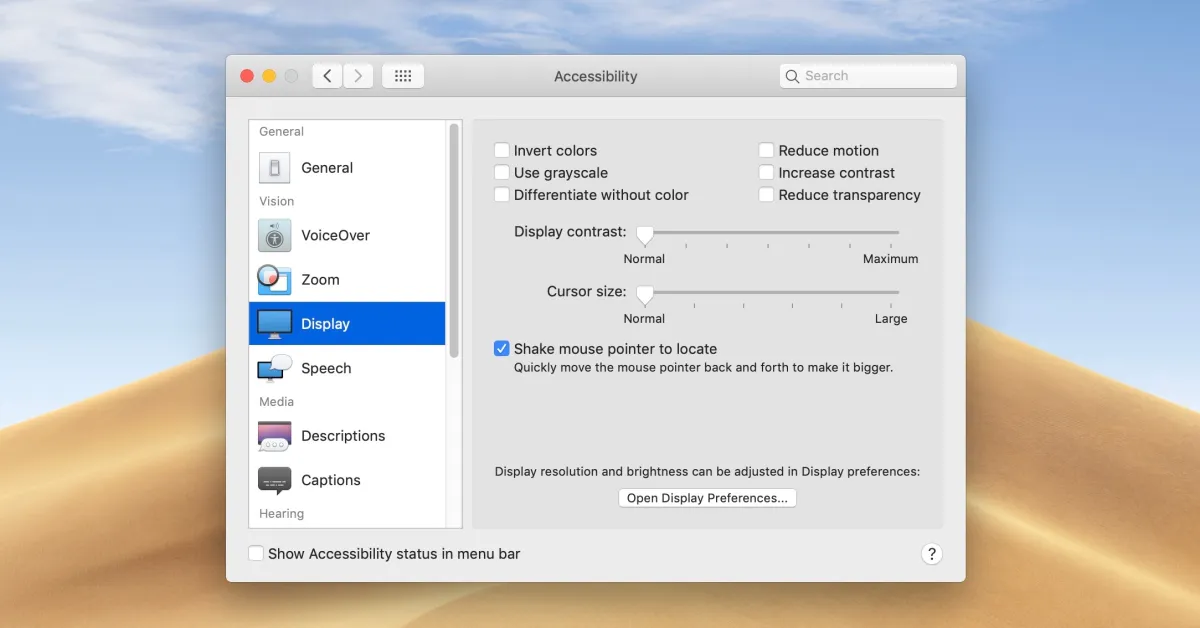
If you’re looking for a way to reduce eye strain, improve accessibility, or just give your Mac a new visual look, inverting the colors on your display might be the solution. Whether you’re working late at night or need better visibility for content, inverting colors can make your Mac experience more comfortable. Here’s a complete guide on how to invert colors on Mac, along with tips and tools to help you do it more effectively.
How to Invert Colors on Mac Using Accessibility
Inverting colors is an accessibility feature that can be easily enabled through the System Settings or System Preferences, depending on your macOS version. This method works across all applications and can be quickly toggled on and off.
For macOS Ventura, Sonoma, and Later:
- Click the Apple menu and select System Settings.
- In the sidebar, select Accessibility.
- Click on Display.
- Toggle the Invert colors option to turn it on.
For macOS Monterey and Earlier:
- Click the Apple menu and select System Preferences.
- Open Accessibility.
- In the sidebar, click Display.
- Check the box for Invert colors.
Once enabled, all colors on your screen will be inverted, including images, videos, and UI elements.
How to Toggle Inverted Colors Using Keyboard Shortcuts
If you need to quickly switch between regular and inverted colors, setting up a keyboard shortcut can be a real time-saver.
For macOS Ventura and Later:
- Open System Settings.
- Go to Keyboard > Keyboard Shortcuts.
- Select Accessibility and turn on Invert colors.
- The shortcut will now be Control + Option + Command + 8 to toggle inverted colors on and off.
For macOS Monterey and Earlier:
- Open System Preferences.
- Go to Keyboard > Shortcuts.
- Select Accessibility and enable Invert colors.
- Use Control + Option + Command + 8 to toggle inversion.
Using Siri to Invert Colors on Mac
If you prefer voice commands, Siri can also assist with inverting colors on your Mac.
- Make sure Siri is enabled. Go to System Settings > Apple Intelligence & Siri (or System Preferences > Siri on older macOS versions) and toggle it on.
- To invert colors, click the Siri icon in the menu bar or use the shortcut Command + Space.
- Say, “Invert colors” to enable it.
- To turn off, say, “Turn off invert colors.”
Dark Mode vs. Inverted Colors
While both Dark Mode and Inverted Colors can reduce eye strain, they are quite different in their visual effects.
- Dark Mode changes the background and interface to a darker theme but keeps images and videos in their original colors.
- Inverted Colors flips all the colors on the screen, including images and media, making it a much more dramatic effect.
If you want a subtler option than color inversion, consider using Dark Mode, which is often enough for most users.
How to Enable Dark Mode:
- Go to System Settings.
- Click Appearance.
- Select Dark mode.
You can also set Dark Mode to activate automatically at sunset or on a schedule. For a quick toggle, use the One Switch app (available on Setapp), which provides an easy switch between light and dark modes.
Advanced Color Inversion: Invert Colors for Specific Apps
For users looking for more control over which apps get their colors inverted, you can use a third-party tool like BetterTouchTool. This tool allows you to create custom shortcuts or gestures for specific apps.
How to Set Inverted Colors for a Specific App with BetterTouchTool:
- Install BetterTouchTool.
- Open the app and choose the app for which you want to set a custom action.
- Under the Keyboard Shortcuts tab, click the + button to assign the action.
- Set a trigger, such as a keyboard shortcut or gesture, to invert colors when using the app.
This tool gives you the flexibility to invert colors only for specific apps, making it a great option for users with specialized needs.
Using Third-Party Apps for Quick Inversion
For a more streamlined experience, apps like One Switch or BetterTouchTool offer one-click toggles and enhanced customization. With One Switch, you can easily turn on or off Dark Mode and Inverted Colors without diving into settings each time. These tools are available through Setapp, which gives you access to over 250 Mac apps for a subscription fee.
Why Invert Colors on Mac?
There are several reasons why you might want to invert colors on your Mac:
- Reduces Eye Strain: Inverted colors are easier on the eyes, especially in low-light environments.
- Improves Accessibility: It helps users with low vision or color blindness, making it easier to distinguish interface elements.
- Enhanced Contrast: Inverted colors provide better contrast for reading or editing certain content, making it more comfortable.
Final Thoughts on Inverted Colors
Inverting colors is an effective way to improve your Mac experience, whether you’re trying to reduce eye strain or make your screen more accessible. With built-in settings, keyboard shortcuts, and third-party tools like BetterTouchTool, you have plenty of options to personalize your display. If you want more control or need to streamline your workflow, tools like One Switch and BetterTouchTool offer enhanced customization.
Explore these features and start improving your Mac’s accessibility today!
FAQ
- How do I invert colors on a Mac?
- Go to System Settings > Accessibility > Display and toggle Invert colors. You can also use Control + Option + Command + 8 to toggle the inversion.
- What’s the difference between Dark Mode and Inverted Colors on Mac?
- Dark Mode changes the interface to a darker theme but leaves media unchanged, while Inverted Colors flips all screen colors, including media.
- Can I invert colors for a specific app on Mac?
- Yes, use BetterTouchTool to assign a custom shortcut for inverting colors only for certain apps.
- Is there a shortcut for inverting colors?
- Yes, on macOS Ventura and later, use Control + Option + Command + 8 to toggle Inverted Colors.





