


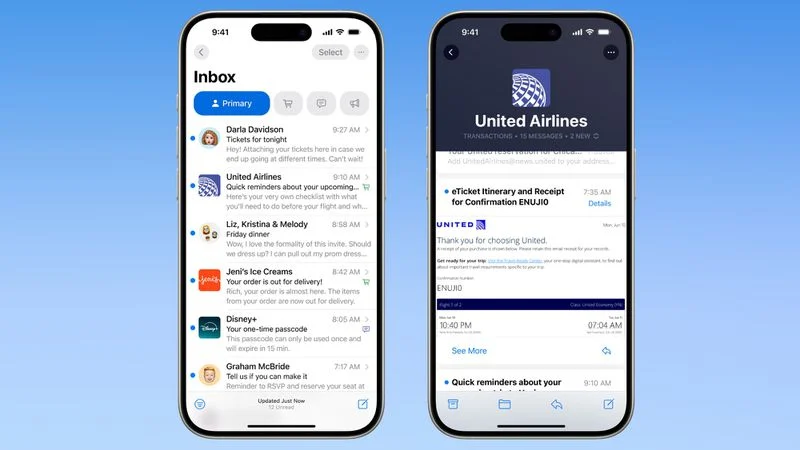
Apple’s iOS 18.2 update brought major changes to the Mail app, including the introduction of email Categories and contact photos. While some users may appreciate the colorful look and easier sender identification, others find the addition of contact images or business logos distracting or messy—especially when photos are missing or inconsistent.
If you want a cleaner inbox view, you can get rid of contact photos in just a few taps. Here’s how.
Why Apple Added Contact Photos
With iOS 18.2, Apple aimed to make it easier to visually scan emails by showing contact images and business logos next to conversations in the inbox. This is especially helpful for identifying frequent contacts or recognizing known companies.
However, when an email comes from an unrecognized business or a contact without a profile picture, the Mail app may simply display initials or leave an empty placeholder. This can create a cluttered look that many users find unappealing.
Steps to Get Rid of Contact Photos in iOS Mail App
To remove contact photos from your inbox, follow these simple steps:
- Open the Settings app on your iPhone.
- Scroll down and tap Apps at the bottom of the menu.
- Look for or search for Mail in the list of installed apps.
- Under the Message List section, locate the toggle labeled Show Contact Photos.
- Turn off this toggle to disable the feature.
Once you’ve done this, your Mail app inbox will no longer show contact pictures or business logos. It will revert to a more traditional list view that focuses on sender names and email subject lines.
Want to Bring Them Back?
If you change your mind and decide you want to restore contact photos, you can simply go back to:
Settings → Apps → Mail → Message List → Show Contact Photos
Then toggle the switch back on.
Bonus Tip: Don’t Like the New Mail Categories?
Alongside contact images, iOS 18.2 introduced Categories in the Mail app—Primary, Transactions, Updates, and Promotions—designed to help you organize emails automatically.
If you’re also not a fan of this feature, Apple allows you to turn off mail categorization as well. Check your Mail settings under the same menu to customize your email experience even further.
Conclusion
While Apple’s updates aim to improve the usability and personalization of the Mail app, not every new feature will suit your preferences. Luckily, you can easily get rid of contact photos if you prefer a cleaner inbox. With just a few adjustments in Settings, your iPhone Mail app can look and feel just the way you want it.


