
Nyongesa Sande
No Result
View All Result
  • News
    • World
    • Africa
  • Politics
  • Business
  • Tech
  • AI
  • Telecom
  • Sports
  • Opinion
  • Lifestyle
  • Live
  • World Cup 2026
    • World Cup 2026 Standings
    • World Cup 2026
Nyongesa Sande
No Result
View All Result
Nyongesa Sande
No Result
View All Result
  • News
  • Politics
  • Business
  • Tech
  • AI
  • Telecom
  • Sports
  • Opinion
  • Lifestyle
  • Live
  • World Cup 2026
ADVERTISEMENT

Home » How to Take a Hearing Test With AirPods Pro 2

How to Take a Hearing Test With AirPods Pro 2

NyongesaSande News Desk by NyongesaSande News Desk
12 months ago
in How To
Reading Time: 5 mins read
A A
How to Take a Hearing Test With AirPods Pro 2

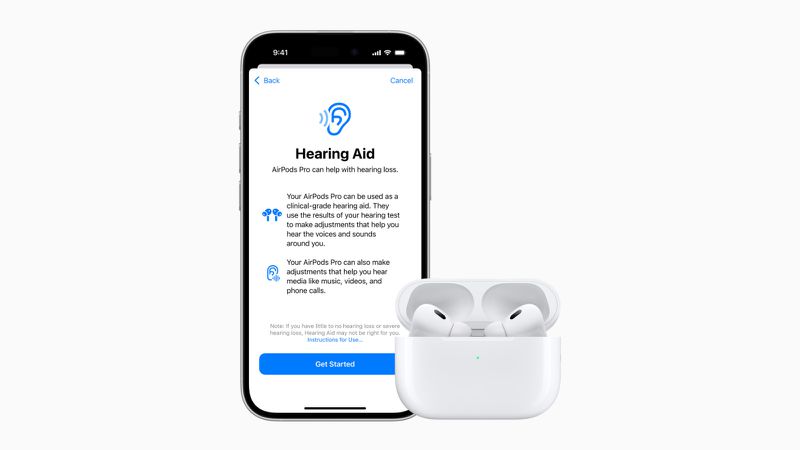
If you use AirPods Pro 2 and have concerns about your hearing health, Apple has introduced a powerful feature in iOS 18.1 and later—a clinical-grade hearing test. This test can identify mild to severe hearing loss and adjust your audio settings for a better listening experience.

  • What You Need to Get Started
  • Step-by-Step: Take a Hearing Test With AirPods Pro 2
  • How to Understand Your Hearing Test Results
  • Accessing and Sharing Test Results
  • Unlock Extra Features: Media Assist & Hearing Aid Mode
    • Media Assist
    • Hearing Aid Mode
  • Live in an Unsupported Region? Here’s a Workaround
  • Conclusion

Here’s how to take a hearing test with AirPods Pro 2 and interpret your results.


What You Need to Get Started

Before you begin, make sure you have the following:

ADVERTISEMENT
  • AirPods Pro 2 with the latest firmware
  • An iPhone or iPad running iOS/iPadOS 18.1 or later
  • A quiet environment (no fans, talking, or background noise)
  • About 5 minutes of uninterrupted time

This test plays a range of frequencies at various volumes, so silence is key for accuracy.


Step-by-Step: Take a Hearing Test With AirPods Pro 2

  1. Insert your AirPods Pro 2 into your ears.
  2. On your iPhone, open the Settings app.
  3. Tap the AirPods Pro name at the top of the screen.
  4. Under the “Hearing Health” section, tap Take a Hearing Test.
  5. Answer a few preliminary questions (age, recent noise exposure).
  6. Perform the Ear Fit Test to ensure a proper seal.
  7. The test begins—tap the screen every time you hear a tone.
  8. The test will switch automatically between ears until both are tested.

⚠️ Make sure your AirPods are charged and your surroundings remain quiet for the duration of the test.


How to Understand Your Hearing Test Results

Your results are shown in dBHL (decibels hearing level), similar to audiology clinic reports. Here’s how to interpret them:

ADVERTISEMENT
  • 0–25 dBHL: Normal hearing – No noticeable issues
  • 26–40 dBHL: Mild hearing loss – Difficulty hearing at a distance
  • 41–60 dBHL: Moderate hearing loss – Needs raised voices to understand
  • 61–80 dBHL: Severe hearing loss – Only loud sounds are audible

Tap “Show Details” to view a breakdown by frequency (250 Hz to 8 kHz). This can help identify if you have trouble hearing high or low pitches and can be exported as a PDF for your doctor.


Accessing and Sharing Test Results

You can find your hearing test history in the Health app:

  1. Open Health app
  2. Tap Browse → Hearing
  3. Tap Hearing Test Results
  4. Tap Export PDF or the Share icon to send to a doctor

Unlock Extra Features: Media Assist & Hearing Aid Mode

Media Assist

If the test detects mild or moderate hearing loss, Media Assist optimizes audio output:

ADVERTISEMENT
  • Go to Settings → Your AirPods Pro → Hearing Health
  • Tap Media Assist
  • Toggle on, and choose to Use Hearing Test Results or Custom Setup

This enhances music, video, and call audio to suit your hearing profile.

Hearing Aid Mode

AirPods Pro 2 can amplify environmental sounds:

  • Open Settings → Accessibility → Hearing Devices
  • Enable Hearing Aid Mode

Note: This mode is only available in supported regions.


Live in an Unsupported Region? Here’s a Workaround

Even if the feature isn’t officially available in your country, you can still access the hearing test manually:

  • Open Safari and paste this link:
    x-apple-health://HearingAppPlugin.healthplugin/HearingTest
  • Or use the Apple Hearing Test Shortcut, available online

🔒 You’ll still see your results in the Health app, but other features like Media Assist may remain disabled.


Conclusion

Apple’s Hearing Test with AirPods Pro 2 offers an accessible, private, and effective way to monitor your hearing health from your iPhone. Whether you’re checking for early signs of hearing loss or just curious, this feature turns your AirPods into a personalized audio health tool. Take the test, view your results, and unlock audio settings tailored just for you.

Tags: Apple hearing testHearing Aid modehearing healthiOS 18.2Media AssistTake a hearing test with AirPods Pro 2
Share2Tweet1SendShareSharePinShareShare
Google Add as a Preferred Source on Google
Previous Post

How to Downgrade From iOS 26 Beta to iOS 18

Next Post

How to Use iPhone 16’s Visual Intelligence Features

NyongesaSande News Desk

NyongesaSande News Desk

Nyongesa Sande offers diverse content across news, technology, entertainment, and more, aiming to provide readers with a wide range of informative and engaging articles. NYONGESA SANDE's dedicated team provides our audience not only with the highly relevant news but also with outstanding interactive experience.

Related Posts

How to Weld a 2-Block Rectangular Hollow Block Mold: Measurements, Materials and Step-by-Step Guide
How To

How to Weld a 2-Block Rectangular Hollow Block Mold: Measurements, Materials and Step-by-Step Guide

2 months ago
How to Create a Facebook Account on iPhone App
How To

How to Fix Facebook Confirmation Email Not Received

2 months ago
How to Create a Facebook Account on iPhone App
How To

How to Fix Facebook Confirmation Code Not Received

2 months ago
How to Create a Facebook Account on iPhone App
How To

How to Confirm Your Facebook Email or Phone Number

2 months ago
How to Create a Facebook Account on iPhone App
How To

How to Understand Your Facebook Account and Profiles

2 months ago
How to Create a Facebook Account on iPhone App
How To

How to Fix Facebook Name Not Accepted

2 months ago
Load More
Next Post

How to Use iPhone 16’s Visual Intelligence Features

How to Open Favorite Messages Chat From iPhone Lock Screen

How to Open Favorite Messages Chat From iPhone Lock Screen

ADVERTISEMENT

Who We Are

Nyongesa Sande

NyongesaSande.com is a digital news and media platform covering breaking news, business, technology, AI, politics, sports, world affairs and African innovation.

Our Brands

  • YouTube
  • Forums
  • Law Archive
  • Sandes Kitchen

News Sections

  • News
    • World
    • Africa
  • Politics
  • Business
  • Tech
  • AI
  • Telecom
  • Sports
  • Opinion
  • Lifestyle
  • Live
  • World Cup 2026
    • World Cup 2026 Standings
    • World Cup 2026

Editorial Standards

  • Editorial Policy
  • Fact Checking Policy
  • Corrections Policy
  • Ethics Policy
  • AI Usage Policy
  • News Tips
  • Submit Press Release

Legal

  • Privacy Policy
  • Terms of Use
  • Cookie Policy
  • Disclaimer
  • Risk Disclaimer
  • DMCA
  • Ad Choices
  • YouTube

Our Company

  • About Us
    • Nyosake Designers
      • Nyosake Webmasters
      • Nyosake Investment
  • Contact Us
    • Newsroom Contact
  • Ownership Disclosure
  • Advertise
  • Privacy Policy
  • Terms of Use
  • Cookie Policy
  • Disclaimer
  • Risk Disclaimer
  • DMCA
  • Ad Choices
  • YouTube

NyongesaSande.com is an independent digital news and media platform covering Africa, business, technology, AI, politics and global developments.

© 2026 NyongesaSande.com. All rights reserved.

No Result
View All Result
  • News
    • World
    • Africa
  • Politics
  • Business
  • Tech
  • AI
  • Telecom
  • Sports
  • Opinion
  • Lifestyle
  • Live
  • World Cup 2026
    • World Cup 2026 Standings
    • World Cup 2026

NyongesaSande.com is an independent digital news and media platform covering Africa, business, technology, AI, politics and global developments.

© 2026 NyongesaSande.com. All rights reserved.