


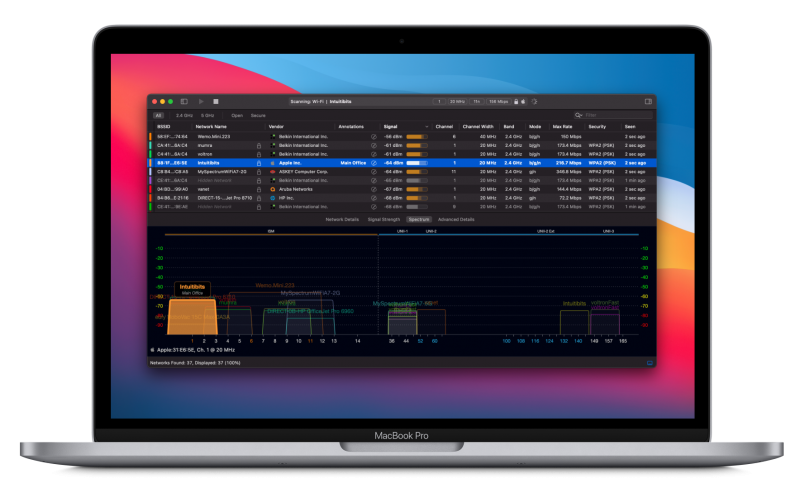
If you’re a Mac user trying to scan your network or troubleshoot connectivity issues, you may have come across the Advanced IP Scanner for Windows and wondered if there’s an equivalent for macOS. The answer? There isn’t an official Advanced IP Scanner for Mac, but no worries! There are plenty of powerful and macOS-optimized alternatives to get the job done. From simple IP scanners to advanced Wi-Fi analysis tools, I’ve tested a few great apps and have the perfect recommendations for you.
Key Takeaways
- WiFi Explorer: Comprehensive Wi-Fi analysis and channel optimization.
- WiFi Signal: Real-time signal monitoring, troubleshooting, and notifications.
- NetSpot: Advanced heat mapping and network discovery.
- Nmap: Open-source network scanner for advanced diagnostics.
- LanScan: Simple IP scanner to identify connected devices.
With these alternatives, you can monitor and troubleshoot your network like a pro. Let’s dive into each one and explore their standout features.
WiFi Explorer: Best for Comprehensive Wi-Fi Analysis
When my Wi-Fi started acting up, WiFi Explorer came to the rescue. This app gives you detailed insights into nearby networks, including signal strength, overlapping channels, and interference. The data is presented in easy-to-read graphs, making troubleshooting faster and more intuitive.
Features:
- Real-time data visualization with colorful graphs
- Supports 2.4 GHz and 5 GHz networks
- Identifies weak signals and congestion in seconds
Pros:
- Great for both beginners and experienced users
- Simple interface with in-depth analysis
- Works seamlessly with 2.4 GHz and 5 GHz networks
Cons:
- Some advanced features might be overwhelming for beginners
- Not ideal for non-technical users
WiFi Signal: Monitor and Troubleshoot Your Network
WiFi Signal is another excellent alternative for monitoring your network’s signal strength in real-time. This app lives in your menu bar, so you can always keep an eye on your network performance. It even offers smart notifications when there are issues with your Wi-Fi, like when your connection quality dips.
Features:
- Live signal monitoring directly from the menu bar
- Customizable display for key metrics (e.g., signal strength)
- Smart notifications for network changes and drops
Pros:
- Easy to use with live signal monitoring
- Customizable menu bar display
- Great for quickly troubleshooting Wi-Fi issues
Cons:
- Limited to Wi-Fi connections
- Not suitable for users with no technical expertise
NetSpot: Real-Time Heatmapping for Network Optimization
NetSpot is a must-have tool for anyone managing Wi-Fi at home or in an office. It uses a heatmap to show you where your signal is strong and where it’s weak, making it super easy to optimize your router placement. NetSpot’s Site Survey feature also allows you to run speed tests and check for dead zones in real-time.
Features:
- Real-time heatmaps to optimize Wi-Fi coverage
- Site survey for live speed tests and performance checks
- Detailed reports and exportable PDFs
Pros:
- Ideal for managing large networks or home Wi-Fi setup
- Easy-to-read visual heatmaps
- Supports modern routers and access points
Cons:
- Some features require experimentation
- Only compatible with macOS 10.10 or later
Nmap: Powerful Open-Source Network Scanning
For those who love detailed, open-source tools, Nmap (Network Mapper) is the ultimate network scanner. It offers powerful features to detect devices, open ports, and network vulnerabilities. However, it’s a command-line tool, which might be challenging for those not familiar with networking.
Features:
- Highly detailed scans for devices and open ports
- Customizable commands for advanced diagnostics
- Free and open-source tool
Pros:
- Powerful for advanced users and large networks
- Detailed network diagnostics
- Open-source and free to use
Cons:
- Command-line interface may be intimidating
- Not beginner-friendly
LanScan: Simple, Effective IP Scanner
LanScan is a user-friendly and effective tool for scanning your network. It automatically detects devices like Ethernet and Wi-Fi and provides detailed information such as IP addresses, MAC addresses, and hostnames. It’s a great option for people who need a quick overview of the devices connected to their network.
Features:
- Automatic detection of network devices
- Displays IP, MAC addresses, and hostnames
- Supports IPv6 addresses
Pros:
- Free to download and easy to use
- Detailed network information at a glance
- Supports IPv6
Cons:
- Limited advanced features
- Lacks live troubleshooting options
How to Choose the Best Advanced IP Scanner for Mac
Choosing the right network scanning app depends on your specific needs:
- For Wi-Fi optimization and signal analysis, WiFi Explorer and NetSpot are fantastic choices with visual tools like heatmaps.
- For quick IP scanning on a home or small network, LanScan is simple and efficient.
- For advanced diagnostics and security audits, Nmap offers the most detailed scanning options.
- For real-time monitoring of network performance and signal quality, WiFi Signal offers great menu bar integration.
Tip: Most of these tools offer free trials or lite versions, so be sure to try them out before committing to any one app. With a little testing, you’ll find the perfect fit for your network management needs.





