Have you noticed the cursor disappearing on your Mac? The first logical explanation would be that some apps change the appearance of the pointer. But if you dig deeper, it can also indicate other underlying problems, like your Mac being infected with adware (although it is pretty rare).
So, let’s take a look at why this may happen and then go over some troubleshooting tips to solve the mouse cursor disappearing issue on Mac.
Why does my mouse keep disappearing on Mac?
There are a few reasons why your mouse pointer disappears on Mac:
- Using multiple monitors. Most commonly, when you use multiple monitors, they are arranged improperly. So, when the mouse cursor disappears on Mac, it may simply be on another monitor.
- Your Mac is low on memory. The mouse pointer is a process, so when the cursor disappears on Mac, it may be due to the background noise.
- Third-party apps are causing interference. Software glitches may also be the cause of a disappearing cursor. Monitor to see if the issue is triggered by a specific app.
- App features. Sometimes, the Mac cursor disappears because apps hide it. For example, if you use a streaming app, lost mouse cursor is designed for your convenience, not annoyance, because it makes the watching experience more enjoyable, especially when you enter the full-screen mode.
No matter the reason, we’ll get to the bottom of it with these 13 miracle-working tips and tricks.
13 Ways to fix mouse cursor disappearing on MacBook
1. Try to locate it
When your mouse cursor disappears on Mac, a good starting point would be checking the basics. Try the following actions to locate your cursor:
- Click-and-drag (simply hold as though you are selecting a piece of text, then release.)
- Right-click on Mac
- Shake your mouse or move a finger on your Trackpad
- Force quit the app or try switching to another app
- Charge and reconnect your MacBook mouse or Trackpad
- Restart your Mac
These should help you bring up your mouse cursor on the screen! Didn’t work? Then keep reading.
2. Solve connection issues
Now, ensure that you’ve connected the mouse. If you’re using a wireless mouse, like Magic Mouse, check that it is fully charged. If you have another wireless mouse, make sure that the batteries are charged and positioned properly. If you use a Bluetooth mouse, make sure that it’s switched on and connected to your Mac. You may also want to try forgetting the device and adding it once again. For the wired mouse, audit cords, and connectors.
3. Reset your Mac
This simple recommendation can solve numerous glitches, but most Mac users tend to ignore it (it might seem like foolishness, but it works!)
Using your keyboard, press down and hold the Command-Ctrl-Power keys until your screen goes blank. Or open the Apple menu from the menu bar and choose Restart. Wait until the Apple logo appears.
If the vanished mouse cursor issue emerged due to some major glitch — for example, if your Mac froze — you may need to force restart your Mac. To do it, press and hold the power button.
Test your mouse when you see the Apple logo. If the invisible cursor issue persists, read on.
4. Check your Mac for malware
No one wants to hear it, but any strange behavior like disappearing cursors can be a sign of malware infection. This is when a tool like CleanMyMac X comes in handy. It has a dedicated Malware Removal module that eliminates any signs of viruses, adware, spyware, and other types of malware.
Here’s how to check for malware with CleanMyMac X:

- Launch the app.
- Select Malware Removal from the left sidebar.
- Press Scan.
- If the app does find any malware, follow the onscreen instructions to remove it safely.
5. Run maintenance scripts
Another great tip is to optimize your Mac. Running the thing called maintenance scripts can solve many issues by rotating and removing system logs, temporary files, and complex scripts. There are two ways to do it — manually and automatically.
How to run maintenance scripts with Terminal
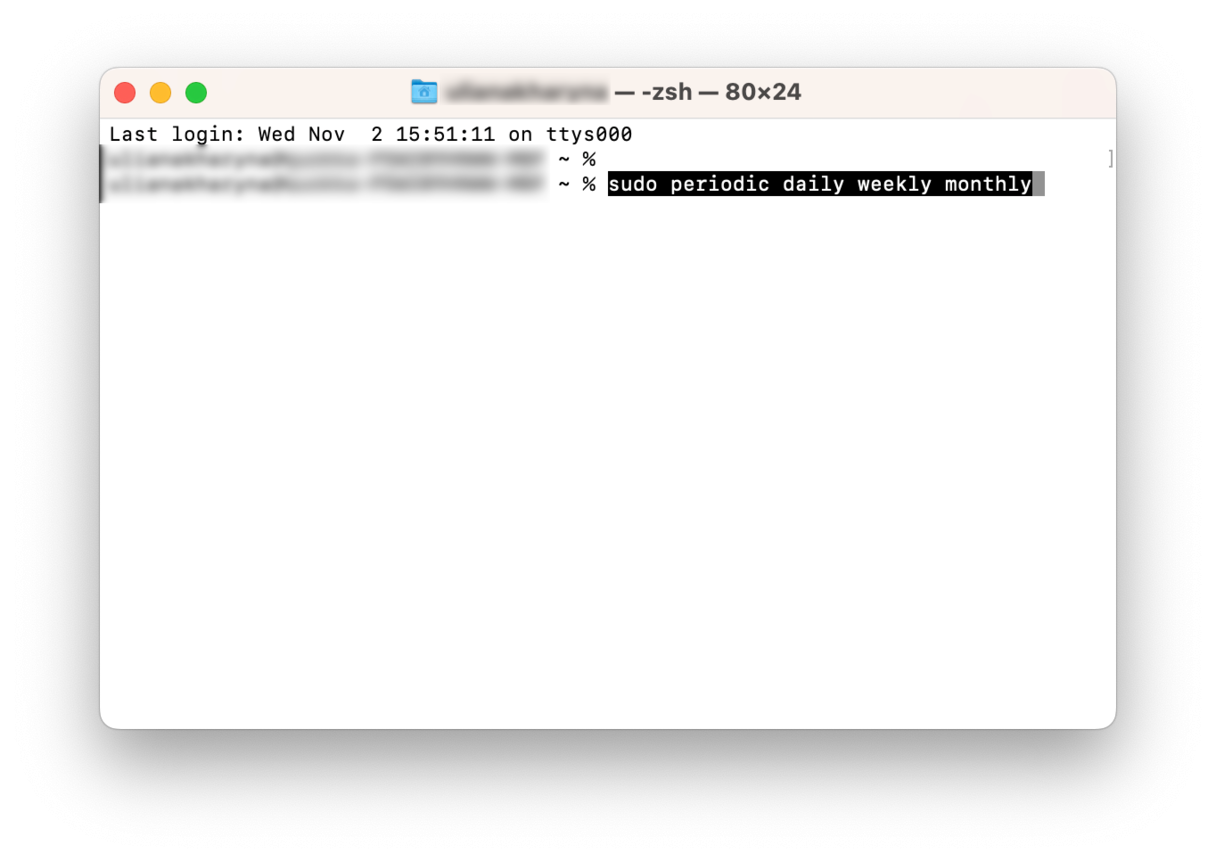
- Open a spotlight search and type in Terminal.
- Open Terminal and paste in sudo periodic daily weekly monthly
- Press enter and type in your password — this won’t appear on the screen, but press enter.
When the Terminal prompt returns, you know that the scripts are complete.
How to run maintenance scripts with CleanMyMac X
Now if you’re not a fan of poking around in Terminal, no worries, there’s actually an easier way to run scripts with CleanMyMac X I mentioned above.
Here’s how to run maintenance scripts:

- Launch the app and select Maintenence from the left sidebar.
- Select Run Maintenance Scripts from the list and press Run.
6. Run a quick cursor test
Run your finger really quickly back and forth over your trackpad. This will usually make your cursor appear large for a moment; sometimes, this can help bring your cursor back.

Another option is to try and navigate to the Dock and then back up to the middle of the screen. This can sometimes solve the cursor disappearing on a Mac.
7. Disable or enable your Hot Corners
If you have Hot Corners enabled, this is a great place to start. Try to move your mouse pointer toward a screen corner — if nothing happens, we know we have an issue.
For future reference, if you want to enable Hot Corners, here’s how:

- For macOS Ventura, go to Apple menu > System Settings > Desktop & Dock > Hot Corners. For older macOS versions, select the Apple menu > System Preferences > Desktop & Screen Saver > Screen Saver tab > Hot Corners.
- Assign items to your corners by clicking on the drop-down and pressing Done.
Everybody loves shortcuts, and Hot Corners is a great tool.
8. Try the application switcher
To help you identify if this is only happening when you use a specific app, use the application switcher to find out. Here’s how:
- Press and hold Command and then Tab.
- When the application window appears, tab to another app, does your cursor return?
- Then, follow the steps again to go back to the existing app.
Alternatively, you can use Mission Control to switch between apps. Either swipe up with three fingers on your built-in or Magic Trackpad or press the Mission Control key.
This can sometimes bring back your cursor. If you do think it’s app-related, jump to the next tip.
9. Detect interfering apps
To eliminate interfering apps, use Force Quit. Here’s how:

- Press Command + Option + Escape.
- Select the app and press Force Quit.
If your cursor returns, it’s time to remove that app, as it could have become corrupted. Here’s how:

- Open a Finder window.
- Select Applications.
- Find the troublesome app and drag it to your Trash. Now, empty it.
10. Make the mouse cursor bigger
The other way to locate the lost cursor is to ask Siri to enlarge it, even though it is invisible. Press Command-Space and say, “Hey, Siri, make the cursor bigger.”
11. Use System Preferences/System Settings
When your mouse keeps disappearing on your Mac, use the System Settings accessibility display to try to bring it back. Here’s how:

1. Go to System Settings (System Preferences in older macOS versions).
2. Accessibility> Display > Pointer. For older macOS versions, in System Preferences, select Accessibility > Display > Cursor. Drag the mouse across the pointer size slider to see if that brings your mouse back.
3. Check the “Shake mouse pointer to locate” box.
4. Also check tracking speed. If cursor speed is too high, it’s no suprise that Mac’s mouse cursor is invisible.
12. Check if your Mac is charged
It’s not rocket science, but common sense: all your devices must be charged in order to work. Take 5 minutes to check if your devices are fully charged, if not, plug them in. Replace the battery in case something’s wrong with it. Then retry locating your mouse cursor.
13. Reset SMC
There is a tool called System Management Controller (SMC). It’s part of your Mac’s hardware that controls parameters related to lighting, fan operation, etc., and those of any input device, including a connected mouse. It may fix the mouse cursor missing problem.
If you own a Mac with Apple silicon, to reset SMC, all you need to do is restart your Mac.
For an Intel-based Mac, a simple key combination performed during a Mac restart will reset SMC and hopefully fix the disappeared mouse cursor problem:
- First, shut down your Mac completely.
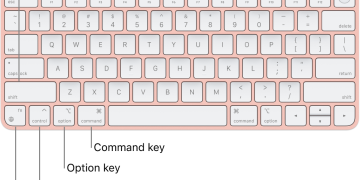
- Hold down the Shift-Control-Option-Power button.
- Wait for your Mac to start until you hear the startup sound.
- Now, release the keys — the SMC is reset.
Well, we’ve reached the end, and hopefully, the cursor disappearing on your Mac is a thing of the past.
Come back soon for more tricks and troubleshooting tips.
Your Mac deserves the best ❤️
or Buy Now
System requirements: macOS 10.13+
“Mac Cursor Disappears: 13 Tips to Solve the Issue,” CleanMyMac, 2023, https://cleanmymac.com/blog/cursor-disappears-mac.