


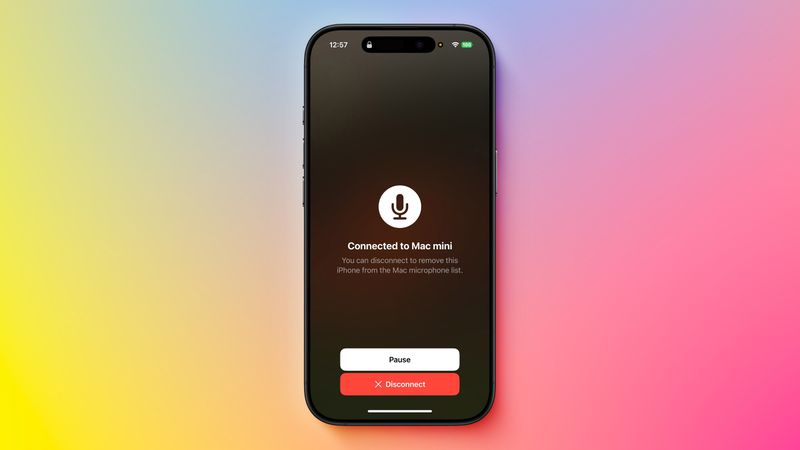
With macOS Ventura (macOS 13) or later, Apple allows you to use iPhone as microphone for Mac thanks to its expanded Continuity Camera features. This capability gives your Mac access to your iPhone’s high-quality microphones for use in video calls, voice recordings, and virtual meetings.
Whether you’re using FaceTime, Zoom, Google Meet, or recording content, routing your Mac’s microphone input through your iPhone can lead to noticeably better sound quality—especially if your Mac’s built-in mic isn’t cutting it.
Requirements
To use this feature, make sure:
- Your Mac is running macOS 13 Ventura or newer.
- Your iPhone is running iOS 16 or later.
- Both devices are signed in with the same Apple ID.
- Bluetooth and Wi-Fi are enabled on both devices.
- Your iPhone is unlocked and nearby.
Step-by-Step: Use iPhone as Microphone for Mac
1. Open System Settings on Mac
- Click the Apple () menu in the top-left of your screen.
- Select System Settings from the dropdown.
2. Navigate to Sound Settings
- In the sidebar, scroll and click Sound.
- Switch to the Input tab under “Output & Input.”
3. Select Your iPhone
- You should see your nearby iPhone listed as an input option with Type: Continuity Camera.
- Click it to make it your active microphone.
4. Confirm Connection on iPhone
- Your iPhone will play a short ping sound and display a screen confirming it is now “Connected to [Mac Name]”.
- You are now using your iPhone mic to input sound to your Mac.
How to Pause or Disconnect the Microphone
- On your iPhone screen, tap Pause to momentarily halt the audio input.
- Tap the red Disconnect button to stop using your iPhone as the microphone altogether.
Why Use Your iPhone as a Mic for Mac?
- Superior audio quality for video meetings and recordings.
- Convenient wireless setup—no extra accessories needed.
- Great for content creators, podcasters, or anyone needing crisper, clearer sound.
- Useful in noisy environments where your Mac’s mic underperforms.
Tips for Best Performance
- Place your iPhone close to your mouth, ideally on a tripod or desk stand.
- Use Do Not Disturb mode to avoid notifications during recording or calls.
- Keep your iPhone connected to power if you’re using it for long sessions.
Conclusion
With just a few clicks, you can use iPhone as microphone for Mac and drastically improve your audio experience for online meetings, voice notes, or livestreams. Thanks to Apple’s Continuity Camera, your iPhone becomes a powerful wireless mic—no cables or third-party apps required.
Upgrade your Mac’s audio setup instantly using the device you already have in your pocket.


