
Nyongesa Sande
No Result
View All Result
  • News
    • World
    • Africa
  • Politics
  • Business
  • Tech
  • AI
  • Telecom
  • Sports
  • Opinion
  • Lifestyle
  • Live
  • World Cup 2026
    • World Cup 2026 Standings
    • World Cup 2026
Nyongesa Sande
No Result
View All Result
Nyongesa Sande
No Result
View All Result
  • News
  • Politics
  • Business
  • Tech
  • AI
  • Telecom
  • Sports
  • Opinion
  • Lifestyle
  • Live
  • World Cup 2026
ADVERTISEMENT

Home » How to Play Game Console or Cable Box Audio on HomePod via Apple TV 4K

How to Play Game Console or Cable Box Audio on HomePod via Apple TV 4K

NyongesaSande News Desk by NyongesaSande News Desk
12 months ago
in How To
Reading Time: 5 mins read
A A
How to Play Game Console or Cable Box Audio on HomePod via Apple TV 4K

If you own a second- or third-generation Apple TV 4K, you can use it to play audio on HomePod via Apple TV even when the Apple TV is not actively in use. This makes it possible to stream sound from external devices like your PS5, Xbox Series X, or cable box straight to a HomePod or HomePod mini. Here’s how to enable this seamless Home Theater Audio setup using ARC and eARC.

  • What Is ARC/eARC and Why It Matters
  • What You Need
  • Step-by-Step: Set Up ARC/eARC on Apple TV 4K
    • 1. Check if Your TV Supports ARC or eARC
    • 2. Connect Your Devices
    • 3. Set HomePod as Default Audio Output
    • 4. Enable ARC or eARC
  • Troubleshooting ARC/eARC
  • What Devices Work With This Setup
  • Conclusion

What Is ARC/eARC and Why It Matters

ARC (Audio Return Channel) and eARC (enhanced ARC) are HDMI features that allow your TV to send audio backward through the HDMI port to connected sound equipment, like speakers or AV receivers.

  • ARC supports standard surround sound (up to 5.1).
  • eARC adds higher bandwidth support, including Dolby Atmos, 7.1 surround sound, and other high-quality audio formats.

With Apple TV 4K, this means any audio playing on your TV from connected devices (like gaming consoles or satellite boxes) can be routed to HomePods in the room.

ADVERTISEMENT

What You Need

Before you begin, make sure you have:

  • Apple TV 4K (2nd or 3rd gen)
  • TV that supports ARC or eARC
  • HomePod or HomePod mini (ideally stereo paired)
  • HDMI cable
  • External device (e.g. PS5, Xbox, cable box)

Step-by-Step: Set Up ARC/eARC on Apple TV 4K

1. Check if Your TV Supports ARC or eARC

Look at the HDMI ports on the back of your TV. You should see “ARC” or “eARC” labeled next to one. If unsure, check your TV manual or search the model specifications online.

ADVERTISEMENT

2. Connect Your Devices

  • Plug the Apple TV 4K into the ARC/eARC HDMI port on your TV.
  • Make sure your game console or cable box is connected to another HDMI input.

3. Set HomePod as Default Audio Output

On your Apple TV 4K:

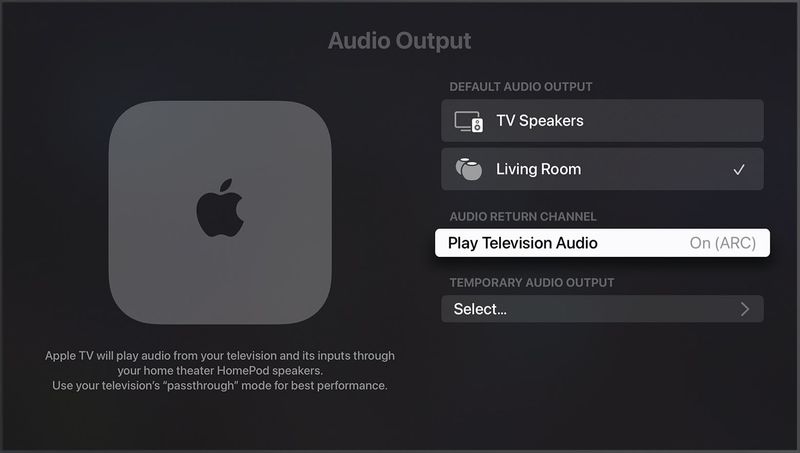
  • Go to Settings ➝ Video and Audio ➝ Audio Output
  • Select your HomePod or HomePod stereo pair under “Default Audio Output”

4. Enable ARC or eARC

  • Still in Video and Audio Settings, scroll to Audio Return Channel
  • Select Play Television Audio
  • It should now show On (ARC) or On (eARC) depending on your TV’s capability

Troubleshooting ARC/eARC

If ARC or eARC doesn’t activate:

  • Check that HDMI-CEC is enabled in your TV settings
  • Ensure ARC/eARC is turned on in the TV audio settings
  • Reboot all devices after changing settings
  • Use high-quality HDMI 2.1 cables for best results

What Devices Work With This Setup

You can now route audio from:

ADVERTISEMENT
  • PlayStation 5
  • Xbox Series X/S
  • Nintendo Switch
  • Cable/Satellite Box
  • Streaming Sticks
  • Blu-ray Players

These devices do not need to connect to the Apple TV directly. As long as the TV is the hub, Apple TV relays the audio to your HomePods.


Conclusion

With just a few simple steps, you can play audio on HomePod via Apple TV 4K, turning your HomePods into a powerful speaker system for your PS5, cable box, or any HDMI-connected source. Whether you’re gaming or watching live TV, this setup delivers immersive sound without the need for external soundbars or complex wiring.

Let your HomePod setup do more than just stream music—transform your living room into a full-fledged smart audio experience with Apple TV 4K and ARC/eARC.

Tags: Apple TV 4K audio setupApple TV ARC eARCcable box to HomePodHomePod game console audioPlay Audio on HomePod via Apple TV
Share2Tweet2SendShareSharePin1ShareShare
Google Add as a Preferred Source on Google
Previous Post

How to Get the iOS 26 Developer Beta on Your iPhone

Next Post

How to Use Your iPhone as a Microphone for Your Mac

NyongesaSande News Desk

NyongesaSande News Desk

Nyongesa Sande offers diverse content across news, technology, entertainment, and more, aiming to provide readers with a wide range of informative and engaging articles. NYONGESA SANDE's dedicated team provides our audience not only with the highly relevant news but also with outstanding interactive experience.

Related Posts

How to Weld a 2-Block Rectangular Hollow Block Mold: Measurements, Materials and Step-by-Step Guide
How To

How to Weld a 2-Block Rectangular Hollow Block Mold: Measurements, Materials and Step-by-Step Guide

2 months ago
How to Create a Facebook Account on iPhone App
How To

How to Fix Facebook Confirmation Email Not Received

2 months ago
How to Create a Facebook Account on iPhone App
How To

How to Fix Facebook Confirmation Code Not Received

2 months ago
How to Create a Facebook Account on iPhone App
How To

How to Confirm Your Facebook Email or Phone Number

2 months ago
How to Create a Facebook Account on iPhone App
How To

How to Understand Your Facebook Account and Profiles

2 months ago
How to Create a Facebook Account on iPhone App
How To

How to Fix Facebook Name Not Accepted

2 months ago
Load More
Next Post
How to Use Your iPhone as a Microphone for Your Mac

How to Use Your iPhone as a Microphone for Your Mac

How to Control Favicons in Safari’s Favorites Bar

How to Control Favicons in Safari’s Favorites Bar

ADVERTISEMENT

Who We Are

Nyongesa Sande

NyongesaSande.com is a digital news and media platform covering breaking news, business, technology, AI, politics, sports, world affairs and African innovation.

Our Brands

  • YouTube
  • Forums
  • Law Archive
  • Sandes Kitchen

News Sections

  • News
    • World
    • Africa
  • Politics
  • Business
  • Tech
  • AI
  • Telecom
  • Sports
  • Opinion
  • Lifestyle
  • Live
  • World Cup 2026
    • World Cup 2026 Standings
    • World Cup 2026

Editorial Standards

  • Editorial Policy
  • Fact Checking Policy
  • Corrections Policy
  • Ethics Policy
  • AI Usage Policy
  • News Tips
  • Submit Press Release

Legal

  • Privacy Policy
  • Terms of Use
  • Cookie Policy
  • Disclaimer
  • Risk Disclaimer
  • DMCA
  • Ad Choices
  • YouTube

Our Company

  • About Us
    • Nyosake Designers
      • Nyosake Webmasters
      • Nyosake Investment
  • Contact Us
    • Newsroom Contact
  • Ownership Disclosure
  • Advertise
  • Privacy Policy
  • Terms of Use
  • Cookie Policy
  • Disclaimer
  • Risk Disclaimer
  • DMCA
  • Ad Choices
  • YouTube

NyongesaSande.com is an independent digital news and media platform covering Africa, business, technology, AI, politics and global developments.

© 2026 NyongesaSande.com. All rights reserved.

No Result
View All Result
  • News
    • World
    • Africa
  • Politics
  • Business
  • Tech
  • AI
  • Telecom
  • Sports
  • Opinion
  • Lifestyle
  • Live
  • World Cup 2026
    • World Cup 2026 Standings
    • World Cup 2026

NyongesaSande.com is an independent digital news and media platform covering Africa, business, technology, AI, politics and global developments.

© 2026 NyongesaSande.com. All rights reserved.