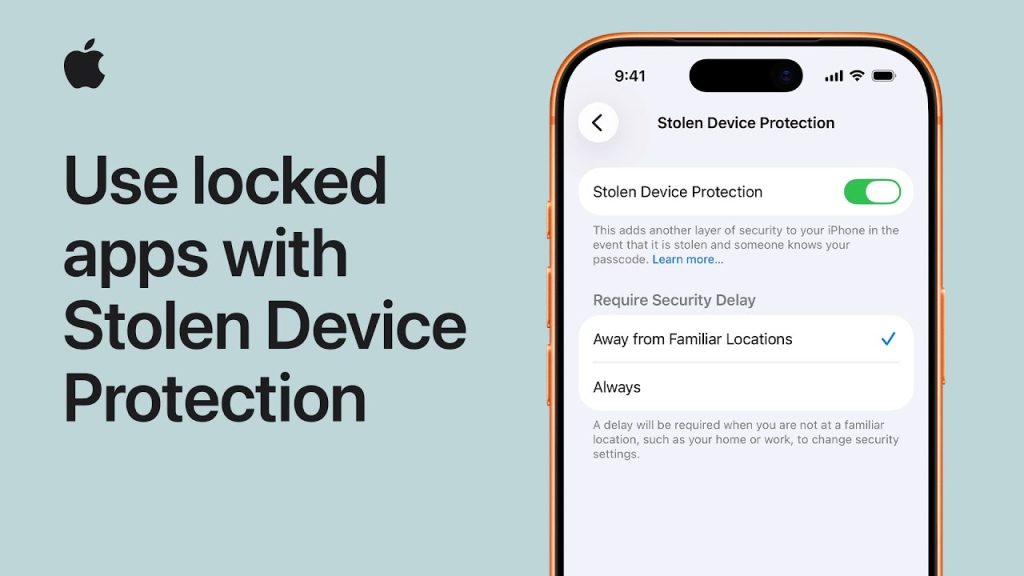
When your iPhone is stolen or lost, it’s crucial to protect your sensitive data from unauthorized access. Apple’s Stolen Device Protection features, like Activation Lock and Find My iPhone, are designed to keep your apps, photos, and other personal information safe, even if your device falls into the wrong hands. But how can you access your locked apps if you’ve forgotten your passcode or your device is still secured?
In this guide, we’ll explain how to use locked apps on your iPhone with Stolen Device Protection enabled. We’ll cover how Activation Lock works, how to unlock apps securely, and the steps you can take if your iPhone has been locked due to a theft.
Step 1: Understanding Activation Lock and Stolen Device Protection
Before we dive into unlocking apps, it’s important to understand how Apple’s Stolen Device Protection features work. Here are the key components:
- Activation Lock
Activation Lock is automatically enabled when you turn on Find My iPhone. It prevents anyone from erasing your iPhone or reactivating it without your Apple ID and password, making it difficult for thieves to access your data. - Find My iPhone
Find My iPhone allows you to track your device if it’s lost or stolen. It also enables you to lock your iPhone remotely, display a custom message on the screen, or erase the device’s data to prevent unauthorized access. - Locked Apps
If your iPhone is locked and the Activation Lock is turned on, apps and data are inaccessible without the correct Apple ID credentials. You won’t be able to use the apps until the device is unlocked.
Step 2: Access Locked Apps After Activation Lock is Enabled
If your iPhone is locked with Stolen Device Protection features, you will need to follow these steps to regain access to your locked apps:
- Sign in with Your Apple ID
After a device reset or a lock due to theft, the first step is to sign in with your Apple ID. Once you input your correct Apple ID and password, the Activation Lock will be removed, and you can access your iPhone and the apps you have installed. - Use Find My iPhone to Unlock the Device
If your iPhone is stolen but you have Find My iPhone enabled, use a second device or a computer to log in to iCloud.com/find. From there, you can:- Locate Your iPhone: If the device is nearby, you can track its location.
- Lock the Device: You can lock the device remotely and display a custom message, including contact information, on the screen.
- Erase the Device: If you are sure your device is lost or stolen, you can remotely erase all data, which will make it impossible for thieves to access your apps.
- Unlock the Device via iCloud (If Stolen)
If you recover your device, use your Apple ID and password to unlock it. If you’ve enabled Find My iPhone, you can use iCloud to unlock the device by following these steps:- Log into iCloud.com using your Apple ID.
- Go to Find My iPhone, select your device, and click Erase.
- After erasing, your device will reset and prompt you to set it up again using your Apple ID credentials.
- Contact Apple Support
If you’re unable to access your apps even after using the above methods, Apple Support can help you recover your Apple ID or reset your device. Be prepared to provide proof of ownership, such as your original purchase receipt.
Step 3: Prevent Unauthorized Access to Locked Apps
If your iPhone is stolen or lost, it’s important to take additional precautions to ensure your apps and data remain secure:
- Use Strong Passcodes
Set up a strong passcode on your iPhone by going to Settings > Face ID & Passcode (or Touch ID & Passcode). A stronger passcode will make it harder for thieves to access your device and locked apps. - Enable Two-Factor Authentication
Two-Factor Authentication (2FA) adds an extra layer of security to your Apple ID. With 2FA, even if someone knows your password, they can’t access your account without also verifying the identity on a trusted device. - Keep Your Apple ID Secure
Regularly change your Apple ID password and make sure it’s unique and strong. Avoid using the same password for multiple accounts, and store it in a secure password manager if necessary. - Monitor Your Accounts and Apps
If your iPhone is lost or stolen, immediately monitor your bank accounts, credit cards, and apps for unusual activity. You can change your passwords and security settings remotely to further protect sensitive information.
Step 4: Using Stolen Device Protection Features
Apple provides several features to ensure your iPhone and apps remain secure if it’s lost or stolen:
- Lost Mode
If you can’t find your device, activate Lost Mode through Find My iPhone. This locks your device and displays a message with a contact number. This feature is designed to make it easier for someone to return the device to you. - Remote Wipe
If you don’t think you’ll recover your iPhone, use Remote Wipe to erase all data on the device. This action ensures that all apps and personal information are deleted, making it impossible for anyone to access them. - Notify When Found
If your iPhone is turned off or disconnected from the internet, you can enable the Notify When Found feature in Find My iPhone. This will notify you as soon as the device is located or comes online.
Step 5: What to Do If Your Apple ID Is Stolen
If you suspect that your Apple ID has been compromised, follow these steps:
- Change Your Apple ID Password
Go to Settings > [Your Name] > Password & Security to change your password. If you can’t access your iPhone, visit appleid.apple.com to change your password from another device. - Check for Suspicious Activity
Review your account for unusual activity, such as unknown devices linked to your Apple ID. You can remove them from the Apple ID settings. - Contact Apple Support
If you’re unable to regain access, contact Apple Support to help secure your Apple ID and apps.