• About Us
  • Privacy
  • Terms
    • DMCA
  • AdChoices
  • Contact Us
  • Careers
  • Dictionary
  • Donate
No Result
View All Result
Nyongesa Sande
  • Radio
  • Events
  • How To
  • AI
  • Business
    • Shop
    • Money
    • Billionaires
  • Finance
  • Gadgets
  • Lifestyle
  • Sports
  • Autos
Nyongesa Sande
No Result
View All Result
  • Radio
  • Events
  • How To
  • AI
  • Business
  • Finance
  • Gadgets
  • Lifestyle
  • Sports
  • Autos

Home » Perform a Clean Install of OS X Mountain Lion on Startup Drive

Perform a Clean Install of OS X Mountain Lion on Startup Drive

April 19, 2024
in Mac Specifications
Reading Time: 3 mins read
A A
FacebookXTelegramWhatsappLinkedIn

Performing a clean install of OS X Mountain Lion on your startup drive gives your Mac a fresh start with a new system free from accumulated clutter and potential issues. Here’s a detailed guide on how to safely and effectively perform a clean installation.

ADVERTISEMENT

Preparing for Installation

  1. Create a Bootable Installer: Since you can’t erase and install on the same drive without bootable media, you’ll first need to create a bootable installer for OS X Mountain Lion. Use an external drive or USB stick for this purpose.
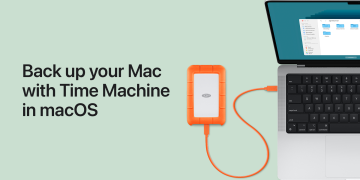
  2. Back Up Your Data: Ensure that you have a full backup of your data, as a clean install will erase all the data on the startup drive. Use Time Machine or another backup method to secure your files.
  3. Check Compatibility: Verify that your Mac meets the minimum system requirements for OS X Mountain Lion. You’ll need a Mac running OS X Snow Leopard 10.6 or later to access the Mac App Store to download Mountain Lion.
  4. Prepare Your Mac: Ensure that your Mac is plugged into a power source and connected to the internet. This is important as the installation process may require downloading additional components.

Steps to Perform a Clean Install

  1. Restart Your Mac with the Bootable Installer:
    • Insert the bootable media.
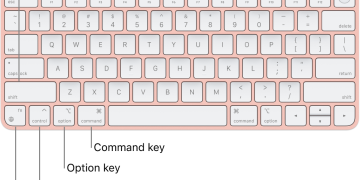
    • Restart your Mac while holding down the Option key.
    • Select the bootable installer from the startup manager and press Enter.
  2. Erase Your Startup Disk:
    • Once booted from the installer, choose ‘Disk Utility’ from the OS X Utilities menu.
    • Select your startup disk, usually named ‘Macintosh HD’, from the sidebar.
    • Click the ‘Erase’ tab and choose ‘Mac OS Extended (Journaled)’ from the format options.
    • Click ‘Erase’ to format the drive. Confirm your decision when prompted.
  3. Quit Disk Utility:
    • After erasing the disk, quit Disk Utility to return to the OS X Utilities selector.
  4. Install OS X Mountain Lion:
    • Choose ‘Reinstall OS X’ from the OS X Utilities menu.
    • Click ‘Continue’ and follow the prompts to begin the installation.
    • The installer will download necessary files from Apple’s servers. Follow the on-screen instructions to complete the installation.
  5. Setting Up Your Mac:
    • Once the installation is complete, your Mac will restart.
    • Follow the setup assistant to configure your Mac. This includes setting up your location, Apple ID, and other preferences.
    • If you opted to back up your data, you can now use Migration Assistant to transfer your data back to your Mac.

Post-Installation

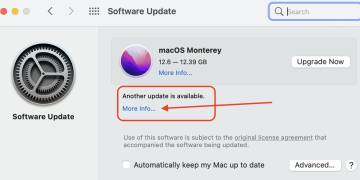
  • Check for Updates: After installation, check for any software updates by going to the Apple menu > Software Update. Install any available updates to ensure your OS is current.
  • Restore Your Data: If you backed up your data, use Migration Assistant or manually move your data back onto your Mac.

Tips and Considerations

  • Creating a Bootable Installer: You might need to use third-party software or terminal commands to create a bootable installer. Make sure your external drive or USB stick has at least 12GB of available space.
  • Internet Connection: A stable internet connection is crucial during the installation process as the system may need to download additional components.
  • Power Supply: Keep your Mac connected to a power source throughout the installation process to prevent any interruptions due to power loss.

Performing a clean install can enhance your Mac’s performance and provide a fresh version of the OS free from legacy issues. Always ensure you have a reliable backup before proceeding with the installation to safeguard your data.

Was this article helpful?
YesNo
Tags: clean install of OS X Mountain Lion
ADVERTISEMENT
Previous Post

Comprehensive Guide to Handling a Cracked iPad Screen: Costs, Repair Options, and Prevention Tips

Next Post

How to Safely Purchase an iPad on Craigslist: A Step-by-Step Guide

RelatedPosts

Apple MacBook Air “Core 2 Duo” 1.8 13″ (Original) Specs
Mac Specifications

Apple MacBook Air “Core 2 Duo” 1.6 13″ (NVIDIA) Specs

2 years ago

The Apple MacBook Air "Core 2 Duo" 1.6 13" (NVIDIA/Late 2008) ispowered by a 1.6 GHz Intel "Core 2 Duo"...

DynaTec 10/300 – High-Performance German Mac Clone Tower Specs
Mac Clones

Pios Magna 220 – Rare G3 Mac Clone Tower from Germany

4 months ago

The Pios Magna 220 is a lesser-known Macintosh clone developed by Pios Computer AG, designed for the German market. Featuring...

Apple Mac mini “M4” 10 CPU/10 GPU 2024 Specs and Review
Mac Mini

Apple Mac mini “M4 Pro” 14 CPU/20 GPU 2024 Specs and Performance Review

4 months ago

Apple Mac mini "M4 Pro" 14 CPU/20 GPU 2024 Specs and Performance Review The Apple Mac mini "M4 Pro" 14...

Apple iMac “M4″ 8 CPU/8 GPU/2 Ports 24” Review & Specs
iMac

Apple iMac “M4″ 8 CPU/8 GPU/2 Ports 24” Review & Specs

4 months ago

The Apple iMac "M4" 8 CPU/8 GPU/2 Ports 24" stands as a sleek, efficient, and color-rich desktop built for home...

Mac Specifications

MacBook Air M4 13-Inch (2025) 10-Core CPU/10-Core GPU Specs

4 months ago

The MacBook Air M4 13-Inch (2025) 10-Core, identified by Model ID Mac16,12, EMC 8781, and Model Number A3240, is Apple’s...

Marathon RackMac TS 750/250 – G3 Rackmount Mac Clone
Mac Clones

Marathon RackMac TS 750/250 – G3 Rackmount Mac Clone

4 months ago

The Marathon RackMac TS 750/250 was a rugged, rackmount Mac clone introduced in early 1998, designed for professional environments that...

MacWorks Millennium G3/325 – Expandable Quad CPU Tower Mac Clone
Mac Clones

MacWorks Millennium G3/325 – Expandable Quad CPU Tower Mac Clone

4 months ago

The MacWorks Millennium G3/325 is a rare and ambitious entry in the Mac clone world. This tower workstation, introduced in...

@ | How to Type At Symbol On Keyboard (Windows & Mac)
Mac Specifications

List of Mac function keys

2 years ago

The Mac function keys run across the top of your keyboard. The F1-F12 keys can be used for built-in Mac...

Apple MacBook Air “Core 2 Duo” 1.8 13″ (Original) Specs
Mac Specifications

Apple MacBook Air “Core 2 Duo” 1.8 13″ (Original) Specs

2 years ago

Apple MacBook Air "Core 2 Duo" 1.8 13" (Original) Specs. First introduced in 2008, the MacBook Air originally represented Apple's...

Hardware Research 750/275 – 275 MHz G3 Rackmount Mac Clone with 1 MB Cache
Mac Clones

Hardware Research 750/275 – 275 MHz G3 Rackmount Mac Clone with 1 MB Cache

4 months ago

The Hardware Research 750/275 was one of the most advanced rackmount Mac clones ever produced under Apple’s short-lived licensing program....

Load More
Next Post
Apple iPad Pro 11 (2022) Full Specification

How to Safely Purchase an iPad on Craigslist: A Step-by-Step Guide

Anticipating the Release of the 27-inch ProMotion Display iMac: Features, Specs, and Price Insights

Anticipating the Release of the 27-inch ProMotion Display iMac: Features, Specs, and Price Insights

ADVERTISEMENT
Nyongesa Sande

Nyongesa Sande delivers breaking news, technology updates, billionaire profiles, inventions, AI trends, and inspiring facts.

  • About Us
  • Privacy
  • Terms
  • AdChoices
  • Contact Us
  • Careers
  • Dictionary
  • Donate

©2025 Nyongesa Sande. All rights reserved.

No Result
View All Result
  • Tech News
  • Banking
  • Biography
  • Politics
  • Presidents
  • How To
  • Wiki
  • Real Estate
  • Health
  • Gadget Reviews
  • Top 10
  • History
  • Companies
  • Sports
  • Loans
  • Finance
  • Travel
  • Breaking News
  • AI
  • Electric Vehicle
  • Motivation
  • Phone Prices
  • Hosting
  • Shopping Malls
  • Africa
  • Business
  • Insurance
  • Restaurants
  • Investment
  • Classifieds
  • KenyanBaze
  • Shop Anything

©2025 Nyongesa Sande. All rights reserved.

This website uses cookies. By continuing to use this website you are giving consent to cookies being used. Visit our Privacy and Cookie Policy.