


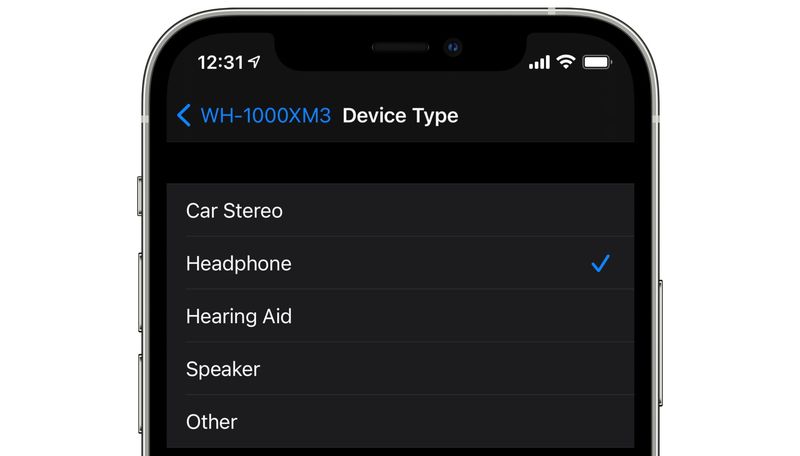
Did you know you can label Bluetooth devices on your iPhone to improve audio performance and get more accurate headphone sound insights? iOS and iPadOS allow you to assign a category to each Bluetooth device, helping Apple’s system optimize audio settings, monitor safe volume levels, and tailor sound feedback.
Why Labeling Bluetooth Devices Matters
When you connect headphones or speakers to your iPhone, iOS tries to detect the type of device automatically. But this detection isn’t always perfect. That’s why Apple gives you the option to manually label your Bluetooth devices, which:
- Improves audio routing and system behavior.
- Enables real-time audio level monitoring in decibels.
- Helps populate the Health app’s Hearing section with precise data.
- Makes it easier to identify each device in your Bluetooth list.
This is especially useful if you use third-party accessories or frequently switch between multiple Bluetooth devices.
How to Label a Bluetooth Device on iPhone
Follow these simple steps to label your Bluetooth device for smarter iPhone audio controls:
- Open the Settings app on your iPhone or iPad.
- Tap Bluetooth to view your paired devices.
- Find the device you want to label and tap the (i) info icon next to its name.
- Tap Device Type.
- Choose from one of the predefined categories:
- Headphone
- Hearing Aid
- Speaker
- Car Stereo
- Other
✅ Your iPhone will now use this label to adjust audio behavior and measure output more accurately.
What Happens When You Label a Device
Labeling helps iOS:
- Show decibel levels for headphone audio in Control Center ➝ Hearing.
- Log safe listening stats in the Health app under Hearing ➝ Headphone Audio Levels.
- Route notifications or Siri audio more intelligently (especially with car stereos and hearing aids).
🔇 If you’ve ever received inaccurate headphone warnings or uneven audio, setting the correct Bluetooth label may help resolve those issues.
Limitations With Apple Devices
Keep in mind:
- AirPods, AirPods Pro, and AirPods Max are automatically detected as headphones.
- Apple Watch and some Apple-branded audio devices don’t offer the label customization option.
- You can rename AirPods and other Bluetooth devices via the same info screen, but not change their label if iOS has already defined them.
Conclusion
Taking a moment to label Bluetooth device on iPhone can unlock smarter, safer, and more optimized audio experiences. Whether you’re tracking hearing health or just improving playback, this hidden iOS tip makes your sound setup more powerful and personal.
Try it today — your ears (and your iPhone) will thank you.


