
Nyongesa Sande
No Result
View All Result
  • News
    • World
    • Africa
  • Politics
  • Business
  • Tech
  • AI
  • Telecom
  • Sports
  • Opinion
  • Lifestyle
  • Live
  • World Cup 2026
    • World Cup 2026 Standings
    • World Cup 2026
Nyongesa Sande
  • About Us
    • Nyosake Designers
      • Nyosake Webmasters
      • Nyosake Investment
  • Contact Us
    • Newsroom Contact
  • Ownership Disclosure
  • Advertise
No Result
View All Result
Nyongesa Sande
No Result
View All Result
  • News
  • Politics
  • Business
  • Tech
  • AI
  • Telecom
  • Sports
  • Opinion
  • Lifestyle
  • Live
  • World Cup 2026
ADVERTISEMENT

Home » Remotely Control Your iPhone Camera Without Apple Watch

Remotely Control Your iPhone Camera Without Apple Watch

NyongesaSande News Desk by NyongesaSande News Desk
11 months ago
in How To
Reading Time: 4 mins read
A A
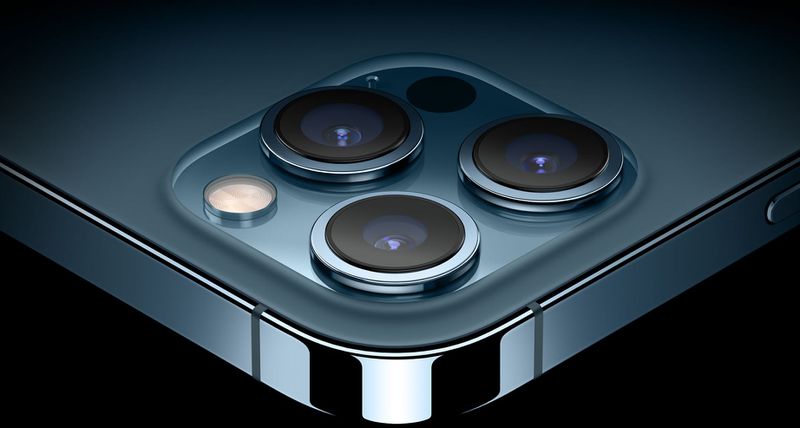
Remotely Control Your iPhone Camera Without Apple Watch

Want to take a photo without touching your iPhone? Whether you’re capturing a group shot, framing a landscape, or minimizing camera shake with a tripod, being able to control your iPhone camera remotely makes all the difference — and you don’t need an Apple Watch to do it.

  • Use Voice Control to Take Photos Hands-Free
  • Use Apple Watch as a Remote Shutter
  • Activate the Camera with Siri Shortcuts
  • Why Use Remote Camera Control?
  • Conclusion

Use Voice Control to Take Photos Hands-Free

If you don’t own an Apple Watch, your iPhone still offers a built-in solution: Voice Control. iOS lets you activate the camera shutter using your voice by simulating a volume button press — which also triggers the shutter.

Here’s how to use Voice Control to remotely take a photo:

ADVERTISEMENT
  1. Open the Settings app.
  2. Tap Accessibility ➝ Voice Control.
  3. Toggle Voice Control ON (you’ll see a microphone icon appear at the top of the screen).
  4. Launch the Camera app and set up your shot.
  5. Say “Turn up the volume” to snap a picture.

🟠 The iPhone will respond by triggering the shutter, just like pressing the volume button manually.

To turn Voice Control off, go back to Settings ➝ Accessibility ➝ Voice Control and toggle it off.

ADVERTISEMENT

Use Apple Watch as a Remote Shutter

If you do have an Apple Watch, it acts as the perfect wireless camera remote:

  1. Launch the Camera Remote app on your Apple Watch.
  2. Frame your iPhone where you want it.
  3. Tap the Shutter button on your watch screen.

📷 By default, the photo is taken after a 3-second timer, giving you time to pose. Tap the ellipsis (•••) to adjust flash, switch cameras, or disable the timer.


Activate the Camera with Siri Shortcuts

If you’re a Shortcuts app user, you can automate photography with Siri.

ADVERTISEMENT
  1. Open the Shortcuts app and go to the Gallery tab.
  2. Search for the shortcut called “Say Cheese.”
  3. Add it to your shortcuts and grant it permission to access the camera and microphone.
  4. Say “Hey Siri, say cheese” and it will take a picture using the rear camera.

📱 This is a great hands-free solution when your iPhone is docked or mounted.


Why Use Remote Camera Control?

  • Include yourself in photos without asking for help
  • Avoid shaky shots when using a tripod
  • Take creative shots at angles difficult to reach manually
  • Enable hands-free shooting for accessibility or content creation

Conclusion

With tools like Voice Control, Apple Watch, and Siri Shortcuts, it’s easy to control your iPhone camera remotely without any third-party accessories. Whether you want hands-free selfies or tripod-assisted group shots, you now have full control over your iPhone shutter from a distance.

Start using these built-in features to make your photography easier, smarter, and more flexible.

Tags: control iPhone camera remotelyiPhone camera Voice Controlremote shutter iPhonetake photo hands-free iPhone
Share2Tweet1SendShareScanSharePinShareShare
Google Add as a Preferred Source on Google
Previous Post

Copy and Paste Text Without Formatting on Mac

Next Post

Boost iPhone Audio Features With This Bluetooth Labeling Tip

NyongesaSande News Desk

NyongesaSande News Desk

Nyongesa Sande offers diverse content across news, technology, entertainment, and more, aiming to provide readers with a wide range of informative and engaging articles. NYONGESA SANDE's dedicated team provides our audience not only with the highly relevant news but also with outstanding interactive experience.

Related Posts

How to Weld a 2-Block Rectangular Hollow Block Mold: Measurements, Materials and Step-by-Step Guide
How To

How to Weld a 2-Block Rectangular Hollow Block Mold: Measurements, Materials and Step-by-Step Guide

2 months ago
How to Create a Facebook Account on iPhone App
How To

How to Fix Facebook Confirmation Email Not Received

2 months ago
How to Create a Facebook Account on iPhone App
How To

How to Fix Facebook Confirmation Code Not Received

2 months ago
How to Create a Facebook Account on iPhone App
How To

How to Confirm Your Facebook Email or Phone Number

2 months ago
How to Create a Facebook Account on iPhone App
How To

How to Understand Your Facebook Account and Profiles

2 months ago
How to Create a Facebook Account on iPhone App
How To

How to Fix Facebook Name Not Accepted

2 months ago
Load More
Next Post
Boost iPhone Audio Features With This Bluetooth Labeling Tip

Boost iPhone Audio Features With This Bluetooth Labeling Tip

How to Control Favicons in Safari’s Favorites Bar

Turn a Long Webpage into a PDF with One iPhone Screenshot

ADVERTISEMENT

Who We Are

Nyongesa Sande

NyongesaSande.com is a digital news and media platform covering breaking news, business, technology, AI, politics, sports, world affairs and African innovation.

News Sections

  • News
    • World
    • Africa
  • Politics
  • Business
  • Tech
  • AI
  • Telecom
  • Sports
  • Opinion
  • Lifestyle
  • Live
  • World Cup 2026
    • World Cup 2026 Standings
    • World Cup 2026

Editorial Standards

  • Editorial Policy
  • Fact Checking Policy
  • Corrections Policy
  • Ethics Policy
  • AI Usage Policy
  • News Tips
  • Submit Press Release

Legal

  • Privacy Policy
  • Terms of Use
  • Cookie Policy
  • Disclaimer
  • Risk Disclaimer
  • DMCA
  • Ad Choices

Our Company

  • About Us
    • Nyosake Designers
      • Nyosake Webmasters
      • Nyosake Investment
  • Contact Us
    • Newsroom Contact
  • Ownership Disclosure
  • Advertise
  • Privacy Policy
  • Terms of Use
  • Cookie Policy
  • Disclaimer
  • Risk Disclaimer
  • DMCA
  • Ad Choices

NyongesaSande.com is an independent digital news and media platform covering Africa, business, technology, AI, politics and global developments.

© 2026 NyongesaSande.com. All rights reserved.

No Result
View All Result
  • News
    • World
    • Africa
  • Politics
  • Business
  • Tech
  • AI
  • Telecom
  • Sports
  • Opinion
  • Lifestyle
  • Live
  • World Cup 2026
    • World Cup 2026 Standings
    • World Cup 2026

NyongesaSande.com is an independent digital news and media platform covering Africa, business, technology, AI, politics and global developments.

© 2026 NyongesaSande.com. All rights reserved.