High Definition Television (HDTV) delivers sharper, clearer images than Standard Definition (SD). While SD uses fewer pixels and appears blurry or fuzzy, HD provides vibrant colors, crisp details, and lifelike clarity. To confirm whether you’re watching TV in HD, you need to check your image quality, TV settings, source devices, and cables. This guide explains everything step by step.
Method 1: Assessing Image Quality
- Look for sharpness and detail.
- HD images display facial hair, grass blades, and fine textures with clarity.
- SD images appear softer, sometimes fuzzy or pixelated.
- Compare SD and HD channels.
- Flip between two versions of the same channel (e.g., Channel 7 SD vs Channel 707 HD).
- The HD version should appear crisper and more vibrant.
- Check your TV’s resolution settings.
- Go to Menu > Settings > Display > Resolution.
- If the resolution is set at 720p or 1080p, you’re in HD.
- 480p or 480i means SD.
- Watch for aspect ratio issues.
- If images look stretched or boxed, check the Aspect Ratio.
- Set it to 16:9 for HD viewing (SD uses 4:3).
Method 2: Using HD-Capable Devices
- Check your media player.
- Blu-ray discs and players support HD.
- DVDs and VHS tapes cannot deliver HD, even on an HDTV.
- Verify your cable or satellite box.
- Confirm with your provider that your box is HD-capable.
- Some older boxes only output SD.
- Adjust output settings.
- Go to your box’s Setup Menu > Output/Resolution.
- Set it to 720p or 1080p.
- Confirm you’re subscribed to HD channels.
- Providers often separate HD channels from SD.
- HD channels may be in higher-numbered ranges (e.g., 1000+).
- Set up streaming devices properly.
- Ensure your smart TV, Apple TV, Fire Stick, or console outputs HD.
- Check resolution settings in the device’s video options.
Method 3: Looking at Cabling
- Check your TV’s input ports.
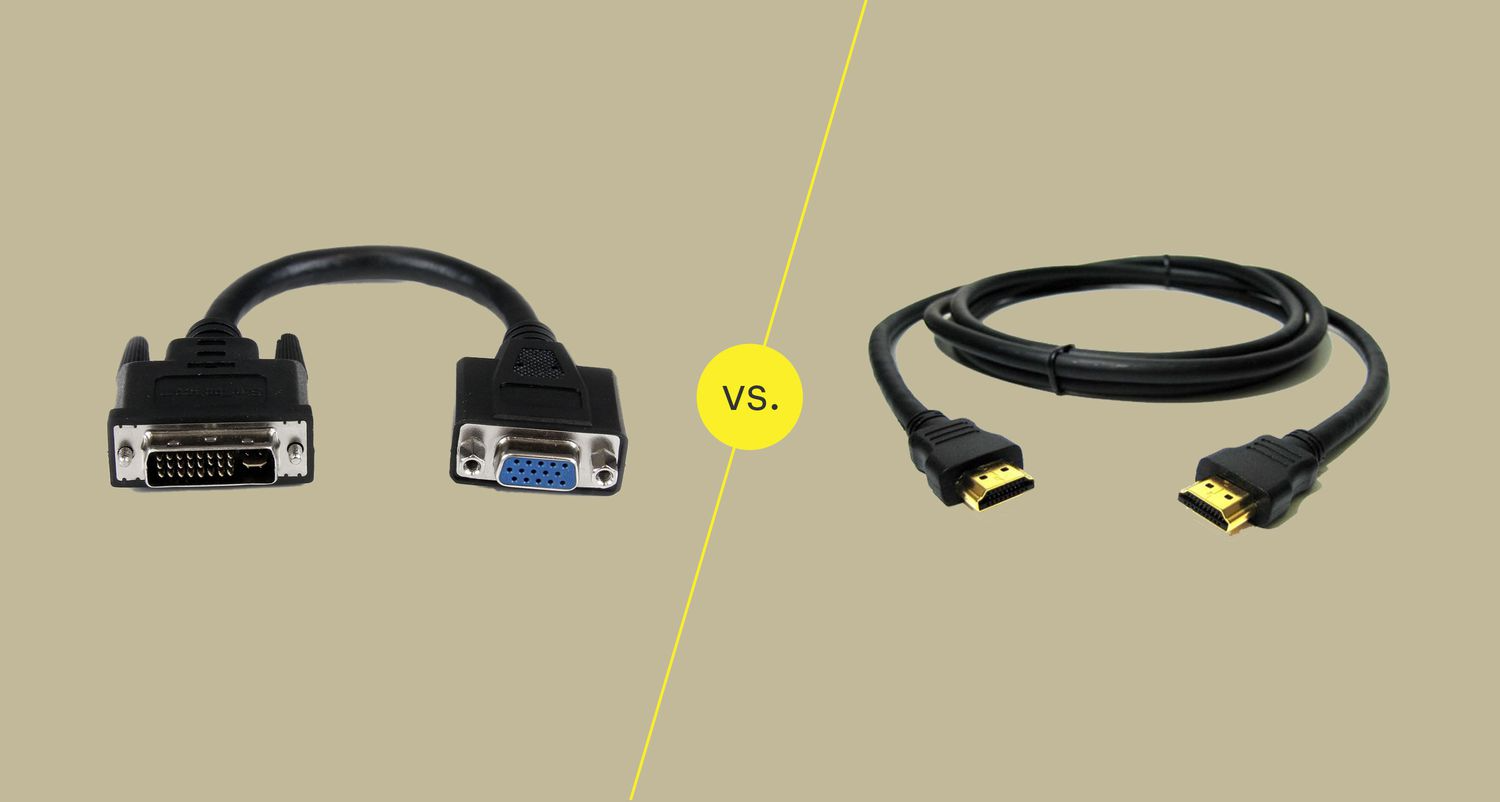
- HD TVs have HDMI, DVI, VGA, or Component (red/blue/green) ports.
- TVs with only yellow “Composite” inputs are not HD-capable.
- Use HDMI cables.
- HDMI carries both audio and HD video in one cable.
- If you’re using a yellow cable, you’re watching in SD.
- Avoid outdated jacks.
- Composite video (yellow) cannot carry HD.
- Use HDMI whenever possible for the best quality.
Tips
- Always select the highest supported resolution in your device and TV settings.
- If your TV supports 1080p but your device only outputs 720p, you’ll see 720p.
- Streaming platforms often adjust quality based on your internet speed—check playback settings.
Q&A
Q: How can I find out my TV’s native resolution?
A: Search your TV model online or check the owner’s manual. Most modern HDTVs are at least 1080p.
Q: Will old movies show in HD?
A: If streamed on Blu-ray or platforms like Netflix (HD remaster), yes. But DVDs will remain SD.
Q: Where does my HDMI cable plug in?
A: Connect one end to your TV’s HDMI port and the other to your device’s HDMI output port.
Conclusion
To confirm if you’re watching TV in HD, check image clarity, adjust your TV’s resolution settings, confirm HD-capable devices, and always use HDMI cables. By following these steps, you’ll enjoy the sharp, vibrant picture quality HD is meant to deliver.