
Nyongesa Sande
No Result
View All Result
  • News
    • World
    • Africa
  • Politics
  • Business
  • Tech
  • AI
  • Telecom
  • Sports
  • Opinion
  • Lifestyle
  • Live
  • World Cup 2026
    • World Cup 2026 Standings
    • World Cup 2026
Nyongesa Sande
  • About Us
    • Nyosake Designers
      • Nyosake Webmasters
      • Nyosake Investment
  • Contact Us
    • Newsroom Contact
  • Ownership Disclosure
  • Advertise
No Result
View All Result
Nyongesa Sande
No Result
View All Result
  • News
  • Politics
  • Business
  • Tech
  • AI
  • Telecom
  • Sports
  • Opinion
  • Lifestyle
  • Live
  • World Cup 2026
ADVERTISEMENT

Home » How to find your router IP on every device

How to find your router IP on every device

NyongesaSande News Desk by NyongesaSande News Desk
2 years ago
in How To
Reading Time: 6 mins read
A A
How to find your router IP on every device

In this article we’ll show you 3 ways on how to find out the IP address of your router. Try one the following methods and you’ll get access to the web-based admin interface of your wireless router/modem.

  • Method 1: Find the sticker on your router
  • Method 2: Find your default router IP in the list below
  • Method 3: Find the router IP in the network settings of your OS

Method 1: Find the sticker on your router

Almost every router or modem has a sticker on back or bottom where you will find the default gateway ( IP ). This sticker should look like that:

default usernames & passwords for your router

Did you find the sticker on your router? Great! Write down the information liek IP, username and password and use them to get access to your router admin interface. If you didn’t find any sticker or you are currently not able to look at your router then you have another option. Follow the next steps and the chances are high that you will get access to the router admin interface.

ADVERTISEMENT

Method 2: Find your default router IP in the list below


Brought to you by IP

If you couldn’t find your router in the list above, then this is not problem. The next method will help you to find your router IP for every operating system (Windows, MacOS, Linux, Android).

Method 3: Find the router IP in the network settings of your OS

Windows
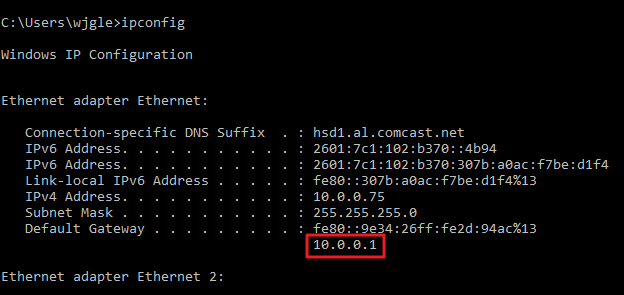
Click on the Windows “Start” button ( bottom left) and enter the following string in the search box cmd. This will open a new window. In this window you type ipconfig to find the default gateway of your router. The result should look like this:
ADVERTISEMENT

Watch the following video if you need a more detailed explanation:

MacOS
You have a Mac and want to find out the IP of your wireless router. Then you have 2 ways to find that IP address.

1. Click the Apple menu that is located at the top of your screen. Choose System Preferences and afterwards click on the Network symbol. You should see a list of your available networks. Choose the relevant network connection and click on the button Advanced. Now you click on the tab TCP/IP where you will see the router IP address (on the right).

ADVERTISEMENT

2. Another way to get your router IP on a Mac is to open the Launchpad. Type terminal in the search bar. Now a terminal window will open. In the new window type netstat -nr | grep default and press the enter key. Instantly you will see the router IP next to the text default.

You want a more detailed and visual way on how to find your router IP address on a Mac? No problem, just watch the following video guide:

Android
The easiest and fastest way to find the router IP on an Android device is to install an App called Wi-Fi Analyzer. Go to the Play Store and search for Wi-Fi Analyzer or just click on this link. Install & open the app. Tap on View and select AP list. Search for teh string Connected to: [Network Name]. If you found it then tap on that string. Now you see a new window that shows you all the important information of your network connection including your router IP address like in the image below.

The guide above is not detailed enough for you? Then please watch the video below that shows you exactly how to find out your router IP address with Wifi Analyzer on Android.

Linux
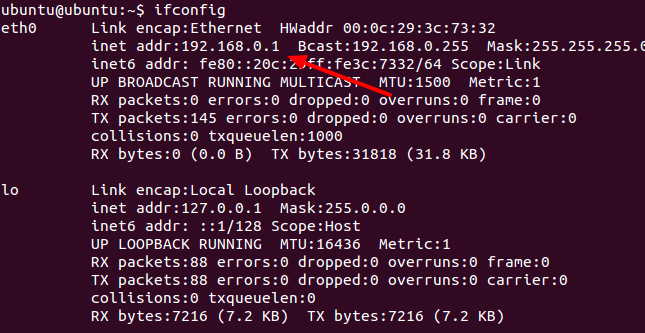
In most cases you’ll find a network symbol in the notification area of your Linux OS. Just click on this icon and choose Connection Information. Now you should see an IP address next to the string Default Route or Gateway.

An alternative way is to open a terminal window by doing the following steps: Applications -> System Tools -> Terminal. When you see the terminal window then type ip route | grep default or ifconfig.
ChromeOS
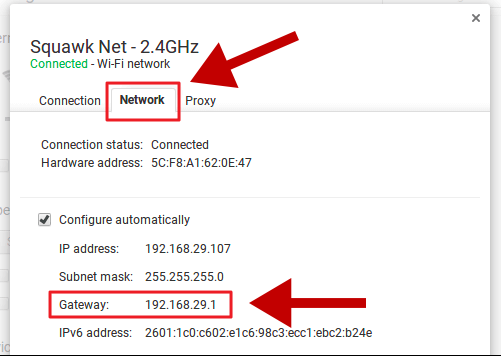
In the taskbar you’ll find an the notification area (at the right side). There you should see something like Connected to (your network name). Click on it and a list will show up. Search for the tab called Network. In this tab you can find the IP of your router.
iPhone iOS
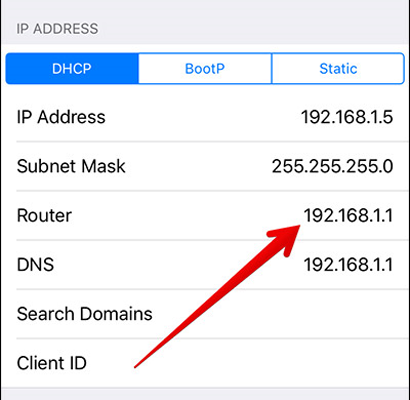
Go to Settings -> WiFi and tap on your current connected network. Find the DHCP section. There you’ll see the IP address of your router.
Below is a video that describes the way of how to find your router IP on an iOS device (iPad or iPhone).

Tags: find your router IP on every deviceHow To
Share2Tweet1SendShareScanSharePinShareShare
Google Add as a Preferred Source on Google
Previous Post

Popular default IPs used by wireless routers

Next Post

How to Start an RV Park

NyongesaSande News Desk

NyongesaSande News Desk

Nyongesa Sande offers diverse content across news, technology, entertainment, and more, aiming to provide readers with a wide range of informative and engaging articles. NYONGESA SANDE's dedicated team provides our audience not only with the highly relevant news but also with outstanding interactive experience.

Related Posts

How to Weld a 2-Block Rectangular Hollow Block Mold: Measurements, Materials and Step-by-Step Guide
How To

How to Weld a 2-Block Rectangular Hollow Block Mold: Measurements, Materials and Step-by-Step Guide

2 months ago
How to Create a Facebook Account on iPhone App
How To

How to Fix Facebook Confirmation Email Not Received

2 months ago
How to Create a Facebook Account on iPhone App
How To

How to Fix Facebook Confirmation Code Not Received

2 months ago
How to Create a Facebook Account on iPhone App
How To

How to Confirm Your Facebook Email or Phone Number

2 months ago
How to Create a Facebook Account on iPhone App
How To

How to Understand Your Facebook Account and Profiles

2 months ago
How to Create a Facebook Account on iPhone App
How To

How to Fix Facebook Name Not Accepted

2 months ago
Load More
Next Post
How to Start an RV Park

How to Start an RV Park

List of best Business To Business Services in Kenya

How to Find the Owners of a Business

ADVERTISEMENT

Who We Are

Nyongesa Sande

NyongesaSande.com is a digital news and media platform covering breaking news, business, technology, AI, politics, sports, world affairs and African innovation.

News Sections

  • News
    • World
    • Africa
  • Politics
  • Business
  • Tech
  • AI
  • Telecom
  • Sports
  • Opinion
  • Lifestyle
  • Live
  • World Cup 2026
    • World Cup 2026 Standings
    • World Cup 2026

Editorial Standards

  • Editorial Policy
  • Fact Checking Policy
  • Corrections Policy
  • Ethics Policy
  • AI Usage Policy
  • News Tips
  • Submit Press Release

Legal

  • Privacy Policy
  • Terms of Use
  • Cookie Policy
  • Risk Disclaimer
  • Disclaimer
  • DMCA
  • Ad Choices

Our Company

  • About Us
    • Nyosake Designers
      • Nyosake Webmasters
      • Nyosake Investment
  • Contact Us
    • Newsroom Contact
  • Ownership Disclosure
  • Advertise
  • Privacy Policy
  • Terms of Use
  • Cookie Policy
  • Risk Disclaimer
  • Disclaimer
  • DMCA
  • Ad Choices

NyongesaSande.com is an independent digital news and media platform covering Africa, business, technology, AI, politics and global developments.

© 2026 NyongesaSande.com. All rights reserved.

No Result
View All Result
  • News
    • World
    • Africa
  • Politics
  • Business
  • Tech
  • AI
  • Telecom
  • Sports
  • Opinion
  • Lifestyle
  • Live
  • World Cup 2026
    • World Cup 2026 Standings
    • World Cup 2026

NyongesaSande.com is an independent digital news and media platform covering Africa, business, technology, AI, politics and global developments.

© 2026 NyongesaSande.com. All rights reserved.