


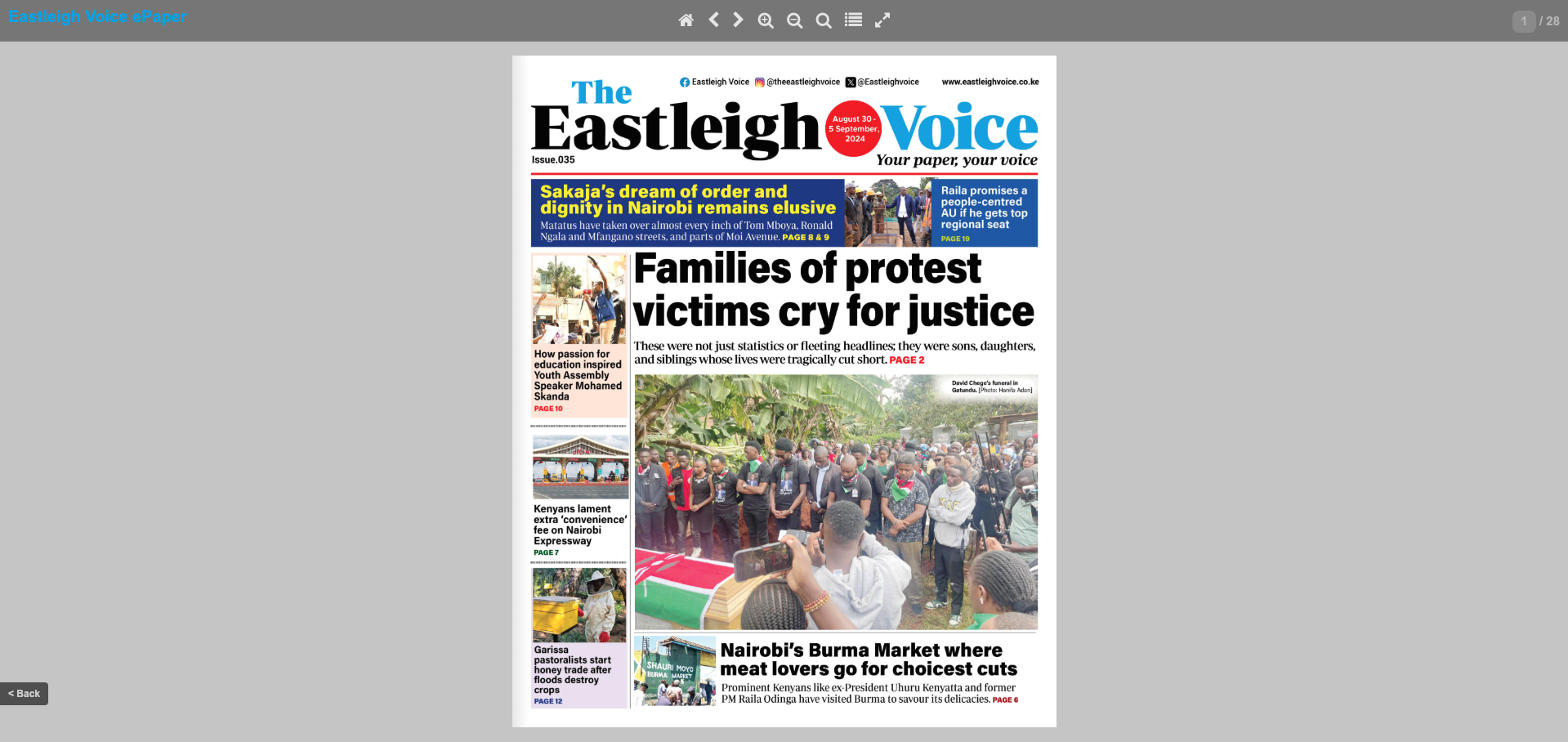
As digital newspapers and interactive publications continue to rise, creating an ePaper archive that mimics professional outlets like Eastleigh Voice is no longer limited to large media houses. With WordPress and a few powerful plugins, you can build a modern, fully interactive ePaper archive on a subdomain like epaper.yoursite.com.
In this guide, we walk you through everything you need to create a date-organized, thumbnail-driven archive of newspaper issues—complete with PDF viewing, flipbook animations, and optional login restrictions.
✅ Step 1: Set Up a WordPress Subdomain
First, create a subdomain like epaper.nyongesasande.com through your hosting control panel (e.g., cPanel or Plesk).
Once the subdomain is ready, install WordPress on it. This will act as your dedicated digital edition portal, separate from your main website.
✅ Step 2: Choose the Right Flipbook or Viewer Plugin
To display your newspaper issues with visual previews and interactivity, use one of the following plugins:
🔹 1. Real3D Flipbook (Premium – ~$39)
This plugin offers a rich, page-flipping experience with:
- PDF uploads
- Thumbnail previews
- Lightbox or fullscreen viewers
- Shortcode and Gutenberg support
Best for: Publishers looking to impress with a visual-first archive.
🔹 2. DFlip Flipbook (Free + Pro)
DFlip is lightweight and beginner-friendly. Features include:
- Interactive PDF viewer
- Flipbook effect
- Grid-style thumbnail display
- Multiple issues per page layout
Best for: Free users or small publishers
🔹 3. PDF Viewer for WordPress (Premium)
Prefer smooth scrolling instead of flipping? This plugin offers:
- PDF search
- Print/download options
- Zoom features
- Mobile-friendly viewing
Best for: Readability-focused ePapers
✅ Step 3: Upload Your Newspaper Issues
For each issue:
- Export your newspaper as a PDF (from Canva, Lucidpress, etc.)
- Create a front-page thumbnail image (JPG/PNG)
- Upload the PDF to WordPress via your flipbook plugin
- Create a new flipbook entry or shortcode instance
- Add the shortcode to your ePaper archive page
Example (using DFlip shortcode):
30 Aug 2024
[dflip id=”123″ ][/dflip]
✅ Step 4: Design the ePaper Archive Page
Create a dedicated WordPress page titled “Weekly Editions” or “Digital Newspaper Archive.”
Use a grid layout to display issues by date with:
- A thumbnail image
- Date label
- Link to open flipbook or viewer
If your theme supports Gutenberg or Elementor, you can build it visually. Otherwise, use simple shortcodes.
✅ Step 5: Optional – Restrict Access with Login
To create a member-only section:
- Use plugins like WP-Members, MemberPress, or Restrict Content
- Allow login with Google or email
- Show only covers publicly, and require login to view full PDF flipbook
✅ Step 6: Link from Your Main Website
From your main site (nyongesasande.com), add a menu link titled “ePaper” or “Digital Editions” that links to:
https://epaper.nyongesasande.com
You can also promote each week’s issue on your homepage or newsletter.
✅ Bonus Tips
- Compress PDFs to speed up loading
- Name files by date for clean management (e.g.,
epaper-2024-08-30.pdf) - Use CDN or cloud storage (like Cloudflare or Amazon S3) if traffic grows
- Create a search bar to let users find older editions by keyword or date
🔧 Recommended Themes
Use clean, lightweight WordPress themes for fast and modern layout:
- Astra
- GeneratePress
- Kadence
These are all compatible with flipbook plugins and offer excellent performance.
Final Thoughts
Creating a functional, visually appealing ePaper archive on a WordPress subdomain is both practical and scalable. Whether you’re running a regional paper, school publication, or digital media outlet, tools like Real3D Flipbook and DFlip allow you to launch your newspaper online with zero coding skills required.
Once set up, you can publish issues weekly or monthly, engage your readers across devices, and even monetize your editions via memberships or sponsorships.





