Creating a bootable USB macOS installer is an invaluable tool for every Mac user. Whether you’re troubleshooting, performing a clean install, or installing macOS on multiple Macs, having a bootable USB installer gives you control over your system without relying on macOS Recovery. This step-by-step guide will help you navigate the process of creating a bootable macOS installer using Terminal commands, providing clear instructions for both Intel-based and Apple silicon Macs.
One of the biggest benefits of creating a bootable USB macOS installer is its versatility. Not only does it allow you to reinstall macOS, but it also provides a faster, more efficient way of upgrading or downgrading macOS without needing an internet connection. For users managing several Macs, this method can save significant time and bandwidth by enabling the installation of macOS across multiple systems with one drive.
This guide covers all the essential steps, from downloading the necessary installer files to preparing your USB drive and executing the correct Terminal commands. By the end of this article, you’ll have a reliable bootable macOS installer that can be used for a range of tasks, including system recovery and fresh installations.
Why Create a Bootable macOS USB Installer?
A bootable macOS installer is essential for a variety of scenarios.
- Clean Installations: Wipe and reinstall macOS from scratch to resolve persistent software issues, improve system performance, or prepare a machine for a new user.
- Installing on Multiple Macs: Save time by downloading the macOS installer once and using the USB drive to install or upgrade multiple Macs without needing to re-download large files.
- System Recovery: In case your Mac cannot access macOS Recovery, the bootable installer acts as a reliable method for fixing system issues.
- Downgrading macOS: If a new macOS version like macOS Tahoe causes issues, you can use the bootable USB to roll back to a previous version.
- Unsupported Hardware: On older Intel-based Macs that Apple no longer supports, a bootable USB installer is required to use tools like OpenCore Legacy Patcher for newer macOS versions.
This tool is not only useful for Mac enthusiasts but also for IT administrators who need to manage multiple Macs efficiently.
What You Need to Make a Bootable USB for Mac
Before you begin, gather the following items:
- A 32GB+ USB Drive: A USB drive with at least 32GB of free space is required. A faster USB 3.0 or Thunderbolt drive is recommended for quicker installation times.
- macOS Installer Files: Download the macOS version you wish to install from the Mac App Store or Software Update. Ensure the installer file is in your Applications folder.
- Compatible Mac: A Mac running macOS 10.7 Lion or later is required to run the
createinstallmediacommand. - Admin Access: You need administrative privileges on your Mac to execute the necessary commands in Terminal.
- Internet Access: For downloading macOS and performing installations, an internet connection is required.
Step-by-Step Guide: How to Create a Bootable macOS Installer
- Download macOS Installer Files
Start by downloading the macOS version you wish to use. You can get the installer from the Mac App Store or Software Update. Make sure to stop the installation process once the download is complete, or you will lose the installer files. - Prepare the USB Drive
- Insert a USB drive with at least 32GB of free space into your Mac.
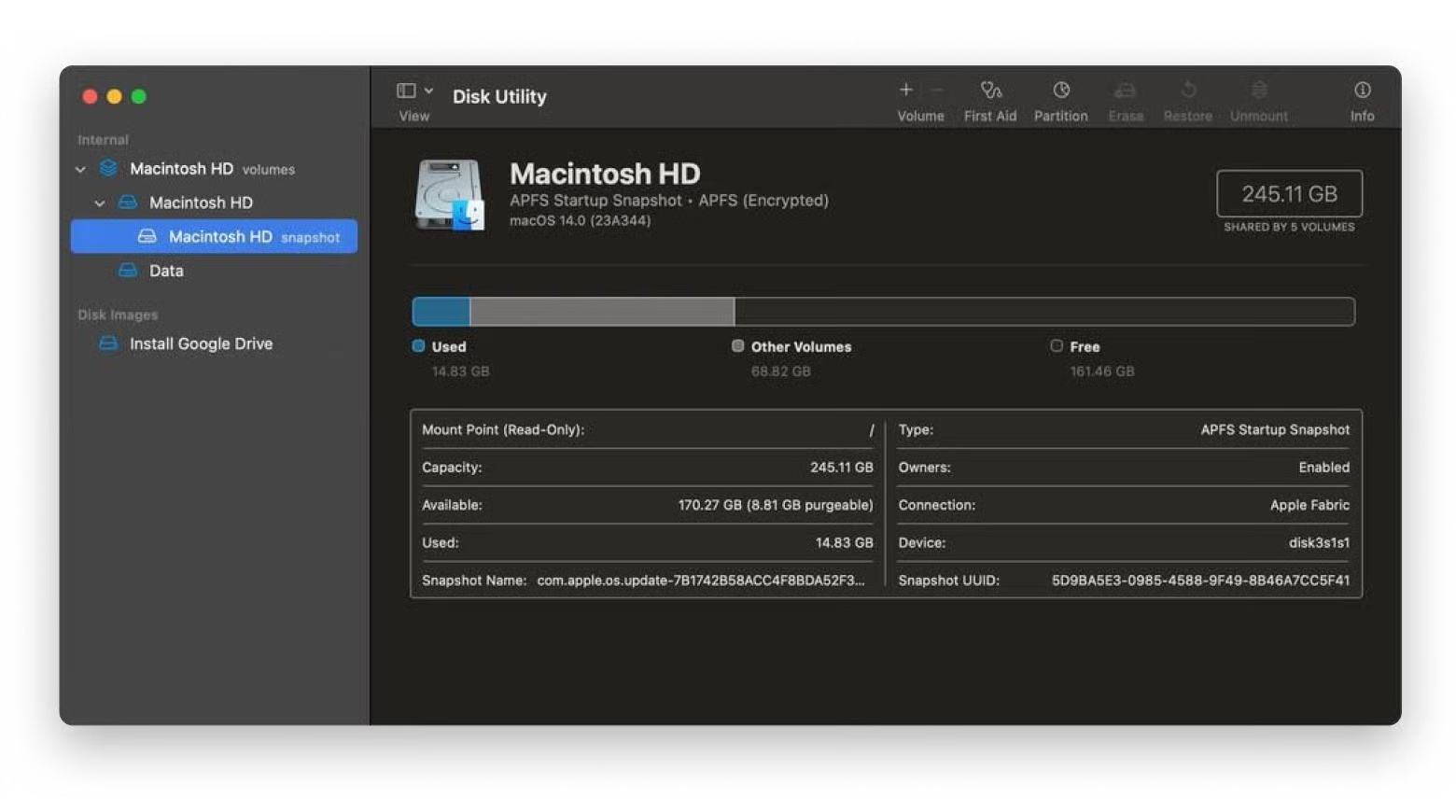
- Open Disk Utility (Command + Space, then type “Disk Utility”).
- Select your USB drive and click Erase.
- Choose APFS (for macOS Big Sur or later) or Mac OS Extended (Journaled) (for macOS Catalina or earlier) as the format, and GUID Partition Map as the scheme.
- Click Erase to prepare the USB drive.
- Run the
createinstallmediaCommand
- Open Terminal (Command + Space, then type “Terminal”).
- Use the correct
createinstallmediacommand for your macOS version (listed below).
For example, for macOS Sonoma, use:sudo /Applications/Install\ macOS\ Sonoma.app/Contents/Resources/createinstallmedia --volume /Volumes/MyVolumeReplace “MyVolume” with the name of your USB drive. - Press Return and enter your password when prompted. Terminal will warn you that the drive will be erased—type
Yand press Return to confirm. - The process will take some time as the installer files are copied to the USB drive. Wait for the process to complete. Once finished, you’ll see “Copy complete. Done.”
- Boot From the Installer
To install macOS from your bootable USB:
- For Apple Silicon Macs (M-series): Shut down the Mac, press and hold the power button until Startup Options appear, then select the USB drive.
- For Intel-based Macs: Shut down the Mac, turn it on, and immediately hold the Option (Alt) key to bring up the boot menu. Select the USB drive to start the installation.
Createinstallmedia Commands for Various macOS Versions
Here are the commands for different macOS versions:
- macOS Tahoe:
sudo /Applications/Install\ macOS\ Tahoe.app/Contents/Resources/createinstallmedia --volume /Volumes/MyVolume - macOS Sequoia:
sudo /Applications/Install\ macOS\ Sequoia.app/Contents/Resources/createinstallmedia --volume /Volumes/MyVolume - macOS Ventura:
sudo /Applications/Install\ macOS\ Ventura.app/Contents/Resources/createinstallmedia --volume /Volumes/MyVolume - macOS Monterey:
sudo /Applications/Install\ macOS\ Monterey.app/Contents/Resources/createinstallmedia --volume /Volumes/MyVolume
Make sure to use the appropriate command based on the macOS version you want to install.
Conclusion
Creating a bootable macOS USB installer is a useful and efficient way to reinstall macOS, troubleshoot system issues, or set up multiple Macs with ease. By following the steps outlined above, you can create a bootable installer using the Terminal’s createinstallmedia command. This method works for both Intel-based Macs and newer Apple silicon models, giving you a reliable tool for various macOS tasks.