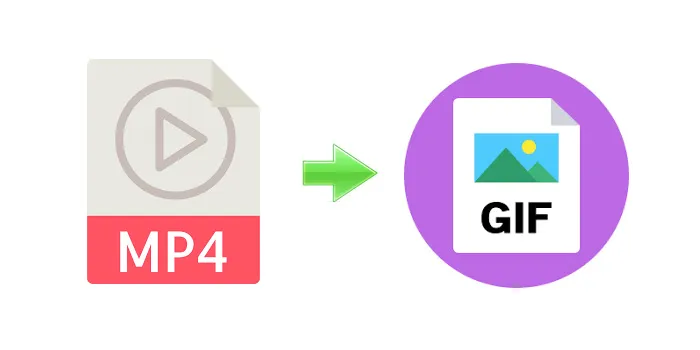
Converting videos from MP4 to GIF on Mac is something I started doing more often when creating short clips for tutorials, reactions, and social posts. However, the more GIFs I made, the more cautious I became about uploading personal videos to random websites that offered “free” conversions.
That’s when I looked for a method that was fast, reliable, and secure, without sacrificing quality or privacy. In this guide, I’ll walk you through how to convert MP4 to GIF on Mac using trusted local tools, free methods, and advanced options, so you can choose what works best for your workflow.
Ways to Convert MP4 to GIF on Mac
There are several reliable ways to turn an MP4 into a GIF on macOS, depending on whether you want speed, advanced control, or free tools.
With Permute
Install and open the app, go to Settings > Presets, choose or create GIF Animation, drag and drop your MP4 file, then click the Play icon to convert.
With CleanShot X
Record part of your screen and save the capture directly as a GIF.
With Terminal (FFmpeg)
Install FFmpeg and use command-line input for precise control over frame rate and size.
With Gifox
Drag and drop an MP4 file or capture your screen and export the result as a GIF.
With online converters
Use services such as Adobe Express, Canva, or EzGIF, keeping file size limits and privacy in mind.
Best Method to Convert MP4 to GIF on Mac Using Permute
As I started creating GIFs more regularly, I needed a MP4 to GIF converter for Mac that could handle large videos, batch conversions, and different formats without uploading anything to the cloud. That’s why I settled on Permute.
Permute runs entirely on your Mac, which means full privacy, no watermarks, and consistent quality. Its drag-and-drop interface requires no setup, making it ideal if you convert videos often.
How to convert MP4 to GIF using Permute
Install and open Permute on your Mac.
Click Permute in the menu bar and open Settings.
Select Presets, then choose GIF Animation.
If the preset isn’t available, add a new one and select GIF Animation.
Return to the main window and click the + button.
Choose your MP4 file.
Click the Play icon and wait for the conversion to finish.
You’ll receive a high-quality animated GIF with no compression artifacts or branding. Permute also supports formats like MKV, AVI, FLV, WMV, OGG, and MPEG-4, all of which can be converted into GIFs.
Personal Experience with MP4 to GIF Conversion
When I need quick screen-based GIFs for walkthroughs or tutorials, I rely on CleanShot X. It lets me capture a portion of my screen and save it instantly as a GIF, which is perfect for sharing instructions by email or chat without exporting a full video.
For instant GIF creation from existing clips, Gifox is my go-to option. It lives in the menu bar and allows trimming and cropping without interrupting my workflow. Dragging an MP4 file into Gifox converts it into a GIF within seconds.
Free Methods to Convert MP4 to GIF on Mac
If you prefer free tools, there are two main options: Terminal commands or online converters.
Convert MP4 to GIF Using Terminal and FFmpeg
FFmpeg is a powerful open-source tool that gives you full control over GIF quality, size, and frame rate. It’s best suited for advanced users who want precision.
To convert MP4 to GIF with FFmpeg:
Install FFmpeg using Homebrew by typing brew install ffmpeg in Terminal.
Navigate to the folder containing your MP4 file using cd.
Run the command:ffmpeg -i input.mp4 -vf "fps=10,scale=320:-1:flags=lanczos" output.gif
Replace filenames as needed and adjust frame rate or resolution for your desired output. Once complete, the GIF will appear in the same folder as the original video.
Convert MP4 to GIF Online: Tools, Tips, and Privacy
Online MP4-to-GIF converters like Adobe Express and Canva can be convenient for small, non-sensitive files. However, many impose limits on file size, daily usage, or output quality.
It’s important to watch for privacy risks, such as aggressive ads, unclear data policies, or services that store uploaded files. For confidential or personal videos, local Mac apps remain the safest choice.
Why Convert MP4 to GIF on Mac
GIFs remain popular because they are lightweight, loop automatically, and work across nearly all platforms. They’re ideal for:
• Sharing short tutorials
• Posting reaction clips
• Embedding visuals in emails
• Adding motion to web pages without video players
For Mac users, converting MP4 to GIF locally ensures better quality control and avoids unnecessary data exposure.
Converting MP4 to GIF Has Never Been Easier
With the right tools, converting MP4 to GIF on Mac is quick and stress-free. While online converters may work for simple cases, local apps provide better privacy, higher quality, and more flexibility.
If you need fast, high-resolution GIFs, Permute is the most reliable option. For live captures, CleanShot X and Gifox make GIF creation effortless.
FAQ
What is the fastest way to create animated GIFs from MP4 on Mac?
The fastest method is using Gifox. Open the app, drag and drop the MP4 file, click the three dots, and export as GIF.
Is MP4 better quality than GIF?
Yes. MP4 supports millions of colors and audio, while GIFs are limited to 256 colors and no sound. GIFs work best for short, looping visuals.
Can I convert MP4 to GIF using QuickTime on Mac?
No. QuickTime doesn’t support GIF export. You’ll need third-party tools like Permute, Gifox, or FFmpeg.