


Is your iPhone acting up? It could be a virus. While iOS has strong safety measures, certain actions can lead to security breaches—leading to malware and other attacks. Though a quick malware check should help you target the culprit, prevention is always your best bet. Learn how to detect malware on iPhone—then use Clario Anti Spy to scan and remove spyware and stop snoops in their tracks.
Can iPhone get a viruses
Yes, iPhones get viruses—but they’re generally less susceptible to viruses than other platforms like Windows and Android. The iOS operating system limits potential infections by vetting apps to ensure they meet security standards and by featuring sandboxing.
Sandboxing definition
Sandboxing is a security mechanism that isolates programs from each other to prevent potential damage from viruses.
However, the possibility of an iPhone getting a virus increases if you download apps from outside the official App Store, click on suspicious links, or download files from untrustworthy sources. Jailbreaking an iPhone also makes it more susceptible to viruses and other malware.
Jailbreaking removes software restrictions imposed by iOS, allowing users to bypass limitations set by Apple. The process enables users to download third-party apps, customize the iPhone’s interface, and unlock carrier restrictions. Jailbreaking also disables sandboxing, leaving your iPhone more vulnerable to malware attack potential.
The possibility of catching a virus on an iPhone is slim if you follow common internet safety rules, avoid unvetted third-party apps, and don’t jailbreak your iPhone. But you’re not clear just yet. iPhones are still vulnerable to other cybersecurity attacks that can steal your personal data and potentially damage your device.
To stay safe, watch out for the following cyber threats:
1. Malware
Malware is malicious software designed to compromise the security and functionality of your iPhone. It can be everything from viruses, worms, malware, Trojans, and more. The payload of malware can include stealing data, sending spam, allowing hackers to spy on your iPhone, or gaining unauthorized access.
2. Phishing
Phishing attacks are social engineering ploys that involve tricking users into disclosing sensitive information, such as login credentials or financial details, by impersonating legitimate websites or services. The airtight security of your iPhone will not prevent you from falling victim to these attacks.
3. Ransomware
Ransomware is a type of malware designed to encrypt files or lock your device, accompanied by a demand for a payment (a “ransom”) for restored access. Ransomware on iPhone can spread via malicious apps, phishing attacks, or security vulnerabilities.
4. Data breach
A data breach occurs when an individual or entity gains unauthorized access to sensitive or personal information stored on a victim’s device. A data breach on an iPhone can occur via malware or other attacks like a fake Apple security alert, physical theft, phishing attacks, or unsecured networks.
How to detect virus on iPhone
Do you suspect that your iPhone caught a virus? It’s important to act quickly to avoid potential hardware damage and data theft. Though some malware infections are subtle enough to avoid detection, there are surefire signs that can help you confirm if your iPhone has been targeted.
Here’s how to check for malware on iPhone:
1. Check if the iPhone is jailbroken
A jailbroken iPhone is much more susceptible to malware. If you purchased a used iPhone, here are ways to verify if it’s jailbroken:
- Look for the Cydia app, the package manager for jailbroken iPhones.
- Check for unauthorized or third-party apps not found in the App Store.
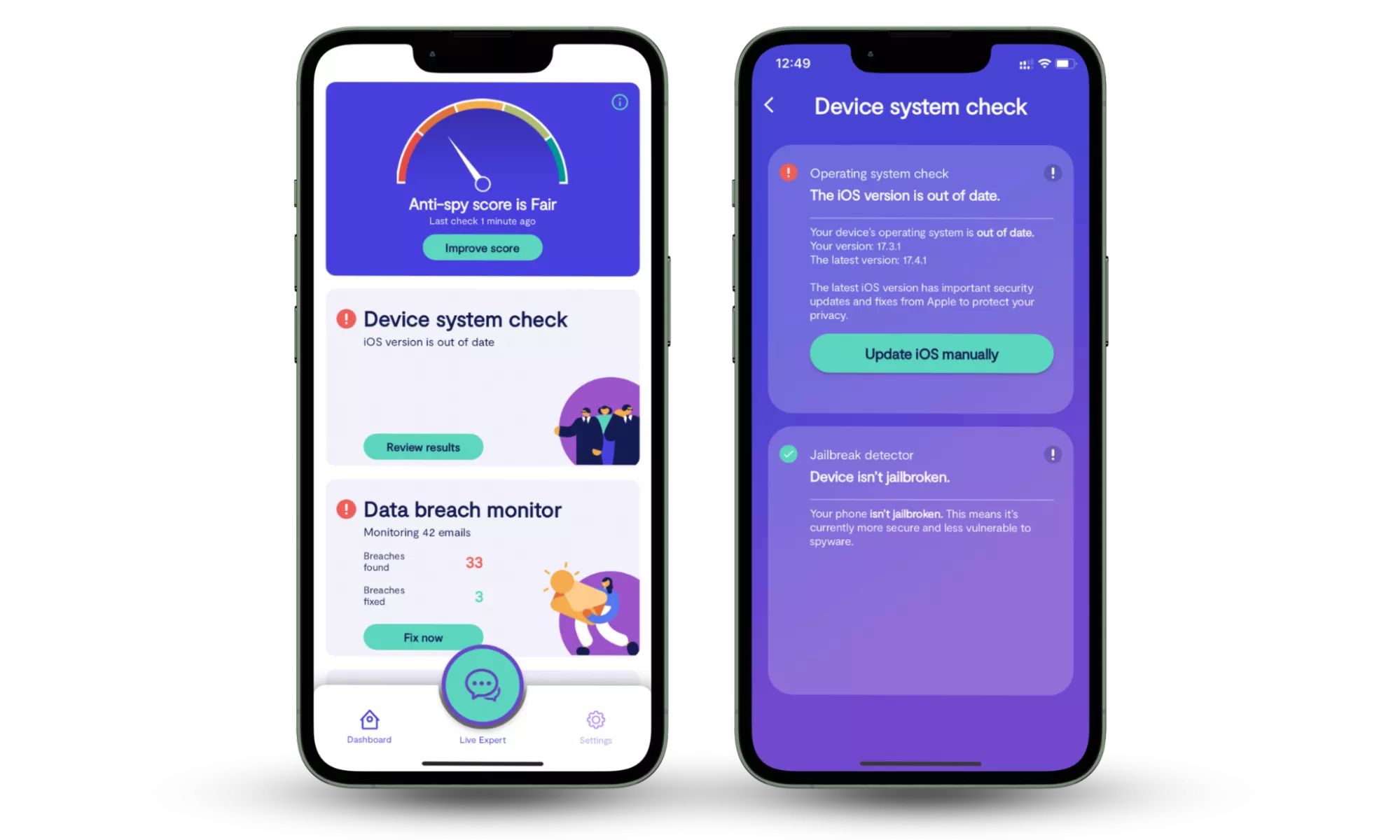
- Use Clario Anti Spy’s Jailbreak detector. To see if your iPhone is jailbroken, open Clario Anti Spy, click Device system check, and see the scan result.
2. Look for unfamiliar apps
If you find apps on your iPhone that you didn’t install, they could be malicious. Look into these apps by determining whether they are from the App Store or third parties. Also, check the app’s reviews and ratings. If something is off, delete the app immediately.
3. Your iPhone is overheating
Malware can be resource-demanding, which causes your iPhone to overheat.
Viruses and other malware often run background processes, gain unauthorized access to your device, or cause your phone to act generally strange—all of this raises your iPhone’s temperature.
4. The battery is draining faster
Irregular battery drainage can be caused by power-hungry apps or wear and tear due to age. That said, there is a chance, however slim, that a piece of malware is working in the background without your knowledge.
Though it can be hard to see if an iPhone has a virus, if you experience any of the above issues or other strange behavior, it’s high time you look into cybersecurity protection for your Apple devices.
5. A spike in cellular data usage
Is your data usage suddenly through the roof? If you’ve ruled out your personal usage, it could be due to malware transmitting data in the background. Malware often communicates with remote servers controlled by attackers, downloads other attacks, or sends out the stolen data from devices—all requiring data or an internet connection.
Here’s how to check data usage on iPhone:
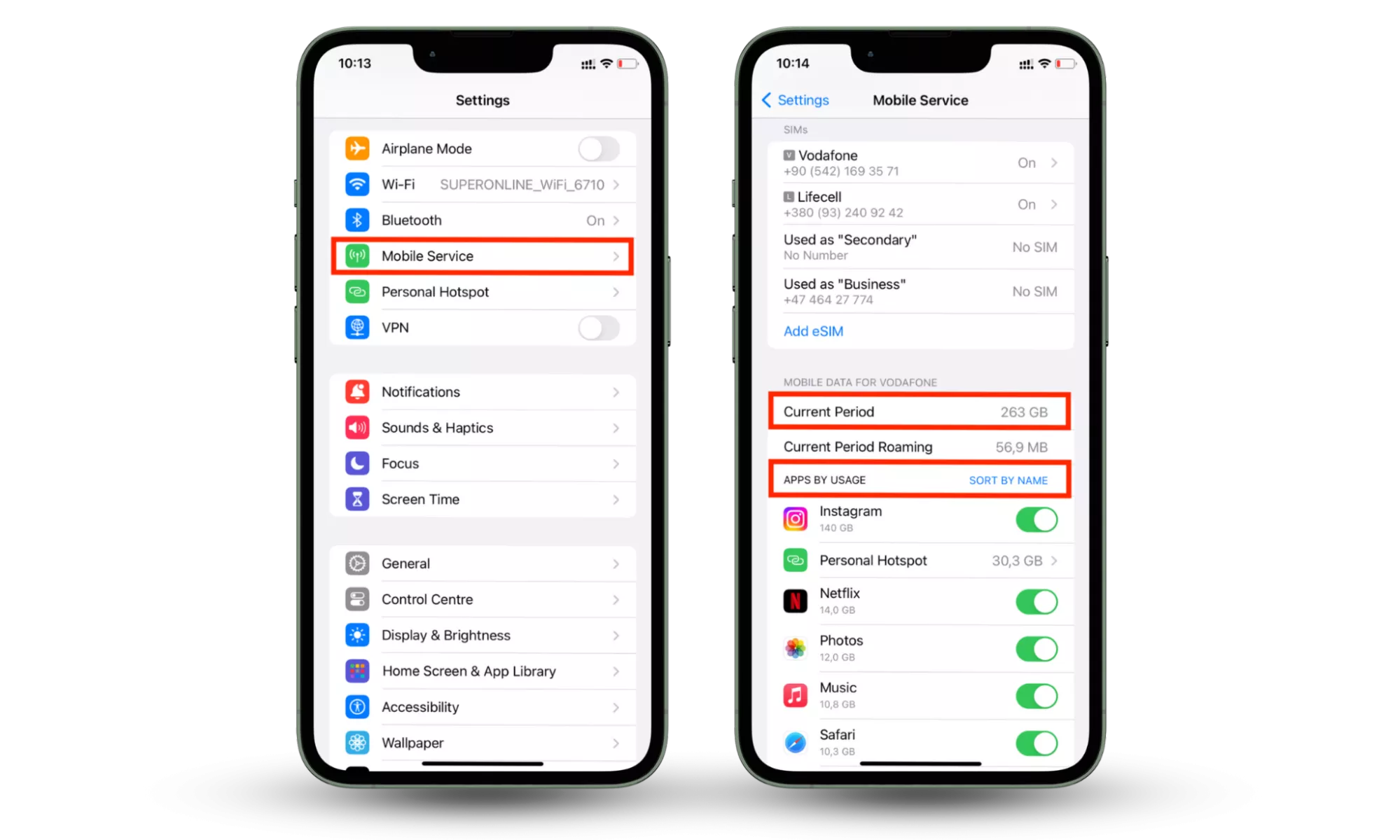
- Go to Settings > tap Mobile data.
- Go to the Mobile data section to check data usage for the Current Period. Also, check APPS BY USAGE for any unusual spikes in data usage amongst your apps.
6. Erratic performance and crashes
If your iPhone starts exhibiting erratic behavior, such as frequent crashes, freezes, or slowdowns, without apparent cause or after downloading a suspicious app or visiting a malicious website, it could be a sign of malware infection.
7. Do not ignore pop-up ads in your browser
Ads habitually follow us all over the internet, courtesy of third-party cookies (unless you use a VPN on iOS). However, if you’re seeing too many invasive pop-ups, this could be a sign malware has infected your iPhone.
8. Scan iPhone for viruses
A dedicated virus scanner can detect and remove viruses from your iPhone. But remember that viruses can also deliver other malware as part of their payload, like spyware. Clario Anti Spy will scan your iPhone for spyware and remove it immediately if detected.
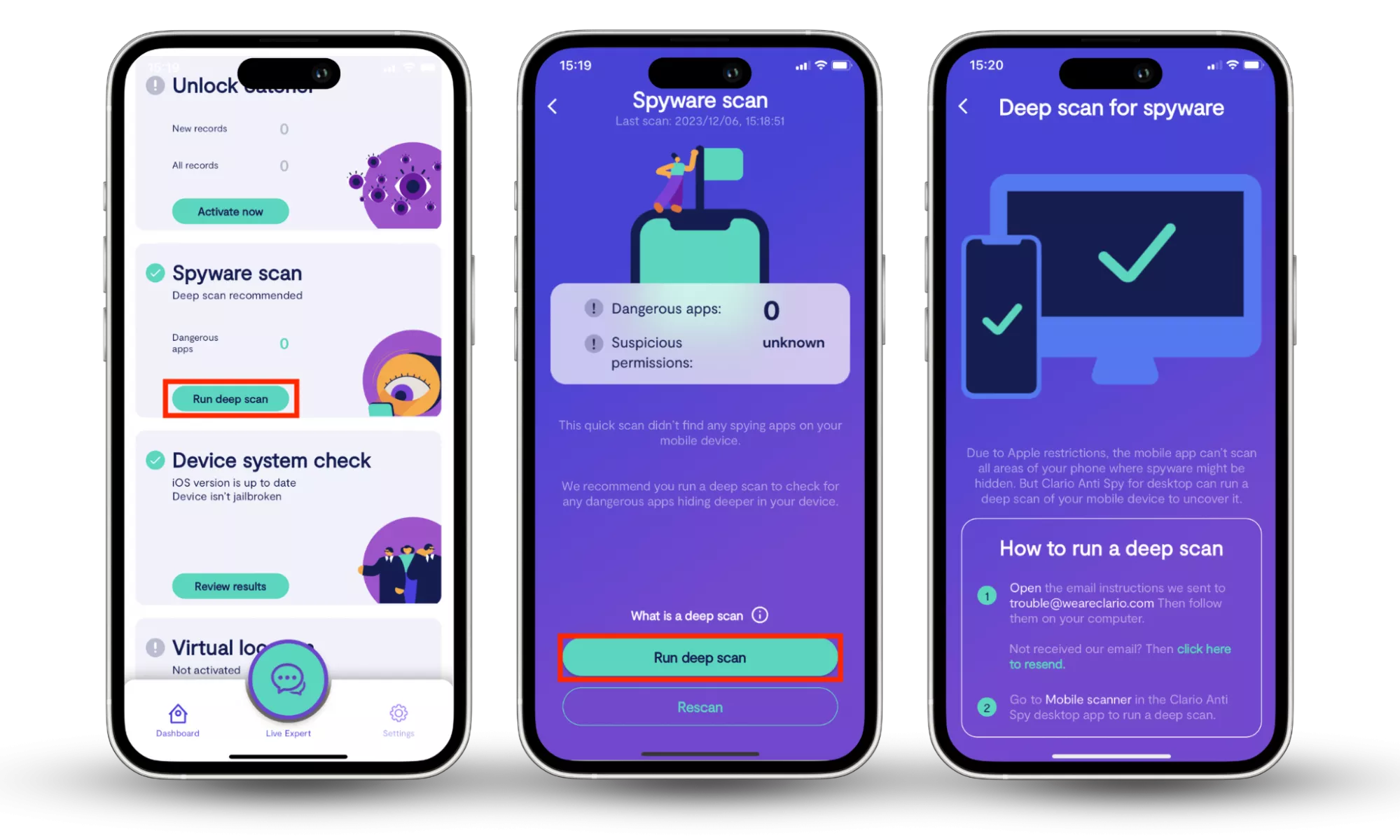
Here’s how to scan for spyware on your iPhone with Clario Anti Spy:
- Download Clario Anti Spy and get a subscription to create an account.
- Click Run deep scan under Spyware scan.
- Wait for Clario to check your device for spyware. If detected, follow the on-screen instructions to eliminate any identified threats.
9. Make sure you can sign in to all your accounts
Keyloggers are malware crafted to capture keystrokes made on your keyboard—including login details and other sensitive information. If you notice unusual account activity or receive notification of unfamiliar login attempts, these could be signs that your accounts have been hacked.
10. Explore your storage
Viruses sometimes store malicious payloads on your device, including malware components designed to steal data, damage files, or provide backdoor access to your device. Look out for strange files, apps, or anything else you don’t recall storing. Pay particular attention to file names, locations, or file types that are out of place.
What to do if you find a virus on your iPhone
If you find a virus on your iPhone, then you need to take action to remove it. Failure to do so may result in data theft or other damages. Here are the steps you should take:
- Disconnect your iPhone from your network.
- Don’t interact with any pop-ups or strange messages that may be from the virus.
These steps will help you quarantine the virus—now it’s time to remove it.
How to remove viruses from your iPhone
Now that you’ve identified the virus and hopefully stopped it from spreading, you’ll need to remove it from your device. Here’s what to do:
Restart your iPhone
Restarting your iPhone will not necessarily remove a virus, but it helps clear temporary data and may help with performance issues. It’s the first step towards removing viruses. Here’s how:
- On iPhones without a home button, press and hold the Side button located on the right side of the device. On iPhones with a home button, press and hold the Top or Side button (depending on the model) until the slider appears.
- Slide the toggle to the right to turn off the device.
- Press and hold the power button to turn on the device.
Does factory reset remove a virus? Yes, a factory reset can effectively remove most viruses. But it’s a big step that may not be necessary. Research your options before taking such a drastic step.
Clear your browser history and data
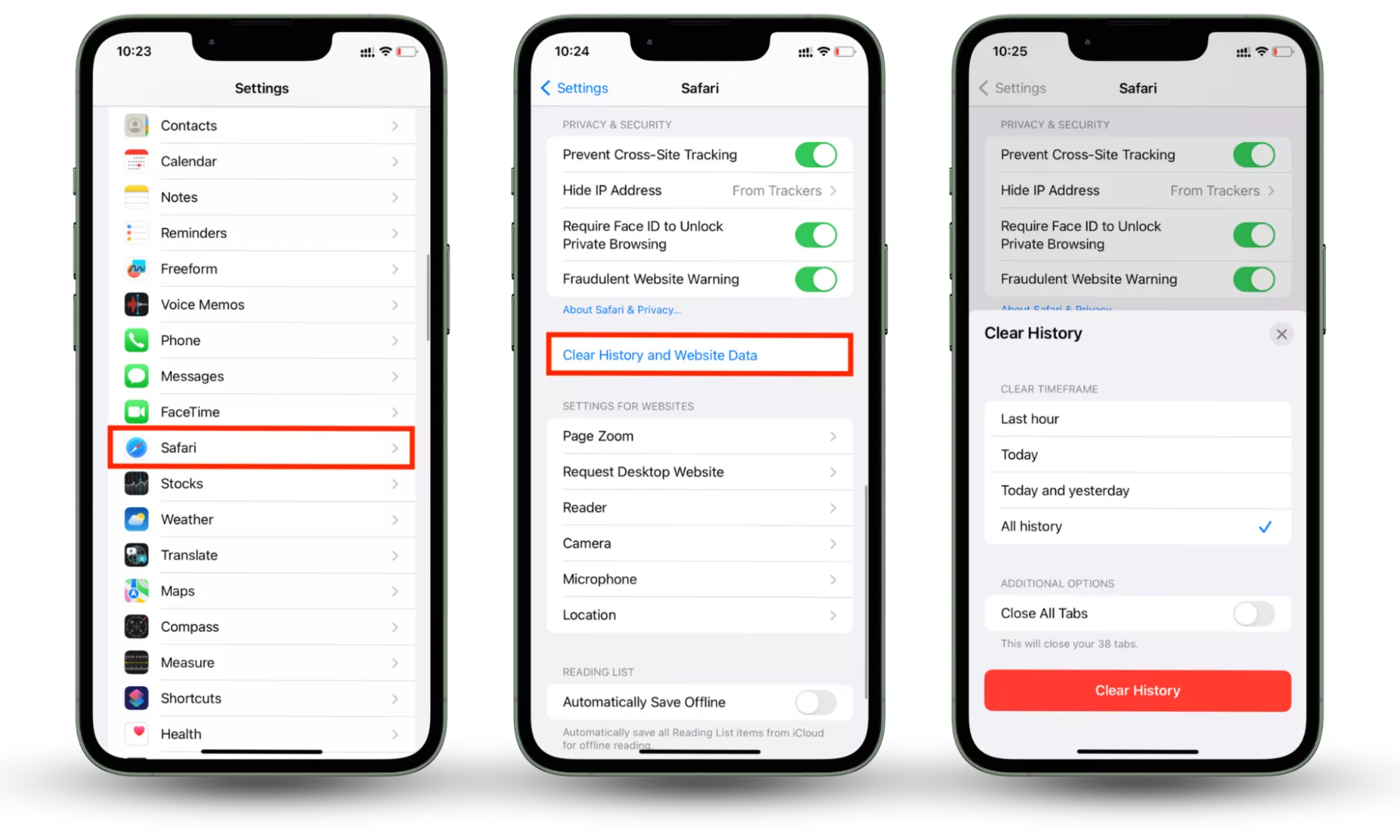
Clearing your browser history and data can help reduce certain risks related to virus exposure, namely by removing potentially compromised data from your browser and resolving browser-related issues. Here’s how to clear browser history and data on iOS’s standard browser, Safari:
- Go to Settings > tap Safari.
- Scroll to Privacy & Security and tap Clear History and Website Data.
- In the pop-up window, choose a timeframe for clearing data. We suggest All history. Tap Clear History.
How to get rid of fake virus scams on your iPhone
If you’re seeing pop-up warnings recommending fake updates or bogus software to remove viruses or malware on your iPhone, do not take the bait. It is likely a phishing attempt. Don’t even exit the page—this is likely a setup to steer you further into their trap.
Here’s how to get rid of fake virus scams:
- Close down the Safari tab where the pop-up appeared.
- Go to Settings > enable Airplane Mode. (This will stop malicious apps from receiving and sending data via your network.)
- Next, tap on Safari > Clear History and Website Data.
- Finally, ensure Block Pop-ups and Fraudulent Website Warning are toggled on.
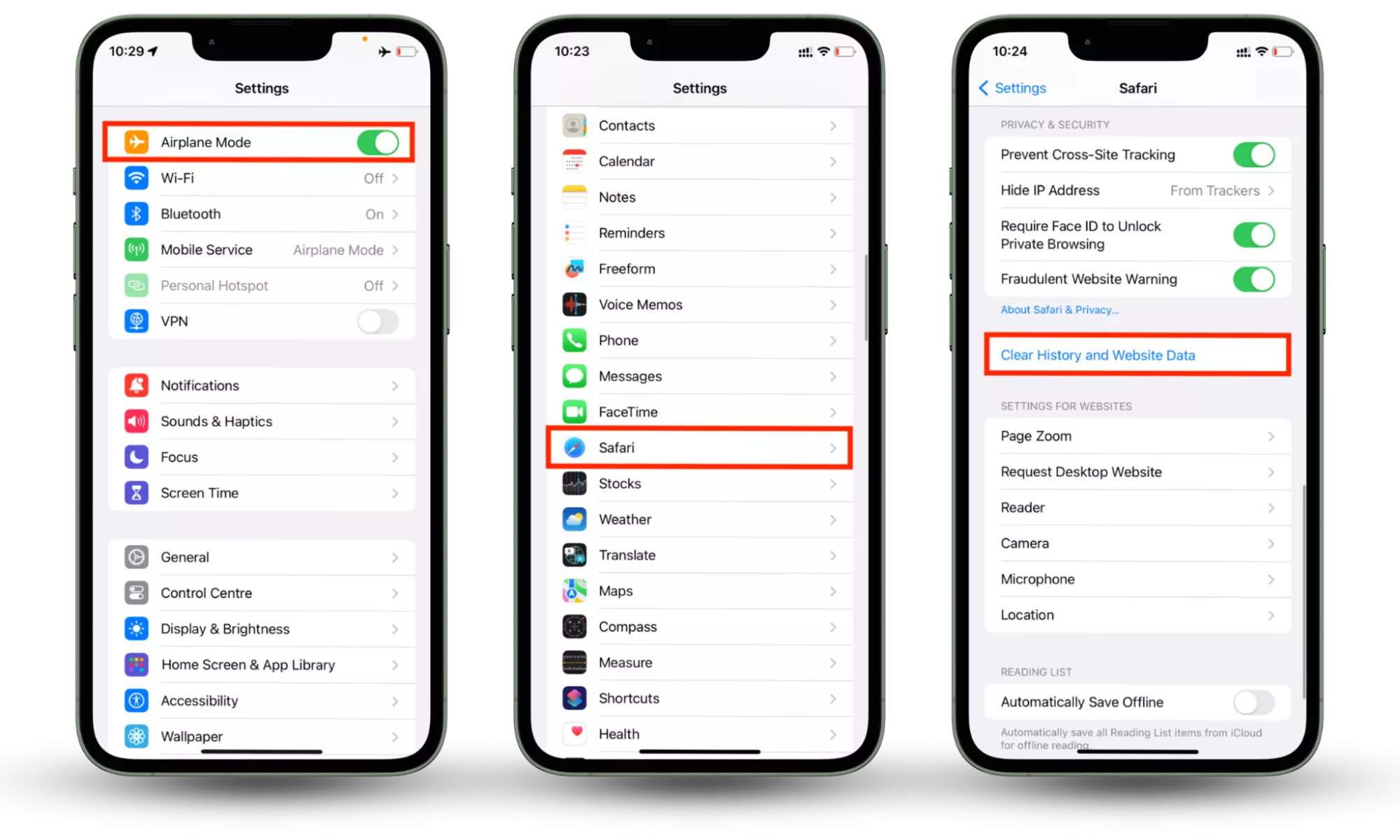
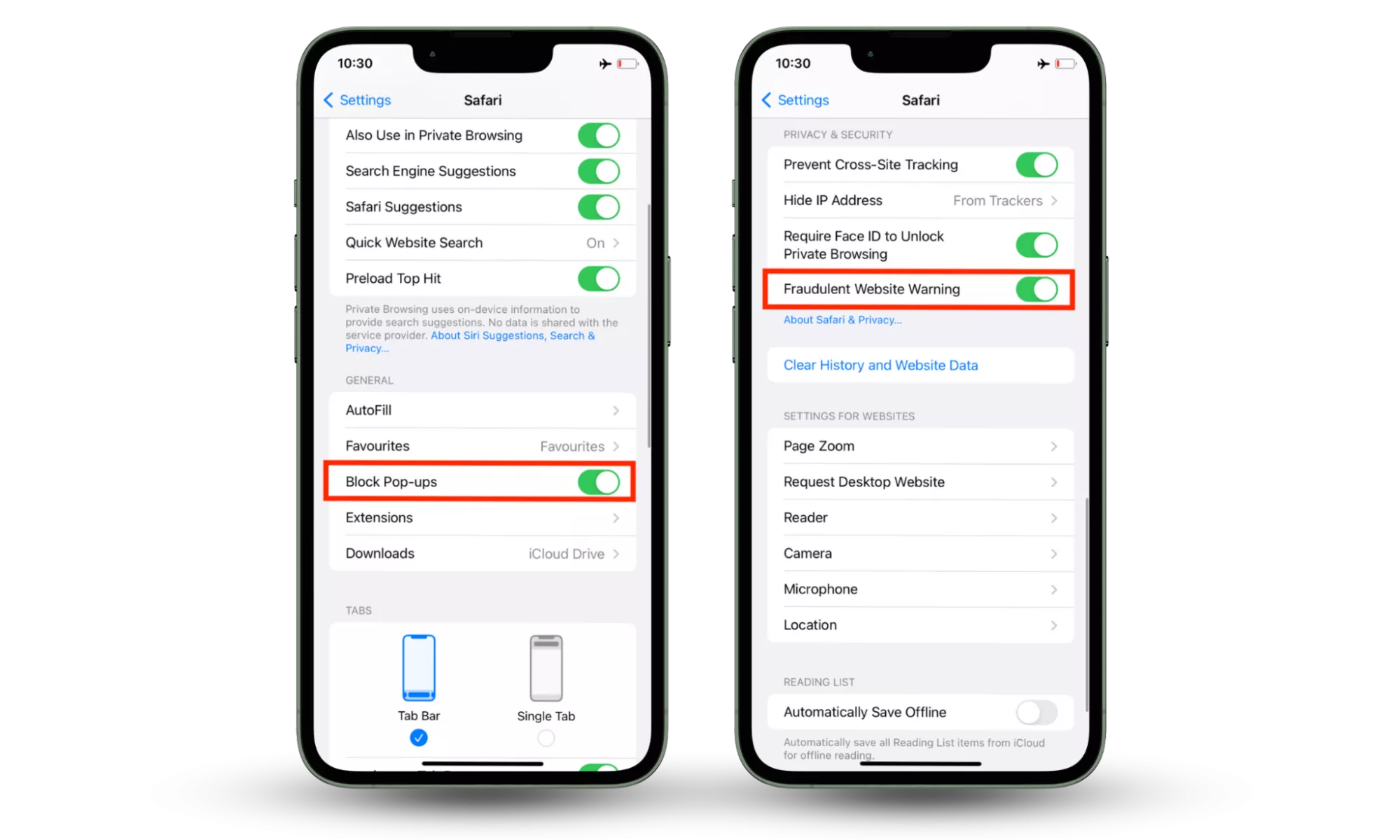
Now, you should be able to turn off Airplane Mode and return to browsing safely. Phew!
How to secure iPhone from viruses
Can cell phones get viruses? Sure. However, a few preventative measures can protect your iPhone from malware and other threats that steal your data and damage your device. Luckily, iPhones are built with security in mind, so securing your iOS device is easy. Here’s how:
1. Update your iPhone regularly
Apple updates address known security vulnerabilities and bugs. Each update ensures that you are that much safer from iPhone-related threats. Plus, updates can improve update-related issues to ensure you get the most out of your iPhone.
2. Ensure connections are secure
Cybercriminals regularly explore public Wi-Fi vulnerabilities to steal information and distribute malware. Avoid public Wi-Fi altogether or, at least, protect your iPhone with a security app, like Clario Anti Spy, before accessing a free hotspot.
3. Turn on two-factor authentication
Two-factor authentication (2FA) is a security process that requires users to give two different authentication factors to verify their identity before granting access to an account or system. So, if your username and password are ever stolen, you still have an extra layer of security to help keep your accounts safe.
4. Monitor device activity
Be vigilant about how your device is behaving. Malware attacks can gain unauthorized access to your phone and cause all sorts of mayhem. Always ensure your accounts are secure and monitor app permissions, especially if they want to access data irrelevant to their functions.
5. Use an iPhone security app
For added security, install Clario Anti Spy for an arsenal of cybersecurity iPhone tools. The data breach monitor will detect if your sensitive information has been leaked online. Plus, the spyware scan will scan for and remove spyware threats immediately before they target your personal data.
Conclusion
Though rare, iPhone viruses do exist. Rather than trying to fix something that’s broken, focus on prevention. Clario Anti Spy is equipped with a suite of tools to help you avoid the latest cybersecurity threats. With just a few taps, you can remove spyware, keep track of possible data leaks, find out who has tried to unlock your phone, and more.




