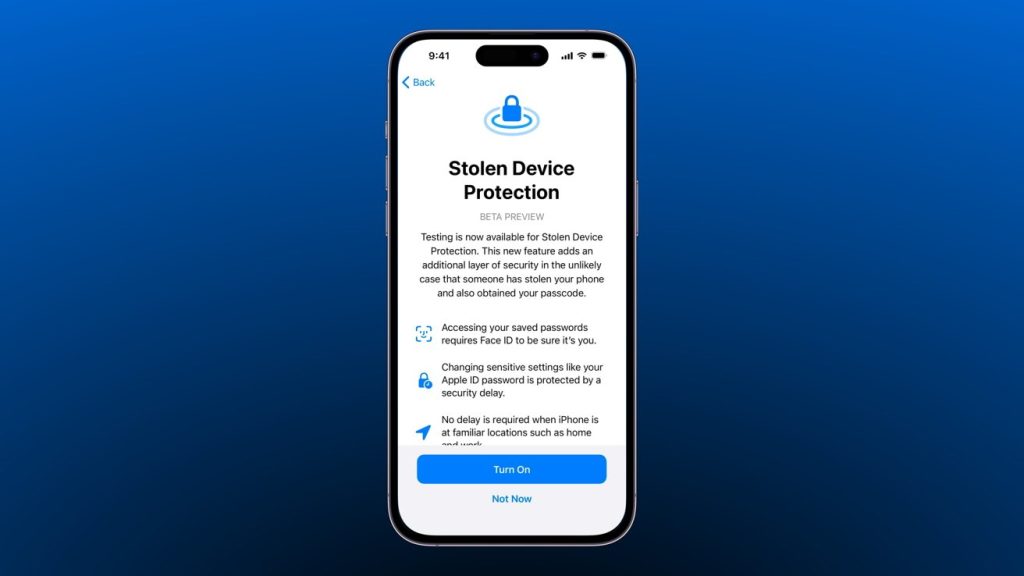
Keeping your iPhone secure is crucial, especially if it contains personal information and sensitive data. Changing your passcode regularly and enabling Stolen Device Protection can help protect your device from unauthorized access, ensuring your data remains safe. Apple has implemented several security features, including advanced passcode options and Find My iPhone, which can assist you in locating and locking your device if it gets stolen or lost.
In this guide, we’ll walk you through how to change your iPhone passcode and turn on Stolen Device Protection to ensure your device is fully protected.
How to Change Your Passcode on iPhone
1. Open Settings
Start by opening the Settings app on your iPhone.
2. Go to Face ID & Passcode or Touch ID & Passcode
- If you have Face ID enabled, tap Face ID & Passcode.
- If you have Touch ID, tap Touch ID & Passcode.
3. Enter Your Current Passcode
You will be prompted to enter your current passcode to make any changes to your device’s security settings.
4. Tap Change Passcode
After entering your current passcode, tap Change Passcode to begin the process of setting a new passcode.
5. Enter a New Passcode
- You will be asked to enter a new passcode. It must be at least six digits long, but you can choose a custom passcode option, such as a four-digit passcode or an alphanumeric passcode.
- To choose a four-digit passcode, tap Passcode Options, and select 4-Digit Numeric Code or Custom Numeric Code for more flexibility.
Tip: Choose a passcode that is hard to guess but memorable, ideally using a combination of numbers, letters, and symbols if you’re setting a custom alphanumeric passcode.
6. Verify the New Passcode
Once you’ve entered the new passcode, you’ll be prompted to enter it again to verify that it’s correct.
7. Passcode Updated
Once you’ve confirmed your new passcode, your iPhone will update the security settings. Your device is now protected by the new passcode.
How to Turn on Stolen Device Protection (Find My iPhone)
Find My iPhone is Apple’s security feature that helps you track, lock, or remotely erase your iPhone if it is lost or stolen. Turning on Find My iPhone also enables Activation Lock, which makes it harder for someone to use your device if it’s stolen.
1. Open Settings
Go to the Settings app on your iPhone.
2. Tap Your Name
At the top of the Settings menu, tap [Your Name] to access your Apple ID settings.
3. Tap Find My
Scroll down and tap Find My to open the Find My settings.
4. Enable Find My iPhone
If Find My iPhone is not enabled, turn it on by tapping the toggle next to Find My iPhone to enable it. You’ll be asked to sign in with your Apple ID if you haven’t already done so.
5. Enable Send Last Location
To ensure that your iPhone’s location is sent to Apple’s servers when the battery is low, turn on the option Send Last Location. This will help you track your device even if it runs out of battery.
6. Activate Activation Lock
When Find My iPhone is enabled, Activation Lock is automatically turned on. Activation Lock prevents anyone from erasing your device or reactivating it without your Apple ID and password.
Important: Activation Lock is a powerful tool for preventing unauthorized access to your iPhone. If someone tries to erase or set up the device, they will need your Apple ID credentials to proceed.
How to Use Find My iPhone for Stolen Device Protection
If your iPhone is lost or stolen, Find My iPhone allows you to track, lock, or erase it remotely. Here’s how you can use it:
1. Open Find My App
You can access Find My iPhone from the Find My app on another Apple device, or use a web browser to visit iCloud.com and log in with your Apple ID.
2. Select Your Device
In the Find My app, tap Devices at the bottom and select the device you want to track.
3. Track Your Device’s Location
If your device is turned on and connected to the internet, you’ll see its location on a map. You can zoom in or out to see the exact location.
4. Activate Lost Mode
If your iPhone is lost, tap Lost Mode. This will lock your iPhone with a passcode and allow you to display a custom message (such as a contact number) on the lock screen.
5. Remotely Erase Your iPhone (if Necessary)
If you’re unable to recover your iPhone, you can remotely erase all data on it by selecting Erase iPhone. This will delete all personal information from your device, but it will also disable Find My iPhone and Activation Lock. Be sure to back up your data regularly to iCloud or another service before using this option.
6. Mark as Lost
When your iPhone is marked as lost, Apple will notify you if the device is located. You can also receive updates via email or push notification when the device is found.
Why Changing Your Passcode and Enabling Stolen Device Protection Is Important
Changing your passcode regularly ensures that your device remains secure and prevents unauthorized access. Stolen Device Protection through Find My iPhone offers an additional layer of security, allowing you to track, lock, and erase your iPhone remotely if it’s lost or stolen. Activation Lock prevents thieves from using your iPhone, making it an effective deterrent against theft.
Final Thoughts on Securing Your iPhone
Changing your passcode and enabling Stolen Device Protection are essential steps in ensuring your iPhone remains secure, especially if it’s lost or stolen. By using these features, you can safeguard your personal data and make it more difficult for unauthorized users to access your device. Stay proactive in keeping your iPhone protected by regularly updating your passcode and making use of Apple’s powerful security features.