Nyongesa Sande
No Result
View All Result
  • News
    • World
    • Africa
  • Politics
  • Business
  • Tech
  • AI
  • Telecom
  • Sports
  • Opinion
  • Lifestyle
  • Live
Nyongesa Sande
No Result
View All Result
Nyongesa Sande
No Result
View All Result
  • News
  • Politics
  • Business
  • Tech
  • AI
  • Telecom
  • Sports
  • Opinion
  • Lifestyle
  • Live
ADVERTISEMENT

Home » How to Activate an ATM Card From Any Bank

How to Activate an ATM Card From Any Bank

NyongesaSande News Desk by NyongesaSande News Desk
2 years ago
in How To
Reading Time: 4 mins read
A A
Comprehensive List of KCB Branch Codes in Kenya

Whether you’re opening a new bank account or replacing an expired debit card, activating your new ATM card is a straightforward process. You can activate it at an ATM owned by your bank, online, over the phone, or even by making a purchase. Here’s a detailed guide on how to activate your new card and some best practices for keeping your money safe.

  • Things You Should Know
  • Activating Your ATM Card
  • ATM Card Best Practices

Things You Should Know

  • At an ATM: Insert your debit card, enter your PIN, and follow the onscreen instructions to activate your card.
  • Online: Visit your bank’s website or app, find the “Activation” option, and provide the necessary information.
  • Phone: Call your bank’s customer service to have an operator activate the card for you.

Activating Your ATM Card

  1. At an ATM
    • Insert your debit card and enter your PIN at an ATM owned by your bank.
    • Follow the onscreen instructions to activate your card.
    • To ensure activation, perform a balance inquiry or make a transaction.
    • For new cards, use the temporary PIN sent by your bank.
  2. Online
    • Log in to your bank’s website or app.
    • Select the option to activate your card, usually found in “New Account Information” or “FAQs.”
    • Enter the security code on the back of your card.
  3. By Phone
    • Call the toll-free activation number provided by your bank. This number is typically on a sticker on your card, in the mailed letter, or on the bank’s website.
    • Provide the requested information, such as the last four digits of your social security number, zip code, and the security code on your card.
    • Example numbers:
      • Bank of America: 1-888-624-2323
      • Chase: 1-800-290-3935
      • Wells Fargo: 1-877-294-6933
      • Capital One: 1-844-242-2388
  4. In-Person Purchase
    • Use your new debit card to make a purchase.
    • Enter your PIN during the transaction to activate the card.

ATM Card Best Practices

  1. Verify the Card
    • Ensure the card you received is the one you requested or applied for.
    • Contact your bank if you receive an unexpected card to confirm its legitimacy.
  2. Sign the Back of the Card
    • Sign the back of your new card immediately upon receipt.
    • Destroy any old cards by cutting them up to protect your identity and information.
  3. Change the Preset PIN
    • Change the temporary PIN to a personal one for added security.
    • Memorize your new PIN and avoid carrying it in your wallet.

By following these steps, you can easily activate your new ATM card and ensure your financial security.

Tags: How To
Google Add as a Preferred Source on Google
Previous Post

Benson Kamau Phone Number +254715323028 Identified as the one who Shot Rex Kanyike Masai During Nairobi Protests

Next Post

How to Get in Touch with Bank of America

NyongesaSande News Desk

NyongesaSande News Desk

Nyongesa Sande offers diverse content across news, technology, entertainment, and more, aiming to provide readers with a wide range of informative and engaging articles. NYONGESA SANDE's dedicated team provides our audience not only with the highly relevant news but also with outstanding interactive experience.

Related Posts

How to Weld a 2-Block Rectangular Hollow Block Mold: Measurements, Materials and Step-by-Step Guide
How To

How to Weld a 2-Block Rectangular Hollow Block Mold: Measurements, Materials and Step-by-Step Guide

4 weeks ago
How to Create a Facebook Account on iPhone App
How To

How to Fix Facebook Confirmation Email Not Received

1 month ago
How to Create a Facebook Account on iPhone App
How To

How to Fix Facebook Confirmation Code Not Received

1 month ago
How to Create a Facebook Account on iPhone App
How To

How to Confirm Your Facebook Email or Phone Number

1 month ago
How to Create a Facebook Account on iPhone App
How To

How to Understand Your Facebook Account and Profiles

1 month ago
How to Create a Facebook Account on iPhone App
How To

How to Fix Facebook Name Not Accepted

1 month ago
Load More
Next Post
Bank of America

How to Get in Touch with Bank of America

Protests Erupt in Kenya Over Finance Bill 2024

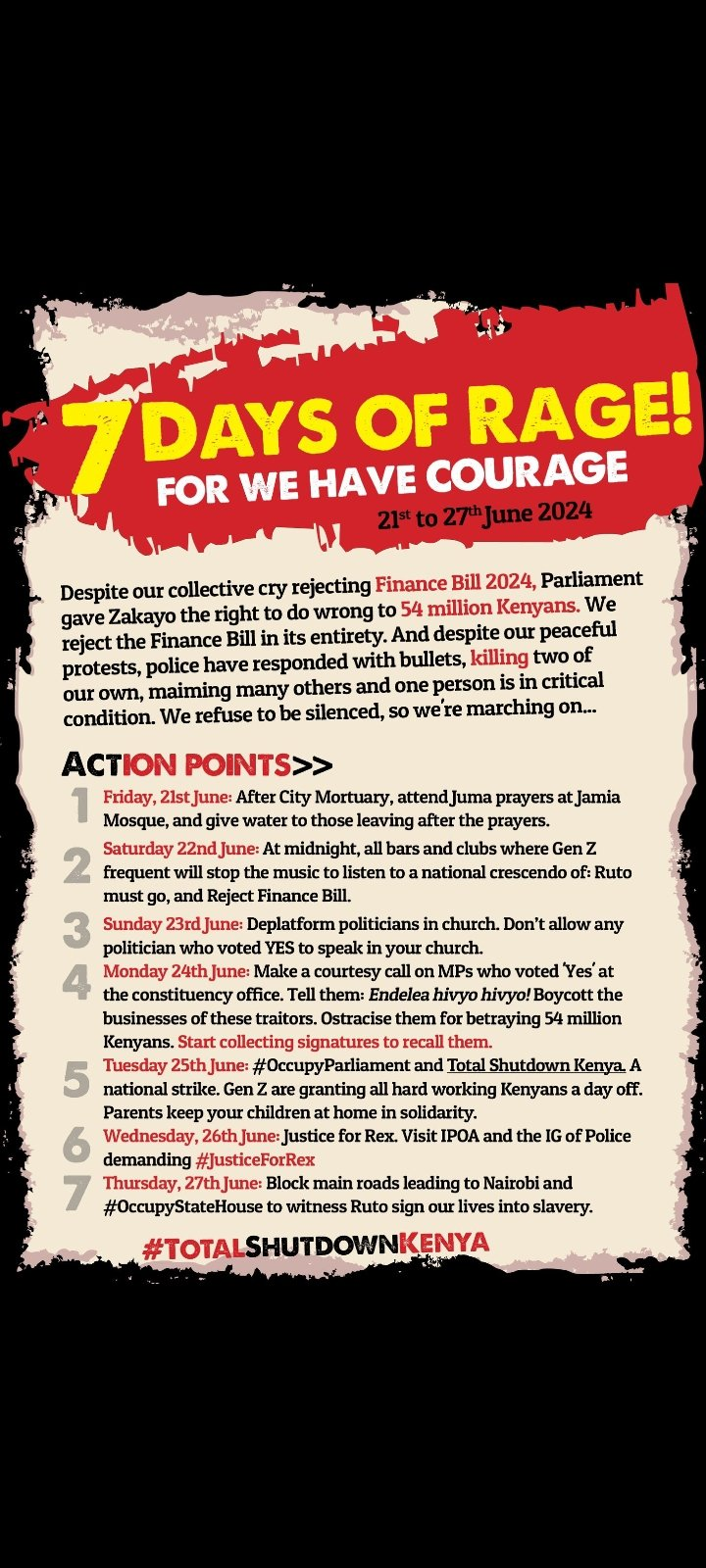
7 Days of Rage: Protests Erupt in Kenya Over Finance Bill 2024

ADVERTISEMENT

Who We Are

Nyongesa Sande

NyongesaSande.com is a digital news and media platform covering breaking news, business, technology, AI, politics, sports, world affairs and African innovation.

News Sections

  • News
    • World
    • Africa
  • Politics
  • Business
  • Tech
  • AI
  • Telecom
  • Sports
  • Opinion
  • Lifestyle
  • Live

Editorial Standards

  • Editorial Policy
  • Fact Checking Policy
  • Corrections Policy
  • Ethics Policy
  • AI Usage Policy
  • News Tips
  • Submit Press Release

Legal

  • Privacy Policy
  • Terms of Use
  • Cookie Policy
  • Disclaimer
  • Risk Disclaimer
  • DMCA
  • Ad Choices

Our Company

  • About Us
    • Nyosake Designers
      • Nyosake Webmasters
      • Nyosake Investment
  • Contact Us
    • Newsroom Contact
  • Ownership Disclosure
  • Advertise
  • Privacy Policy
  • Terms of Use
  • Cookie Policy
  • Disclaimer
  • Risk Disclaimer
  • DMCA
  • Ad Choices

NyongesaSande.com is an independent digital news and media platform covering Africa, business, technology, AI, politics and global developments.

© 2026 NyongesaSande.com. All rights reserved.

No Result
View All Result
  • News
    • World
    • Africa
  • Politics
  • Business
  • Tech
  • AI
  • Telecom
  • Sports
  • Opinion
  • Lifestyle
  • Live

NyongesaSande.com is an independent digital news and media platform covering Africa, business, technology, AI, politics and global developments.

© 2026 NyongesaSande.com. All rights reserved.