


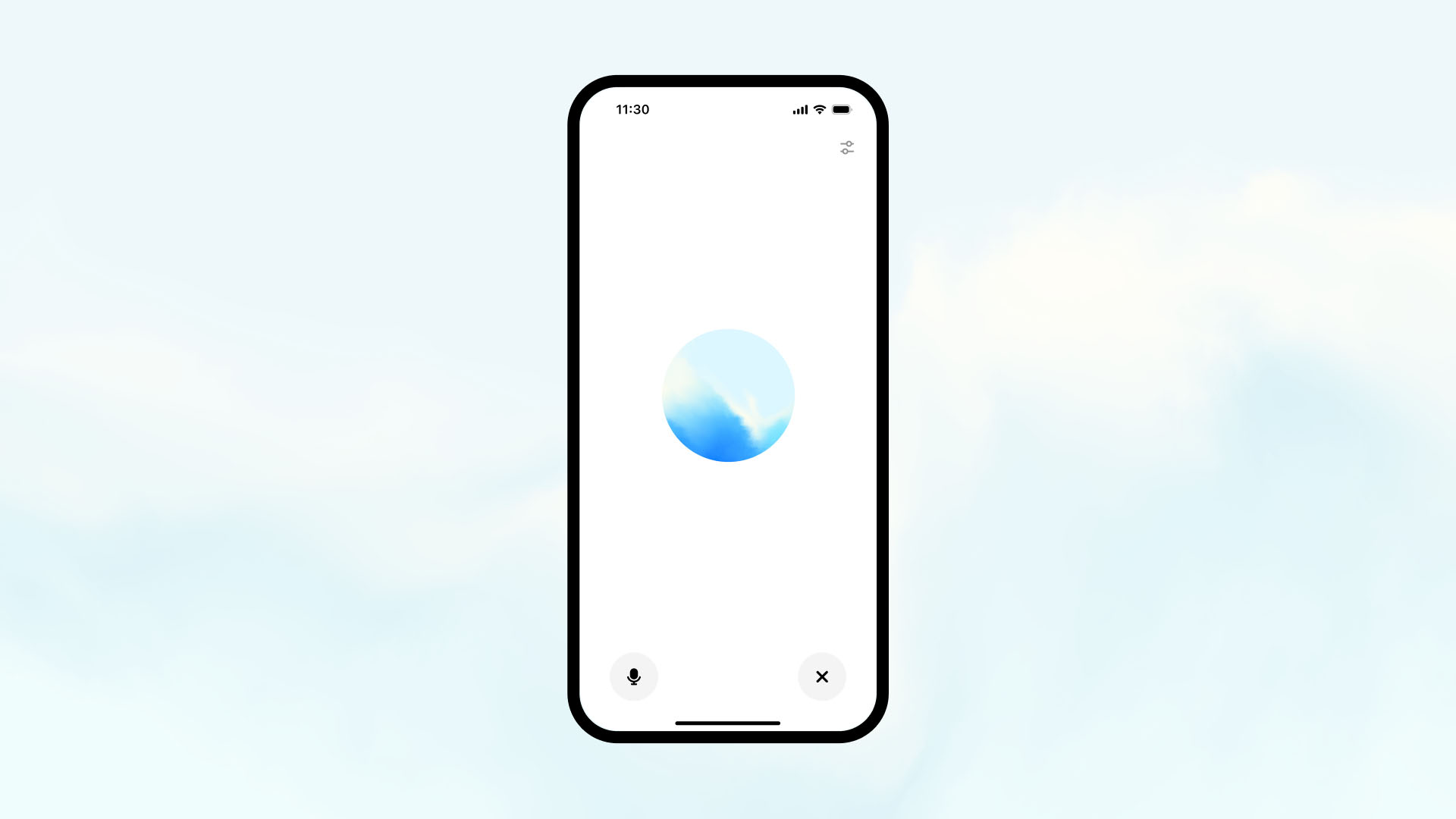
If ChatGPT isn’t recognizing your voice input, it can be frustrating, especially if you’re using voice-to-text features. While ChatGPT itself doesn’t directly support voice recognition, many users rely on integrated tools or external platforms for voice input. If you’re having issues, several factors could be causing the problem. In this article, we’ll explore common causes and provide solutions to help you fix voice recognition issues with ChatGPT.
1. ChatGPT Doesn’t Natively Support Voice Recognition
By default, ChatGPT does not have built-in voice recognition features. However, voice input can be used through third-party applications or integrations like speech-to-text tools (e.g., Google Speech-to-Text or Dragon NaturallySpeaking). If you are using such tools, the issue may lie with the integration rather than ChatGPT itself.
Solution:
- Check Your Speech-to-Text Tool: Ensure that the third-party speech-to-text tool you are using is working properly. If the tool isn’t recognizing your voice, ChatGPT won’t be able to receive the input either.
- Ensure Proper Integration: Make sure your speech-to-text software is correctly integrated with ChatGPT. If you’re using a specific platform or app (e.g., a chatbot or app that uses ChatGPT), ensure that the app supports voice inputs properly.
2. Microphone Issues
If your microphone isn’t working properly, ChatGPT won’t be able to recognize your voice. Microphone issues can range from simple hardware problems to software settings that may be blocking the device.
Solution:
- Check Your Microphone: Ensure that your microphone is plugged in or connected wirelessly and is set as the default input device on your computer or mobile device.
- Test the Microphone: Use another application, like a voice recorder or a voice call, to verify that your microphone is working properly.
- Adjust Microphone Settings: On your device, go to your audio settings to check if the microphone is enabled and set to an appropriate volume level.
3. Poor Internet Connection
Voice recognition tools often rely on cloud-based processing, which means that a stable internet connection is essential for accurate and efficient voice recognition. If your internet connection is slow or intermittent, it may affect the performance of the speech-to-text service integrated with ChatGPT.
Solution:
- Test Your Internet Speed: Check if your internet speed is sufficient for voice recognition tools. Slow connections can cause lag or prevent the tool from functioning properly.
- Switch Networks: If you’re on a Wi-Fi network with a weak signal, try moving closer to the router or switching to a more stable connection.
4. Background Noise or Audio Quality
Background noise or poor audio quality can make it difficult for voice recognition systems to understand your speech accurately. Speech-to-text systems are highly sensitive to ambient sounds, so any interruptions can hinder their ability to transcribe your voice.
Solution:
- Minimize Background Noise: Try to speak in a quiet environment or use a microphone with noise-canceling features.
- Adjust Microphone Sensitivity: Some microphones or speech-to-text tools allow you to adjust the sensitivity levels. Try increasing sensitivity if you’re in a quiet space or reducing it if there’s too much background noise.
5. Language or Accent Recognition Issues
Some speech-to-text systems might struggle with recognizing specific accents or non-native pronunciations. While many modern systems are designed to handle various languages and accents, they might still encounter difficulties with certain speech patterns or pronunciations.
Solution:
- Adjust Language Settings: If your speech-to-text tool allows, change the language settings to match your accent or dialect. Some tools offer different language models optimized for specific regional accents.
- Speak Clearly: Enunciate your words clearly and avoid speaking too fast to improve the system’s ability to recognize your speech accurately.
6. Outdated Software or App
If you’re using an outdated speech-to-text software or browser for voice input, it may have bugs or compatibility issues that affect performance.
Solution:
- Update Your Software: Ensure that both your speech-to-text software and browser are up-to-date. Many tools release regular updates that fix bugs and improve functionality.
- Clear Browser Cache: If you are using ChatGPT in a browser with voice input, clearing your browser cache might help improve performance and fix recognition problems.
7. Incorrect or Missing Permissions
Many voice recognition tools require microphone access permission to function properly. If ChatGPT or the speech-to-text tool doesn’t have permission to use your microphone, it won’t recognize your voice.
Solution:
- Check App Permissions: On your device, make sure that the application you’re using has permission to access the microphone. You can adjust these settings through your device’s privacy settings.
- Re-enable Permissions: If you’ve accidentally disabled microphone permissions, re-enable them and restart the app or tool.
8. Speech-to-Text Service Limitations
Depending on the speech-to-text service you’re using, there may be limitations in terms of accuracy, language support, or compatibility with ChatGPT. Free services, in particular, may not provide the same level of accuracy or reliability as premium ones.
Solution:
- Switch Services: If you’re experiencing consistent issues with one service, try switching to a more reliable or advanced option. Google Speech-to-Text, Microsoft Azure Speech, or IBM Watson are all popular alternatives with robust support for voice recognition.
- Check Service Compatibility: Ensure that the speech-to-text service you are using is compatible with ChatGPT and is correctly integrated.
9. Technical Glitches or Bugs
Sometimes, technical glitches or bugs in the platform you are using to interact with ChatGPT can prevent voice recognition from working properly. This can occur due to temporary system failures or problems with the software configuration.
Solution:
- Refresh or Restart: Refresh your browser or restart the app to clear any technical glitches.
- Contact Support: If the issue persists, reach out to OpenAI support or the support team of the speech-to-text tool you are using.
Conclusion
If ChatGPT is not recognizing your voice, there are several potential causes, from microphone issues to network problems or limitations of the speech-to-text service. By following the troubleshooting tips above, you can improve the chances of voice recognition working correctly with ChatGPT.
Whether you’re adjusting settings, updating software, or ensuring that your microphone is working, these solutions can help you resolve common voice recognition problems and enjoy a smoother interaction with ChatGPT.








