


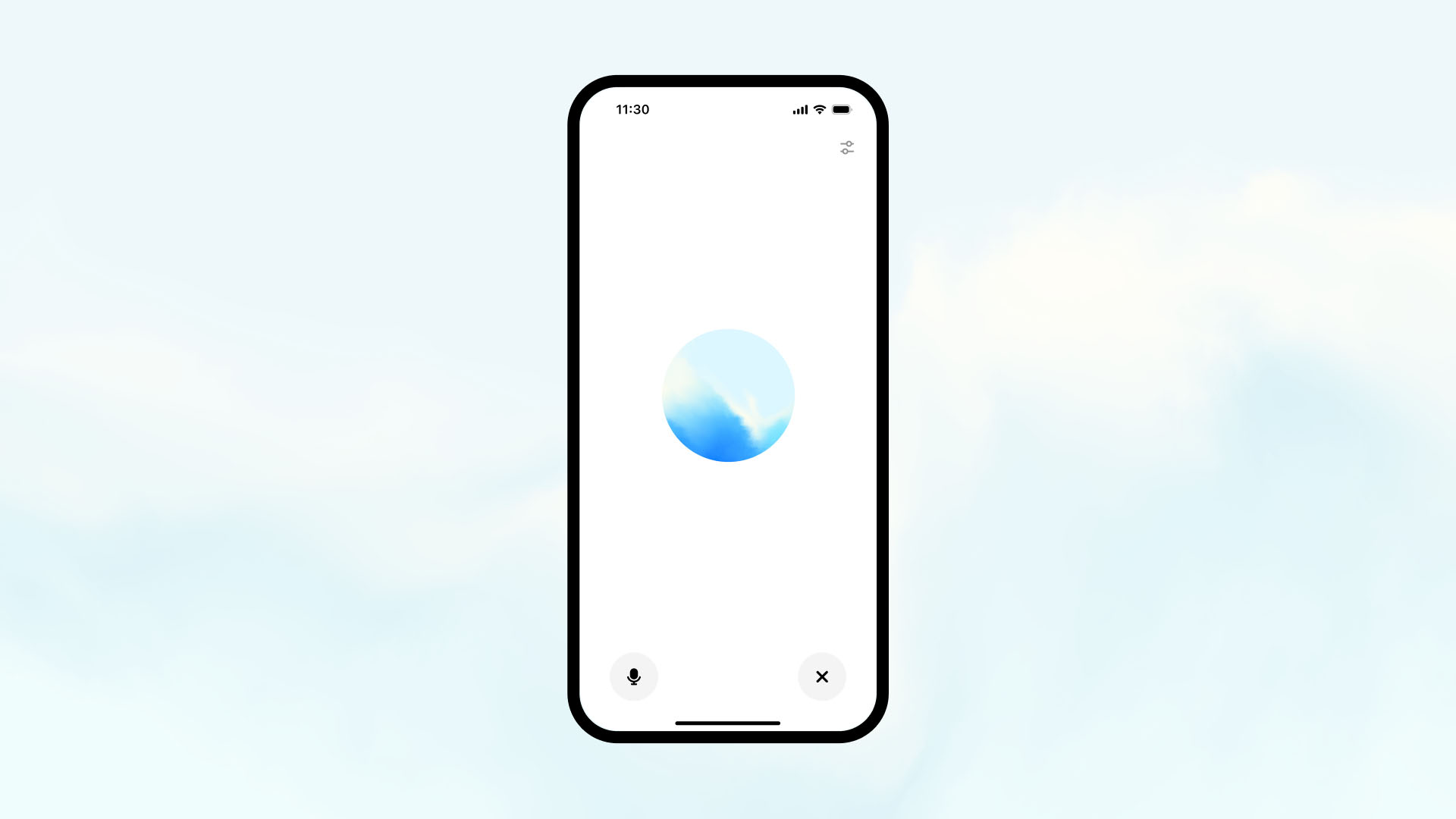
If ChatGPT’s voice isn’t working, it can be frustrating, especially if you rely on voice input or text-to-speech functionality. ChatGPT itself doesn’t have built-in voice recognition, but many users utilize third-party speech-to-text or text-to-speech tools to enable voice interaction. If you are experiencing issues with the voice functionality, there could be several reasons behind the problem.
In this article, we’ll explore the common causes of ChatGPT’s voice not working and provide troubleshooting solutions to help you fix the issue and improve your experience.
1. ChatGPT Doesn’t Have Built-in Voice Capabilities
While ChatGPT can process voice input through third-party speech-to-text tools, it doesn’t have native voice functionality. This means that ChatGPT depends on external applications or platforms for voice recognition and text-to-speech features.
Solution:
- Verify the Third-Party Tool: If you’re using ChatGPT through an app or platform that integrates voice input (e.g., Google Speech-to-Text, IBM Watson, or Microsoft Azure Speech), make sure the tool is properly set up and functional.
- Check the Platform: Ensure that the platform you’re using with ChatGPT supports voice features and that they’re enabled.
2. Microphone Issues
If you’re attempting to use ChatGPT’s voice feature with speech-to-text, microphone issues could prevent the system from capturing your voice correctly. Microphone problems are one of the most common reasons ChatGPT’s voice feature doesn’t work.
Solution:
- Check Your Microphone: Ensure that your microphone is correctly connected or activated. Test it with other apps (like a voice recorder) to confirm that it’s working.
- Set the Default Microphone: Go to your device’s audio settings and ensure that the correct microphone is set as the default input device.
- Test Microphone Volume: Adjust the microphone volume and sensitivity in your device’s settings to make sure it’s capturing your voice properly.
3. Lack of Permissions
If ChatGPT (via a third-party tool or platform) doesn’t have permission to access your microphone, the voice input won’t work.
Solution:
- Grant Microphone Access: Ensure that the app or platform you’re using has permission to access your microphone. You can check this in the privacy settings on your computer or mobile device.
- Allow Browser Permissions: If you’re using a browser-based voice input tool, make sure the browser has permission to access the microphone. This can typically be done by clicking on the browser’s address bar and adjusting permissions for the website.
4. Poor Internet Connection
If the voice input tool you’re using relies on cloud-based processing, a slow or unstable internet connection may prevent ChatGPT’s voice feature from working properly.
Solution:
- Test Your Internet Connection: Check your internet speed to ensure it’s stable and fast enough for voice recognition. You can use a speed testing tool to measure this.
- Switch to a Stable Network: If possible, switch to a more reliable Wi-Fi network or use mobile data if your current connection is weak.
- Restart Your Router: Restarting your router can sometimes improve connection speeds and resolve issues with lag or dropouts.
5. Background Noise or Audio Quality
Background noise or poor audio quality can interfere with voice recognition and prevent ChatGPT from understanding your voice correctly. This is especially true if you’re in a noisy environment or using a low-quality microphone.
Solution:
- Reduce Background Noise: Move to a quieter location or use noise-canceling headphones/microphone to improve sound clarity.
- Increase Microphone Sensitivity: Some devices allow you to adjust microphone sensitivity. Increase it to capture softer sounds if you’re in a quiet environment, but lower it if there’s significant background noise.
6. Incompatible Browser or Outdated App
If you’re using ChatGPT through a web interface or mobile app that supports voice functionality, using an outdated browser or app could cause compatibility issues, leading to problems with voice input.
Solution:
- Update Your Browser: Ensure your browser is updated to the latest version to guarantee compatibility with voice recognition tools.
- Update the App: If you’re using an app, check for updates in the App Store or Google Play Store to fix bugs or improve functionality.
- Clear Browser Cache: If you’re using ChatGPT in a browser, clearing your cache and cookies might resolve any issues caused by outdated data.
7. Speech-to-Text Tool Settings
If you are using a third-party speech-to-text tool to provide voice input to ChatGPT, the settings within the tool might be incorrectly configured, preventing it from accurately recognizing your speech.
Solution:
- Adjust Speech Recognition Settings: Some speech-to-text tools offer settings for adjusting sensitivity, language, and recognition accuracy. Ensure that these settings are properly configured for your environment and needs.
- Test Different Speech-to-Text Tools: If you’re having persistent issues with one tool, try using a different speech-to-text software like Google Speech, IBM Watson, or Microsoft Azure for better accuracy and performance.
8. Technical Glitches or Bugs
Technical glitches or software bugs can sometimes cause issues with ChatGPT’s voice functionality, especially if you’re using it in a third-party app or integration.
Solution:
- Restart the App or Refresh the Browser: Close and reopen the app or refresh the browser page to resolve temporary glitches.
- Reinstall the App: If you’re using a mobile app, try uninstalling and reinstalling it to clear any bugs or corrupted files.
- Contact Support: If the problem persists, consider reaching out to customer support for the voice recognition tool or platform you’re using.
9. Incorrect Language or Accent Recognition
Some speech-to-text tools may have difficulty recognizing certain accents or languages, leading to voice recognition issues.
Solution:
- Set Language Preferences: Adjust the language or accent settings in the speech-to-text tool to match your speaking style or region. Many tools allow you to select different languages or dialects for better accuracy.
- Speak Clearly and Slowly: Ensure that you’re speaking clearly and at a moderate pace. This can help the tool better recognize your voice, especially if you have a strong accent or non-native pronunciation.
Conclusion
If ChatGPT’s voice isn’t working, it could be due to a variety of factors, from microphone issues and software bugs to incorrect settings and background noise. By troubleshooting common causes like microphone settings, internet connection, permissions, and speech-to-text configurations, you can improve the performance of ChatGPT’s voice functionality.
If the issue persists, don’t hesitate to reach out to the support team for the speech-to-text tool or platform you’re using, or consult OpenAI’s resources for further assistance.








