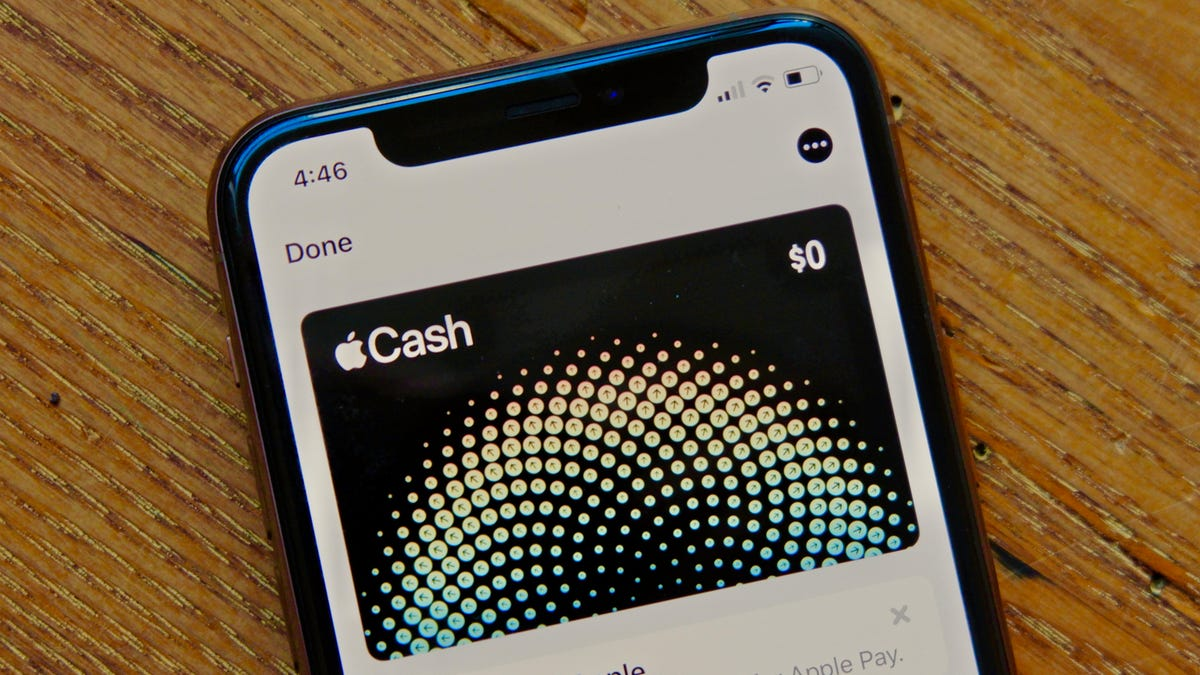
To use Venmo with Apple Wallet, you have two main options: adding a Venmo Mastercard debit card or transferring your Venmo balance to Apple Cash.
Method 1: Adding Venmo Debit Card to Apple Wallet
- Apply for a Venmo Debit Card:
- If you don’t already have a Venmo Mastercard debit card, apply for one through the Venmo app. You’ll receive it in about ten business days if approved.
- Open Apple Wallet:
- Launch the Apple Wallet app on your iPhone. The app icon resembles a gray wallet.
- Add a New Card:
- Tap the “+” icon at the top right to add a new card.
- Select “Debit or Credit Card”:
- Choose this option to add your Venmo debit card.
- Scan the Card or Enter Details Manually:
- Use your phone’s camera to capture card details, or click “Enter Card Details Manually” to type in the card number, expiration date, and security code.
- Complete Verification:
- Wait for verification to finish. Once verified, your Venmo debit card will be usable via Apple Wallet.
Note: The Venmo debit card will pull directly from your Venmo balance.
Method 2: Moving Money from Venmo to Apple Cash
- Open Venmo:
- Make sure Venmo is linked to a bank account.
- Go to Venmo Settings:
- Tap the “Me” icon in the bottom-right corner, then tap the cog wheel at the top-right corner.
- Select “Payment Methods”:
- Here, you’ll see all payment methods connected to Venmo.
- Add Your Bank Account:
- If not already linked, add a bank account via “Add a bank or card.”
- Transfer Money to Your Bank Account:
- Initiate a bank transfer from Venmo. An instant transfer has fees but is faster, while a standard transfer is free but takes a few days.
- Open Apple Wallet:
- Go to Apple Wallet, and you’ll see the Apple Cash card.
- Access Apple Cash Settings:
- Tap the three-dot icon on the top-right corner of the Apple Cash card.
- Select “Card Details” and “Bank Account”:
- Ensure your bank account is linked. If not, add the same account linked to Venmo.
- Add Bank Account:
- Follow prompts to add the bank account used with Venmo.
- Go Back to Apple Cash Settings and Tap “Add Money”:
- Choose the amount you want to add (minimum $10).
- Add Money:
- Tap “Add” in the upper-right corner.
- Use Apple Cash:
- Your Apple Cash can now be used where Apple Pay is accepted.