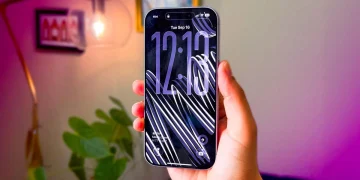
iPhone mirroring allows you to display your iPhone’s screen on your Mac, which is useful for sharing content, presenting apps, or showing off photos and videos on a larger screen. Whether you want to showcase an app, give a presentation, or share gameplay, iPhone mirroring can be done quickly and easily using AirPlay or other third-party apps.
In this guide, we’ll walk you through how to use iPhone mirroring on your Mac, so you can seamlessly display your iPhone’s screen and interact with it from your computer.
How to Use iPhone Mirroring on Mac
1. Use AirPlay to Mirror iPhone to Mac
The easiest and most integrated way to mirror your iPhone to your Mac is through AirPlay, a built-in feature that works with both macOS and iOS. Here’s how to set it up:
- Ensure Both Devices Are on the Same Wi-Fi Network
For AirPlay to work, both your iPhone and Mac need to be connected to the same Wi-Fi network. Check your Wi-Fi settings on both devices to ensure they are on the same network. - Enable AirPlay on Your Mac
- On your Mac, click the Control Center icon (the two sliders) in the top-right corner of the screen.
- Click on Screen Mirroring and make sure that your iPhone appears as an available device.
- If your Mac is running macOS Monterey or later, you’ll see the AirPlay option in System Preferences under Displays. Make sure AirPlay Receiver is turned on and set to Everyone or Only People Sharing This Network.
- Start Mirroring from Your iPhone
- On your iPhone, swipe down from the top-right corner (iPhone X or later) or swipe up from the bottom (iPhone 8 or earlier) to open Control Center.
- Tap on Screen Mirroring (it may also appear as an AirPlay icon).
- From the list of available devices, select your Mac. Your iPhone screen will now be mirrored to your Mac.
- Interact with Your iPhone on Mac
Once connected, everything displayed on your iPhone screen will appear on your Mac. You can interact with your iPhone apps on your Mac through mirroring, but keep in mind that some gestures and touch-based actions may not work as expected. - Stop Mirroring
To stop the mirroring session, go back to Control Center on your iPhone and tap Stop Mirroring or disconnect from Screen Mirroring.
2. Use QuickTime Player to Mirror iPhone to Mac (Wired Connection)
If you prefer a wired connection, you can also mirror your iPhone screen to your Mac using QuickTime Player. Here’s how:
- Connect Your iPhone to Your Mac
Use a Lightning to USB cable to connect your iPhone to your Mac. - Open QuickTime Player on Mac
Launch the QuickTime Player app on your Mac. You can find it in the Applications folder or by using Spotlight search. - Select New Movie Recording
In QuickTime Player, click File in the menu bar and select New Movie Recording. - Select Your iPhone as the Camera Source
Next to the Record button, you’ll see a small arrow pointing down. Click this arrow to open the camera options, and select your iPhone from the list of available cameras. - Start Mirroring
Your iPhone’s screen will now appear on your Mac. You can interact with your iPhone as usual, and QuickTime will display its screen in real time. - Record the Screen (Optional)
If you want to record your iPhone screen while mirroring, simply click the Record button in QuickTime. To stop recording, click the Stop button. - Stop Mirroring
To stop mirroring, simply close QuickTime Player or disconnect the USB cable.
3. Use Third-Party Apps for Mirroring iPhone to Mac
There are several third-party apps available that allow you to mirror your iPhone screen to your Mac. Some popular apps include Reflector, AirServer, and ApowerMirror. These apps may offer additional features such as higher-quality streaming, screen recording, or the ability to mirror multiple devices at once.
- Download and Install the App
Go to the website of the third-party app (such as Reflector or AirServer) and download the version for Mac. Install the app by following the on-screen instructions. - Connect Your iPhone and Mac
Open the third-party app on your Mac and make sure it’s running. Follow the instructions to connect your iPhone to the app, typically by selecting the app from the Screen Mirroring option in Control Center on your iPhone. - Start Mirroring
After selecting the app from the Screen Mirroring list on your iPhone, the screen will be mirrored to your Mac via the third-party app. Many of these apps also allow you to record the screen, capture screenshots, or stream content in high definition.
4. Use Mirroring for Presentations or Media Sharing
Mirroring your iPhone screen on a Mac is especially useful for:
- Presentations: Show apps, documents, and presentations directly from your iPhone to a larger screen, making it ideal for business meetings, classes, or conferences.
- Media Sharing: Share photos, videos, and music with a larger audience by mirroring your iPhone on a Mac, and enjoy a better viewing experience.
- Gaming: Mirror games from your iPhone to your Mac for a larger display, and enjoy mobile games on a bigger screen.
Why Use iPhone Mirroring on Mac?
Using iPhone mirroring on your Mac is beneficial for several reasons:
- Larger Display: Viewing content from your iPhone on a larger Mac screen can be more comfortable and efficient.
- Sharing Content: Easily share photos, videos, or presentations with others by mirroring your iPhone screen.
- Interactive Demonstrations: Demonstrate apps or mobile features directly on your Mac during tutorials, business meetings, or teaching sessions.
Final Thoughts on Using iPhone Mirroring on Mac
Mirroring your iPhone to your Mac is a great way to enhance your productivity and improve your entertainment experience. Whether you’re using AirPlay for wireless mirroring or QuickTime for a wired connection, this feature makes it easy to display your iPhone’s screen on a larger Mac screen. With the added benefit of third-party apps offering extra features, you have a variety of ways to enjoy iPhone mirroring on your Mac.