
Nyongesa Sande
No Result
View All Result
  • News
    • World
    • Africa
  • Politics
  • Business
  • Tech
  • AI
  • Telecom
  • Sports
  • Opinion
  • Lifestyle
  • Live
  • World Cup 2026
    • World Cup 2026 Standings
    • World Cup 2026
Nyongesa Sande
  • About Us
    • Nyosake Designers
      • Nyosake Webmasters
      • Nyosake Investment
  • Contact Us
    • Newsroom Contact
  • Ownership Disclosure
  • Advertise
No Result
View All Result
Nyongesa Sande
No Result
View All Result
  • News
  • Politics
  • Business
  • Tech
  • AI
  • Telecom
  • Sports
  • Opinion
  • Lifestyle
  • Live
  • World Cup 2026
ADVERTISEMENT

Home » How to Use ChatGPT’s Speech-to-Text Feature

How to Use ChatGPT’s Speech-to-Text Feature

NyongesaSande News Desk by NyongesaSande News Desk
11 months ago
in ChatGPT
Reading Time: 5 mins read
A A
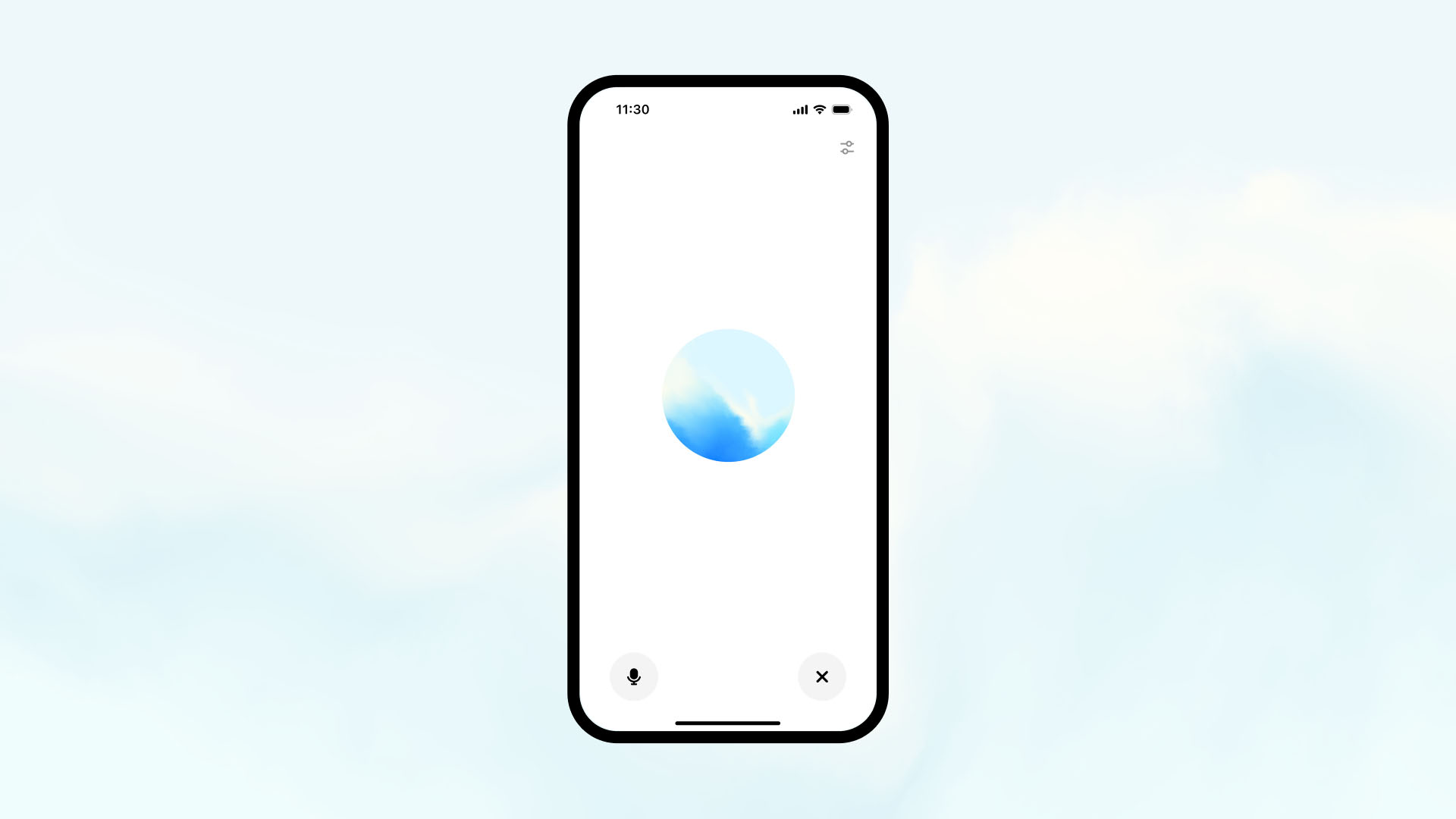
How to Use ChatGPT’s Voice Mode: A Complete Guide

ChatGPT primarily functions as a text-based AI, but you can enable speech-to-text functionality through third-party tools and apps to interact with ChatGPT using your voice. This feature allows for hands-free communication, making it easier to ask questions, generate text, or have a conversation with ChatGPT without typing. Here’s how you can use the speech-to-text feature with ChatGPT.

  • 1. Using Speech-to-Text on Mobile Devices
  • 2. Using Speech-to-Text on Desktop
  • 3. Using Voice Input with Voice Assistants
  • 4. Limitations of ChatGPT’s Speech-to-Text Feature
  • 5. The Future of ChatGPT’s Voice Capabilities
  • Conclusion

1. Using Speech-to-Text on Mobile Devices

Both iOS and Android devices have built-in voice-to-text functionality that allows you to dictate your queries directly into the ChatGPT app or web interface. Here’s how to use it:

  • On iOS (iPhone/iPad):
    1. Open the ChatGPT app or navigate to the web platform.
    2. Tap the microphone icon on your on-screen keyboard to enable dictation.
    3. Start speaking clearly, and your words will be transcribed into text in the ChatGPT input field.
    4. ChatGPT will generate a response based on your voice input.
  • On Android:
    1. Open the ChatGPT app or web platform.
    2. Tap the microphone icon on your keyboard or use the Google Voice Typing feature.
    3. Speak your query, and it will be transcribed into text in the ChatGPT input field.
    4. ChatGPT will process your voice input and generate a response.

2. Using Speech-to-Text on Desktop

For desktop users, ChatGPT doesn’t natively support speech-to-text, but you can use third-party speech recognition tools to enable voice input.

ADVERTISEMENT
  • Google Speech-to-Text or Microsoft Dictate:
    1. Install Google Speech-to-Text or Microsoft Dictate on your computer.
    2. Open ChatGPT in a web browser.
    3. Start the speech recognition tool and begin speaking. The tool will convert your speech into text and send it to the ChatGPT text input field.
    4. ChatGPT will generate responses based on the text input it receives.
  • Browser Extensions:
    You can use browser extensions like Voice In for Google Chrome, which adds a microphone icon to the text input field. After installation, click the microphone and speak your query. The extension will transcribe your voice into text, which is then sent to ChatGPT for processing.

3. Using Voice Input with Voice Assistants

Another way to use speech-to-text with ChatGPT is by integrating it with voice assistants like Google Assistant or Amazon Alexa. You can set up automations using platforms like Zapier to connect these voice assistants to ChatGPT. Here’s how you can use it:

  1. Set up a Zapier integration between Google Assistant and ChatGPT.
  2. When you ask Google Assistant a question, it will send the request to ChatGPT via the automation.
  3. ChatGPT will process the query and send back a response.

This method allows you to speak directly to your voice assistant, and it will pass the voice input to ChatGPT for a seamless voice-to-text interaction.

ADVERTISEMENT

4. Limitations of ChatGPT’s Speech-to-Text Feature

While the speech-to-text feature provides an excellent hands-free experience, there are a few limitations to consider:

  • Accuracy: The accuracy of speech-to-text depends on the quality of the speech recognition tool you are using. Accents, background noise, and pronunciation can affect the transcription quality.
  • No Native Voice Support: ChatGPT does not yet have native voice support, meaning third-party tools are required for speech-to-text functionality. This can sometimes lead to slight delays or inaccuracies in transcription.
  • No Direct Voice Output: ChatGPT does not read its responses aloud unless paired with Text-to-Speech (TTS) tools, so you will need additional tools if you want to hear the responses.

5. The Future of ChatGPT’s Voice Capabilities

As voice recognition technology continues to improve, there is potential for OpenAI to integrate native speech-to-text and voice output features directly into ChatGPT. This would allow users to interact with ChatGPT entirely by voice, without the need for third-party tools.

Conclusion

While ChatGPT does not have native speech-to-text support, there are several ways to enable this feature using third-party tools and integrations. Whether you’re using voice input through mobile devices, speech-to-text extensions, or voice assistants, you can interact with ChatGPT hands-free and make the most of its AI capabilities. As technology evolves, we may see even more advanced and seamless voice features integrated directly into ChatGPT in the future.


Tags: AI voice interactionChatGPT voice inputOpenAI ChatGPTspeech-to-text ChatGPTuse ChatGPT speech-to-textvoice input tools
Share2Tweet1SendShareScanSharePinShareShare
Google Add as a Preferred Source on Google
Previous Post

Does ChatGPT Support Speech-to-Text? A Complete Guide

Next Post

Can ChatGPT Generate Images? What You Need to Know

NyongesaSande News Desk

NyongesaSande News Desk

Nyongesa Sande offers diverse content across news, technology, entertainment, and more, aiming to provide readers with a wide range of informative and engaging articles. NYONGESA SANDE's dedicated team provides our audience not only with the highly relevant news but also with outstanding interactive experience.

Related Posts

Etsy Expands AI Push With ChatGPT App Launch
ChatGPT

Etsy Expands AI Push With ChatGPT App Launch

1 month ago
EMEA CIOs Told to Audit Systems as AI Rollouts Stall
ChatGPT

EMEA CIOs Told to Audit Systems as AI Rollouts Stall

2 months ago
OpenAI Unveils ChatGPT Health with Apple Health & MyFitnessPal Integration
Artificial Intelligence

OpenAI Unveils ChatGPT Health with Apple Health & MyFitnessPal Integration

5 months ago
ChatGPT App Store Update: New Tools Revolutionizing Productivity in 2026
ChatGPT

ChatGPT App Store Update: New Tools Revolutionizing Productivity in 2026

5 months ago
Inside OpenAI’s Pro-Grade Codex 5.2: Made for Software Teams & Security Work
ChatGPT

Inside OpenAI’s Pro-Grade Codex 5.2: Made for Software Teams & Security Work

6 months ago
How to Fix Incorrect Apple Music Replay 2026 Statistics
ChatGPT

ChatGPT Could Soon Build Apple Music Playlists for You

6 months ago
Load More
Next Post
Can ChatGPT Generate Images? What You Need to Know

Can ChatGPT Generate Images? What You Need to Know

How to Use ChatGPT’s Image Generation Feature

How to Use ChatGPT’s Image Generation Feature

Trending

  • Top 10 Richest People in Tripura (2026)

    Top 10 Richest People in Tripura (2026)

    171 shares
    Share 68 Tweet 43
  • Product Review: Bose Portable Smart Speaker

    187 shares
    Share 75 Tweet 47
  • Gillette Stadium World Cup 2026 Guide: Capacity, Location, Matches and Quarterfinal Venue

    1 shares
    Share 0 Tweet 0
  • Top 10 Richest People in Meru County

    88 shares
    Share 35 Tweet 22
  • Mukangala – Jacob Luseno (Lyrics)

    26 shares
    Share 10 Tweet 7
  • Colombia vs Uzbekistan: FIFA 2026 World Cup Preview

    2 shares
    Share 1 Tweet 1
  • Levi’s Stadium World Cup 2026 Guide: Capacity, Location, Matches and Round of 32 Venue

    2 shares
    Share 1 Tweet 1
  • MetLife Stadium World Cup 2026 Guide: Capacity, Location, Matches and Final Venue

    1 shares
    Share 0 Tweet 0
  • Top 10 Richest People in Manipur (2026)

    59 shares
    Share 24 Tweet 15
  • List of Elected MCAs in Narok County 2022-2027

    59 shares
    Share 24 Tweet 15
ADVERTISEMENT
ADVERTISEMENT

Who We Are

Nyongesa Sande

NyongesaSande.com is a digital news and media platform covering breaking news, business, technology, AI, politics, sports, world affairs and African innovation.

News Sections

  • News
    • World
    • Africa
  • Politics
  • Business
  • Tech
  • AI
  • Telecom
  • Sports
  • Opinion
  • Lifestyle
  • Live
  • World Cup 2026
    • World Cup 2026 Standings
    • World Cup 2026

Editorial Standards

  • Editorial Policy
  • Fact Checking Policy
  • Corrections Policy
  • Ethics Policy
  • AI Usage Policy
  • News Tips
  • Submit Press Release

Legal

  • Privacy Policy
  • Terms of Use
  • Cookie Policy
  • Risk Disclaimer
  • Disclaimer
  • DMCA
  • Ad Choices

Our Company

  • About Us
    • Nyosake Designers
      • Nyosake Webmasters
      • Nyosake Investment
  • Contact Us
    • Newsroom Contact
  • Ownership Disclosure
  • Advertise
  • Privacy Policy
  • Terms of Use
  • Cookie Policy
  • Risk Disclaimer
  • Disclaimer
  • DMCA
  • Ad Choices

NyongesaSande.com is an independent digital news and media platform covering Africa, business, technology, AI, politics and global developments.

© 2026 NyongesaSande.com. All rights reserved.

No Result
View All Result
  • News
    • World
    • Africa
  • Politics
  • Business
  • Tech
  • AI
  • Telecom
  • Sports
  • Opinion
  • Lifestyle
  • Live
  • World Cup 2026
    • World Cup 2026 Standings
    • World Cup 2026

NyongesaSande.com is an independent digital news and media platform covering Africa, business, technology, AI, politics and global developments.

© 2026 NyongesaSande.com. All rights reserved.




