
Nyongesa Sande
No Result
View All Result
  • News
    • World
    • Africa
  • Politics
  • Business
  • Tech
  • AI
  • Telecom
  • Sports
  • Opinion
  • Lifestyle
  • Live
  • World Cup 2026
    • World Cup 2026 Standings
    • World Cup 2026
Nyongesa Sande
No Result
View All Result
Nyongesa Sande
No Result
View All Result
  • News
  • Politics
  • Business
  • Tech
  • AI
  • Telecom
  • Sports
  • Opinion
  • Lifestyle
  • Live
  • World Cup 2026
ADVERTISEMENT

Home » How to Turn Off the Subtitles on Samsung TV: Easy Guide

How to Turn Off the Subtitles on Samsung TV: Easy Guide

NyongesaSande News Desk by NyongesaSande News Desk
12 months ago
in How To
Reading Time: 4 mins read
A A
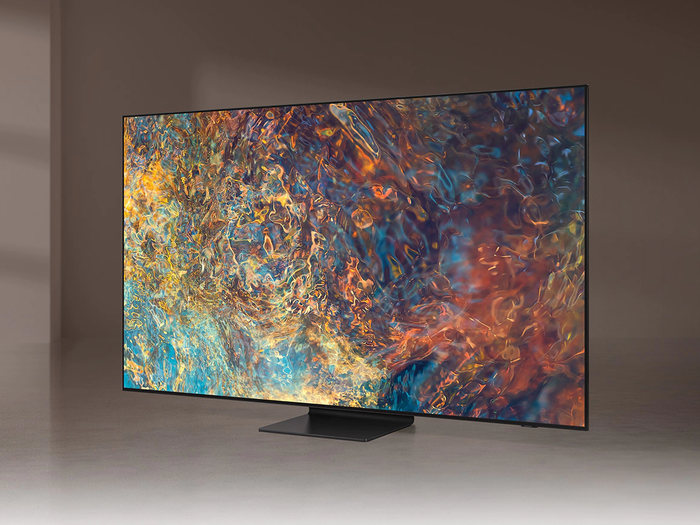
Best Smart TVs for 4K Streaming

Are the subtitles or closed captions on your Samsung TV not going away? Since there is no direct subtitle button on the remote, you’ll need to access your TV’s settings to disable them. This guide will walk you through the simple steps to turn off the subtitles on your Samsung TV so you can enjoy uninterrupted viewing.

  • Disabling Captions on Samsung TV
  • Troubleshooting: What to Do If Subtitles Won’t Turn Off
  • Conclusion

Disabling Captions on Samsung TV

Follow these steps to easily disable subtitles on your Samsung TV:

  1. Navigate to Settings
    • Step 1: Using your TV remote, press the Home button (or the dedicated Settings button if available). This will bring up the Settings menu.
    • Step 2: Use the directional pad to highlight and select Settings. The icon for this is usually represented by a gear or cogwheel.
  2. Select General
    • Step 1: In the left panel of the settings menu, scroll down and select General.
    • Step 2: You should see several options in this section, with General being the first.
  3. Select Accessibility
    • Step 1: In the General section, select Accessibility. This option is usually located near the top.
    • Step 2: Accessibility settings allow you to adjust options for viewers with different needs, including subtitle settings.
  4. Select Caption Settings
    • Step 1: In the Accessibility menu, scroll down to find and select Caption Settings.
    • Step 2: This is typically the second or third option in the list.
  5. Select Captions to Turn Them Off
    • Step 1: In Caption Settings, you’ll see an option labeled Captions. Select it to turn off the captions.
    • Step 2: The bubble next to Captions will turn grey, indicating that they have been disabled. The other options in the menu will also grey out.
    • Step 3: Your changes will be saved automatically. You can exit the Settings menu by pressing the Exit button on your remote.

Now the subtitles should be turned off, and you can enjoy your content without closed captioning.

ADVERTISEMENT

Troubleshooting: What to Do If Subtitles Won’t Turn Off

If you still see subtitles after following the steps above, try these troubleshooting tips:

  1. Turn Off Settings in Other Apps
    • Step 1: Some streaming apps, like Netflix and Hulu, have their own subtitle options. If you disabled subtitles on your TV but still see them in these apps, check the settings within the app itself.
    • Step 2: Look for the subtitle or closed caption settings in the app’s menu and make sure they are turned off.
  2. Restart the TV
    • Step 1: If subtitles are still appearing after disabling them, try turning off your TV completely.
    • Step 2: Unplug the power cord from the TV, wait for about 1-2 minutes, then plug it back in.
    • Step 3: Turn the TV back on and check if the subtitles have been successfully disabled.
  3. Reset Your TV
    • Step 1: If the subtitles persist even after restarting, you may need to reset your TV.
    • Step 2: Navigate to Settings > Support > Device Care > Self Diagnosis > Reset Smart Hub.
    • Step 3: Enter your PIN (if prompted) to reset the Smart Hub and restore factory settings. Please note that this will remove any installed apps and settings.

Conclusion

Turning off subtitles on your Samsung TV is easy once you know where to find the settings. By following these simple steps, you can disable the captions and enjoy your content as it was meant to be experienced. If you run into any issues, troubleshooting steps such as checking app settings, restarting the TV, or performing a reset should help resolve the problem.

Tags: accessibilityclosed captioningSamsung TVSamsung TV guidesubtitlesturn off subtitlesTV settings
Share2Tweet1SendShareSharePinShareShare
Google Add as a Preferred Source on Google
Previous Post

Common Netflix Problems and How to Solve Them

Next Post

How to Reset Your Samsung Smart TV to Factory Settings

NyongesaSande News Desk

NyongesaSande News Desk

Nyongesa Sande offers diverse content across news, technology, entertainment, and more, aiming to provide readers with a wide range of informative and engaging articles. NYONGESA SANDE's dedicated team provides our audience not only with the highly relevant news but also with outstanding interactive experience.

Related Posts

How to Weld a 2-Block Rectangular Hollow Block Mold: Measurements, Materials and Step-by-Step Guide
How To

How to Weld a 2-Block Rectangular Hollow Block Mold: Measurements, Materials and Step-by-Step Guide

2 months ago
How to Create a Facebook Account on iPhone App
How To

How to Fix Facebook Confirmation Email Not Received

2 months ago
How to Create a Facebook Account on iPhone App
How To

How to Fix Facebook Confirmation Code Not Received

2 months ago
How to Create a Facebook Account on iPhone App
How To

How to Confirm Your Facebook Email or Phone Number

2 months ago
How to Create a Facebook Account on iPhone App
How To

How to Understand Your Facebook Account and Profiles

2 months ago
How to Create a Facebook Account on iPhone App
How To

How to Fix Facebook Name Not Accepted

2 months ago
Load More
Next Post
Best Smart TVs for 4K Streaming

How to Reset Your Samsung Smart TV to Factory Settings

Setting Up Your Samsung Smart TV for the First Time

Setting Up Your Samsung Smart TV for the First Time

ADVERTISEMENT

Who We Are

Nyongesa Sande

NyongesaSande.com is a digital news and media platform covering breaking news, business, technology, AI, politics, sports, world affairs and African innovation.

Our Brands

  • YouTube
  • Forums
  • Law Archive
  • Sandes Kitchen

News Sections

  • News
    • World
    • Africa
  • Politics
  • Business
  • Tech
  • AI
  • Telecom
  • Sports
  • Opinion
  • Lifestyle
  • Live
  • World Cup 2026
    • World Cup 2026 Standings
    • World Cup 2026

Editorial Standards

  • Editorial Policy
  • Fact Checking Policy
  • Corrections Policy
  • Ethics Policy
  • AI Usage Policy
  • News Tips
  • Submit Press Release

Legal

  • Privacy Policy
  • Terms of Use
  • Cookie Policy
  • Risk Disclaimer
  • Disclaimer
  • DMCA
  • Ad Choices
  • YouTube

Our Company

  • About Us
    • Nyosake Designers
      • Nyosake Webmasters
      • Nyosake Investment
  • Contact Us
    • Newsroom Contact
  • Ownership Disclosure
  • Advertise
  • Privacy Policy
  • Terms of Use
  • Cookie Policy
  • Risk Disclaimer
  • Disclaimer
  • DMCA
  • Ad Choices
  • YouTube

NyongesaSande.com is an independent digital news and media platform covering Africa, business, technology, AI, politics and global developments.

© 2026 NyongesaSande.com. All rights reserved.

No Result
View All Result
  • News
    • World
    • Africa
  • Politics
  • Business
  • Tech
  • AI
  • Telecom
  • Sports
  • Opinion
  • Lifestyle
  • Live
  • World Cup 2026
    • World Cup 2026 Standings
    • World Cup 2026

NyongesaSande.com is an independent digital news and media platform covering Africa, business, technology, AI, politics and global developments.

© 2026 NyongesaSande.com. All rights reserved.