


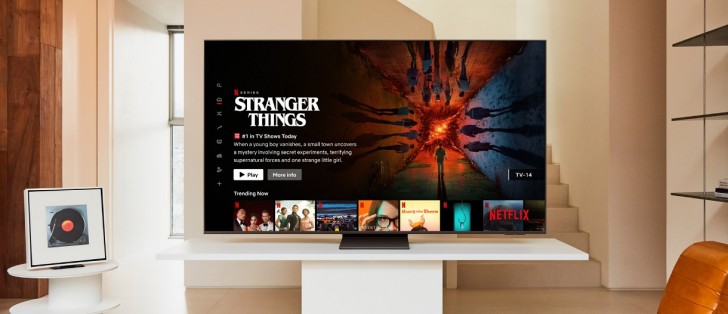
Watching Netflix on a smart TV, laptop, mobile phone, or streaming device can be an incredible experience, but occasionally, issues like buffering, login problems, or streaming errors can ruin the fun. These issues can arise from a variety of causes, such as software glitches, network problems, or app compatibility issues.
In this article, we’ll guide you through troubleshooting Netflix on different devices and offer solutions for common problems, ensuring you can get back to uninterrupted streaming.
1. Troubleshooting Netflix on Smart TVs
Smart TVs are one of the most popular devices for streaming Netflix, but they can encounter a range of problems, from slow loading times to app crashes.
Common Issues:
- Netflix won’t load: This often happens due to network or app-related problems.
- Error codes: Netflix error codes such as NW-2-5 (network issues) or UI-800-3 (app issues) are frequent.
- App crashing or freezing: This can happen due to outdated software or corrupted app data.
How to Fix:
- Check your internet connection: Ensure your Wi-Fi or Ethernet connection is stable. Restart your router or connect your TV directly to the router using an Ethernet cable for better stability.
- Update the TV software: Go to your TV’s settings and check for system updates. Keeping your TV’s software up-to-date can help resolve many issues.
- Restart the Netflix app: Close the Netflix app completely and reopen it. You can also uninstall and reinstall it if the issue persists.
- Reset the TV: If other methods fail, try resetting your smart TV to its factory settings. This can often solve more complicated software problems.
2. Troubleshooting Netflix on Laptops and Computers
Watching Netflix on a laptop or desktop is easy, but you may encounter playback issues or be unable to sign in.
Common Issues:
- Error code UI-800-3: This indicates app data corruption.
- Playback errors or buffering: Slow internet or browser issues can cause buffering.
- Can’t sign in: This issue can arise from incorrect login details or server issues.
How to Fix:
- Clear browser cache and cookies: Go to your browser’s settings and clear cache and cookies. This can solve playback errors caused by corrupted data.
- Update your browser: Ensure that your browser is up-to-date. Older versions may not support the latest streaming features on Netflix.
- Check for server outages: Visit Netflix’s Help Center to see if there’s a widespread server outage.
- Use a different browser: If one browser isn’t working, try a different one (e.g., Google Chrome, Mozilla Firefox).
- Disable browser extensions: Some extensions (like ad blockers) may interfere with Netflix playback. Disable these extensions and try again.
3. Troubleshooting Netflix on Mobile Devices (iOS and Android)
Streaming on a smartphone or tablet is incredibly convenient, but mobile devices are prone to issues like crashes, buffering, or login problems.
Common Issues:
- App crashes or freezes: This can be caused by software glitches or low device storage.
- Buffering or slow loading: Poor internet connectivity or insufficient bandwidth.
- Netflix not loading: The app may fail to load due to data corruption or a weak connection.
How to Fix:
- Clear app cache (Android): Go to Settings > Apps > Netflix > Storage, and tap Clear Cache. This can fix issues caused by cached data.
- Update the app: Ensure that you’re using the latest version of the Netflix app. Go to the App Store (iOS) or Google Play Store (Android) to check for updates.
- Check your internet connection: Make sure your mobile data or Wi-Fi is working properly. If using mobile data, ensure you have sufficient data speed for streaming.
- Restart the app: Close the Netflix app completely and reopen it.
- Reinstall the app: If the problem persists, uninstall the app and reinstall it from the App Store or Google Play.
4. Troubleshooting Netflix on Streaming Devices (Roku, Chromecast, Apple TV, Fire Stick)
Many users rely on streaming devices like Roku, Chromecast, Apple TV, and Amazon Fire Stick for streaming Netflix. However, these devices may occasionally experience issues like buffering or error messages.
Common Issues:
- Error code M7111-1331-5059 (Proxy/VPN error): This happens if Netflix detects a VPN or proxy.
- App crashes or freezes: The app may fail to load or freeze mid-stream.
- Buffering or slow streaming: Insufficient bandwidth or device settings can cause streaming issues.
How to Fix:
- Turn off VPN/proxy: If you’re using a VPN, disable it. Netflix often blocks access from VPN servers, resulting in the M7111-1331-5059 error.
- Update the streaming device firmware: Go to the device’s settings and check for updates. Device manufacturers often release updates to fix bugs and improve performance.
- Restart the device: Unplug the streaming device, wait for a few seconds, and plug it back in to reset the connection.
- Check internet connection: Test your Wi-Fi speed to ensure it meets Netflix’s minimum requirements. If possible, use a wired Ethernet connection for more stable streaming.
- Reinstall the Netflix app: If the app is crashing, try reinstalling it from the device’s app store.
5. Troubleshooting Netflix on Gaming Consoles (PlayStation, Xbox)
Many gaming consoles, like PlayStation and Xbox, also support Netflix streaming. However, streaming errors can occasionally occur due to network issues or outdated software.
Common Issues:
- Netflix app crashes or freezes: This can happen due to corrupt app data or outdated software.
- Buffering or lag: Slow internet or network congestion can cause streaming issues.
- Can’t sign in: Incorrect login credentials or server issues can prevent you from accessing Netflix.
How to Fix:
- Update the console software: Make sure your console’s operating system is up to date. This will ensure compatibility with the latest Netflix features.
- Clear app data: On PlayStation, go to Settings > Application Saved Data Management to delete Netflix app data. On Xbox, go to Settings > System > Storage to clear the app’s cache.
- Restart the console: Power off your console, unplug it for a few seconds, and then turn it back on.
- Check internet connection: Test your network connection to ensure it’s fast enough for streaming. Use a wired connection for better performance.
Conclusion
No matter which device you’re using to stream Netflix, occasional issues can arise. By following these troubleshooting steps, you can quickly identify and resolve problems, ensuring a smooth streaming experience across your devices. Whether you’re dealing with buffering, login issues, or app crashes, the solutions provided in this guide will help you get back to watching your favorite Netflix shows and movies without hassle.


