


Unzipping a file on the Mac is as simple as double-clicking on it. It costs you nothing. No additional apps are required. All you need is provided with MacOS. The zip file’s contents will appear in a folder in the same directory as the zip file.
It’s that easy.
Then why have a whole blog post about this? That’s simple, too.
- Novice Mac users don’t know this simple procedure.
- There are some subtleties to working with zip files.
- Sometimes, things go wrong.
For these and other reasons, I’ll take you through the ins and outs of unzipping files on the Mac. All for free.
Let’s get started.
What are zip files, and why are they used?
Zip files are the most common way for ordinary Mac users to send multiple or large files across the internet. Zipping puts your files into a specially formatted archive. That archive is the zip file. Zip archive filenames have a “.zip” file extension. This extension tells your operating system how to handle the file and what to do with it.
“Zip” is a compression algorithm. To compress—or zip—a file is to reduce your files to the smallest size possible without losing any information. Small files travel faster and more easily over the internet, using less bandwidth and reducing costs. It is usually required to zip your file or folder before sending it by email or uploading it to an online storage site. This is a good requirement, IMO.
Once you receive a zip file, it’s necessary to unzip it to access the files inside the zip archive. That’s where the double-clicking on it comes in.
On Mac, double-clicking on a zip file will automatically decompress it, generating a folder with the archive’s contents in the same folder as the zip file. From there, you can access and use the extracted files as you wish.
What is the best unzipper tool for Mac?
The Archive Utility app is the best tool for unzipping files on the Mac. This app comes included with MacOS. You needn’t purchase anything to have full control of your zip files.
The Archive app can be used without opening it. That’s how double-clicking works. You click twice on the zip archive of your choice. MacOS reads the zip file extension and opens the Archive app automatically. The archive is decompressed. Done.
The Archive app can also be opened from the Finder. When launched, you have a minimal user interface to open files for zipping or unzipping.
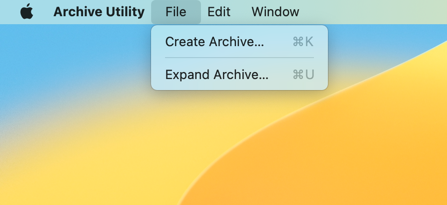
As you can see, there are no windows—just a menu bar. Open the File menu to get the only two options.
What are some keyboard shortcuts for efficient file unzipping on Mac?
Double-clicking on the zip archive is very efficient.
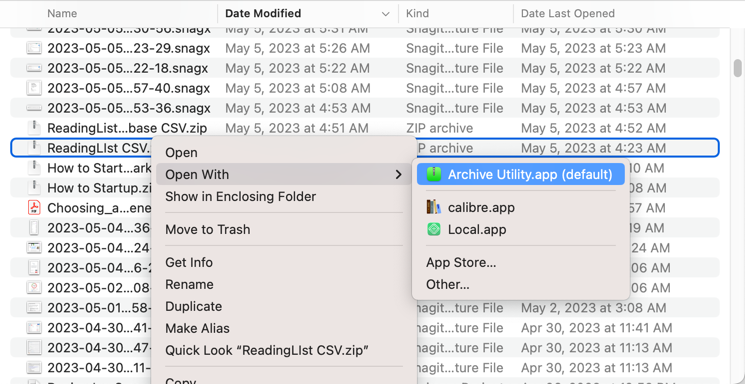
You can also right-click on an archive and choose “Open” or “Open with…”. Either choice opens the Archive Utility app by default. You’ll see the expanded archive in a new Finder window.
How do I unzip multiple files at once on Mac?
Unzipping multiple files is almost as simple as unzipping one file. Select the files you wish to include in your archive, then double-click on any of them. All selected zip files will decompress.
NOTE: If you open a non-zip file, that file will open separately in the Finder as well. Just close the window that opens and quit the associated app to exit.
How do I fix errors when unzipping files on Mac?
Here are some tips for unzipping files on Mac which don’t open.
- Make sure that you have enough disk space to unzip the file.
- Make sure that the file is not password-protected.
- Download the zip file again to make sure it isn’t corrupted.
- Try another unzipping app if the zip file is incompatible with the Archive Utility.
How do I use the command line to unzip a file?
In MacOS, the command line is found in the Terminal app. If you are not familiar with or comfortable with the command line, don’t worry. It’s not as difficult to use as it seems at first.
To unzip files from the Terminal, type the following command at the prompt:
unzip /path/to/zipped_file
For example, to unzip a zipped file named “my_files.zip” that is located in the Documents folder, you would type the following command:
unzip ~/Documents/my_files.zip
How do I host a zip file on the web?
Visit Tiiny.host for fast, secure, and easy hosting of your zip files. Share them with anyone.
As a user of Tiiny.host myself, I can vouch for them. They’re great!
Once you visit the homepage at Tiiny.host, you are three simple steps from your project being live on the web.

- Enter the link-name for your site.
- Choose HTML, then drag and drop or upload your zipped website file.
- Click the big blue “Upload” button.
That’s it!
Next steps
Tiiny.host offers everything you need for sharing a professional or personal website on the internet.
Tiiny.host’s customer service is awesome! Contact them directly at Tiiny.host/help and see. They’ll answer your questions about their services, help you out with any problems, and explain any issues raised by this article.
FAQs on Unzipping Files on Mac
What are zip files?
Zip files are also called archives. They are the container for compressed files a folders, reduced in file size to improve transfer time over the internet.
Can I unzip a file on Mac for free?
MacOS includes a full-featured zip utility, the Archive Utility app. It costs you nothing to use.
Can I unzip several zip archives at once on Mac?
Select one or several archives simultaneously, then double-click to unzip.
What if the unzipping of the zip file fails?
- Ensure you have enough disk space to unzip the file.
- Check if the zip file is password protected. You’ll need the password to decompress the file.
- Re-download the zip file in case it is corrupted.
- Use the command line or another zip utility to check for Mac compatibility.


