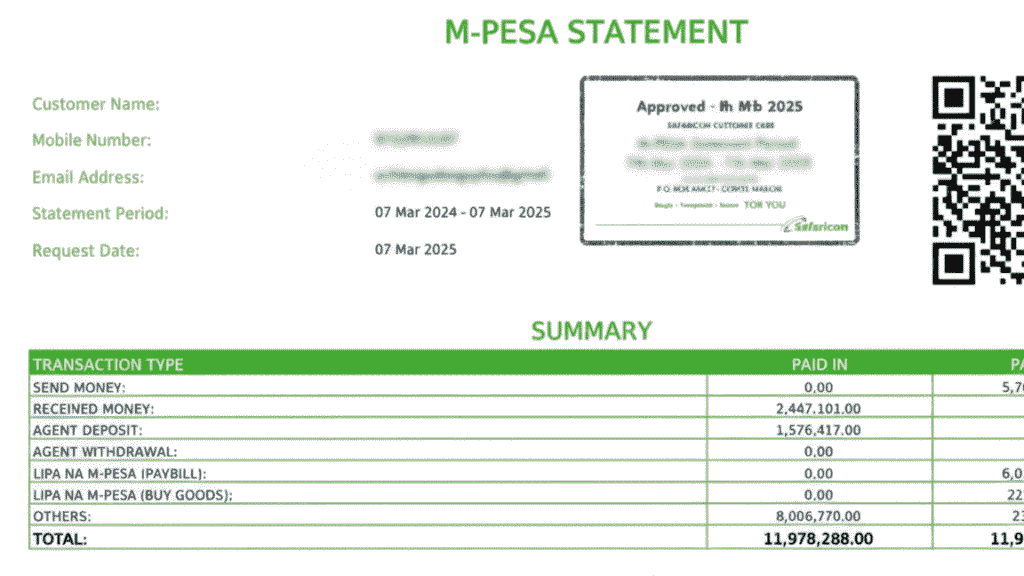
Tracking your MPESA transactions is crucial, whether you’re managing your budget, preparing for a loan application, or simply staying on top of your financial activities. Fortunately, Safaricom offers an easy way to access your MPESA statement instantly. This guide will walk you through the process of retrieving your MPESA mini statement and how to register for and access full MPESA statements.
What is an MPESA Statement?
An MPESA statement is essentially a record of your MPESA transactions over a specific period. It includes details such as deposits, withdrawals, payments to Paybill numbers, and other transactions. You can request this statement to monitor your spending, reconcile your finances, or provide proof of transactions for various purposes, including loan applications.
How to Retrieve Your MPESA Mini Statement
If you want to check a recent transaction or get a quick overview of your last 5 transactions, you can request an MPESA mini statement. This is a brief SMS statement that provides the latest 5 transactions on your account.
Steps to Get Your MPESA Mini Statement:
- Dial
*234#on your phone. - Select 5 (MPESA information) and press Send.
- Select 1 for MPESA statement.
- Choose 2 for mini statement.
- Safaricom will send the details of your last 5 transactions via SMS.
This method is quick and provides a snapshot of recent activities, but it’s limited to the last 5 transactions.
How to Request for Your Full MPESA Statement
If you need a more detailed MPESA statement, you can request the full statement, which is sent to your email in PDF format. This is ideal for tracking your transactions over a longer period, such as a month or more.
Steps to Register for Full MPESA Statement Service:
- Dial
*234#and press Call. - Select 5 (MPESA information) and press Send.
- Choose 1 for MPESA statement.
- Select 1 for full statement.
- Enter your National ID number to register.
- Enter and confirm your email address.
Once registered, Safaricom will send your full statement to your email address every 5th day of the month, covering your transactions for the past 30 days.
Tip: You’ll need a PDF reader installed on your device to open and view your full statement.
How to Get MPESA Statements Using the Safaricom App
If you prefer using a mobile app for convenience, the mySafaricom app allows you to request your MPESA statement directly from your phone.
Steps to Get Your MPESA Statement via Safaricom App:
- Download the App:
Go to the App Store (for iOS) or Google Play Store (for Android) and download the mySafaricom app. - Set Up the App:
After installation, open the app and enter your mobile number and email (optional). Generate a PIN for account access. - Access Your Statement:
After setting up your account, click on the MPESA Statement tab at the bottom of your app’s homepage. - Request Your Statement:
Select the MPESA Statement and follow the prompts to download your statement directly within the app.
Other Ways to Access Your MPESA Statement
- SIM Toolkit (Mini Statement)
You can also retrieve your mini statement through the SIM Toolkit. Here’s how:- Open your SIM Toolkit.
- Go to MPESA > My Account > Mini Statement.
- Enter your MPESA PIN.
- You will receive your mini statement via SMS.
- Safaricom Self-Care Portal
For more advanced options, you can access your MPESA statement via the Safaricom Self-Care Portal. This allows you to get statements for various durations (e.g., 1 month, 3 months, 6 months, or 1 year). Steps:- Visit the Safaricom Self-Care Portal.
- Register by entering your phone number, preferred username, and password.
- After activation, log in and navigate to MPESA > MPESA statement.
- Select the desired statement duration and download it.
Frequently Asked Questions (FAQs)
1. What is an MPESA Statement?
An MPESA statement is a record of your MPESA account activity, including deposits, withdrawals, and other transactions. It’s used for tracking spending and providing documentation for financial purposes.
2. How Can I Change My Email Address for MPESA Statements?
If you need to update your email address for receiving statements, follow these steps:
- Dial
*234#. - Select 5 > 1 > 3 (change email).
- Enter your new email address and confirm it.
3. How Do I Get an MPESA Statement for Another Number?
To get an MPESA statement for another number, log in to the Safaricom Self-Care Portal with that number’s login details, or insert that number’s SIM card into your phone and request the statement using *234#.
4. How Often Can I Request My MPESA Statement?
You can request your MPESA statement up to 5 times a day. After the 5th request, you must wait 24 hours before making another request.
Conclusion
Accessing your MPESA statement is quick and easy, whether you need a mini statement or a full statement for detailed tracking. By following the steps outlined in this guide, you can stay on top of your financial activities, track your spending, and even use the statements for loan applications or personal budgeting. Whether using the MPESA USSD code, mySafaricom app, or the Safaricom Self-Care Portal, getting your MPESA statement instantly is a convenient tool for managing your finances.