After the release of iOS 26, many iPhone users noticed a lag when swiping from the Today View (the left-most widget screen) to the Home Screen. This issue persisted even after the iOS 26.2 update, leading to a frustrating stutter during transitions. While it can feel like a serious problem, it’s usually fixable with a few simple steps. Here’s how you can restore smoothness to your iPhone’s UI. iOS 26.2 swipe lag
Understanding Performance Stutter on the iPhone Home Screen
The lag is caused by how iOS 26 handles widget management and complex transition animations. The issue often results from background indexing or graphical rendering problems, which cause the system to struggle with loading widget content during transitions. This leads to a noticeable delay, making your iPhone feel slower.
1. Minimize Widget Overload
Having too many widgets on the Today View can put extra strain on the system, leading to the lag. To fix this:
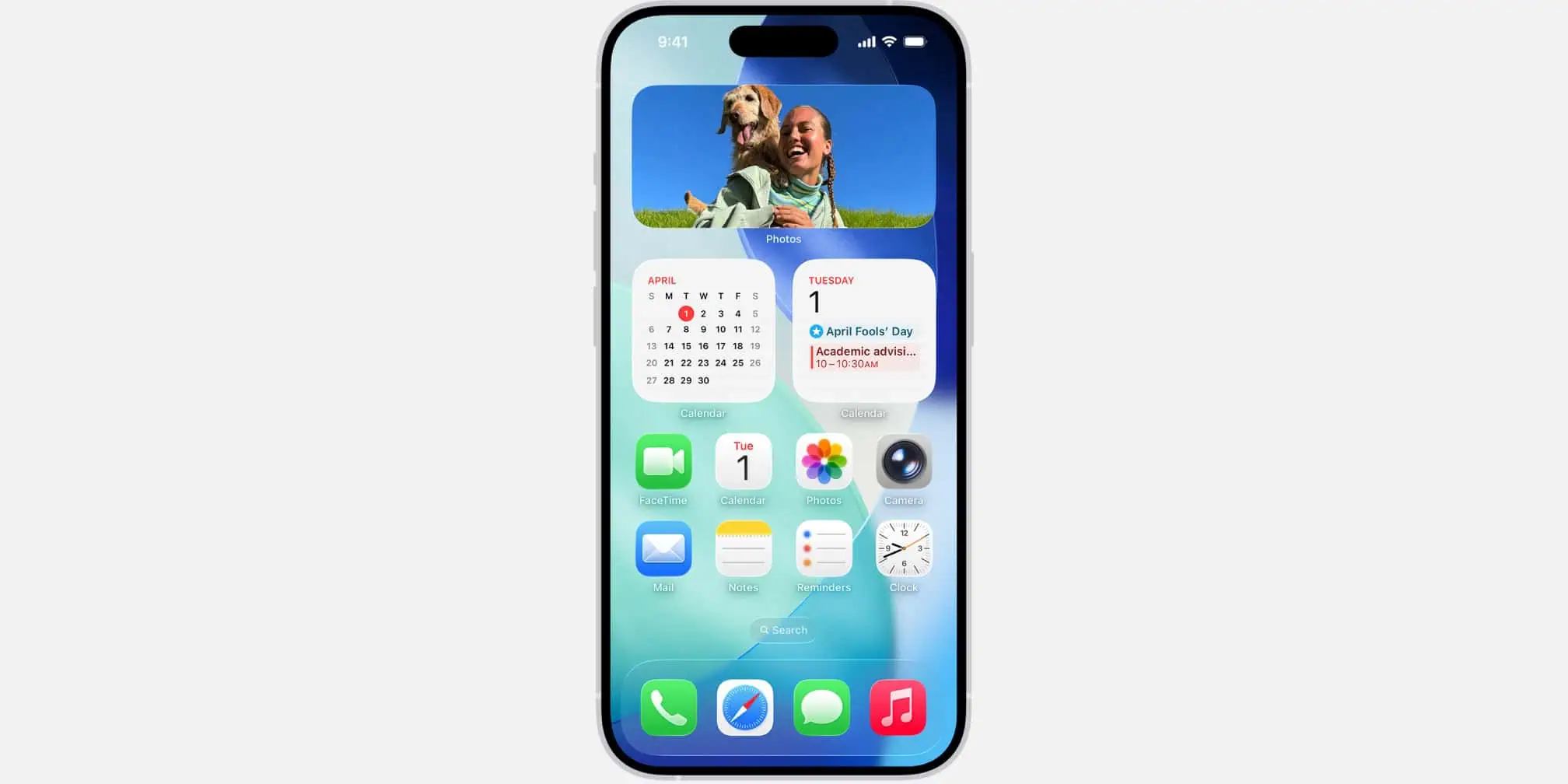
- Go to Today View by swiping right from the Home screen.
- Tap and hold an empty part of the screen until the widgets start to jiggle.
- Tap the minus icon on any widgets you don’t use frequently to remove them.
Users report that reducing the number of active widgets helps reduce the swipe lag. If needed, try replacing large, complex widgets with smaller, less resource-intensive Apple stock widgets.
2. Identify and Isolate the Problematic Widget
If reducing widgets doesn’t solve the issue, you can systematically identify the culprit:
- Remove All Widgets: Go to Today View and remove all third-party and Apple widgets.
- Test the Swipe: Swipe back to the Home Screen. If the lag disappears, the issue is widget-related.
- Re-add Widgets One by One: Slowly re-add your widgets, testing the swipe after each one, until you find the widget that causes the lag.
Once identified, you can remove or replace that problematic widget with a simpler version from the same app.
3. Adjust Visual Effects
Apple’s Liquid Glass effect and other visual features can demand significant system resources. Adjusting accessibility settings can help improve performance:
- Reduce Transparency: Go to Settings > Accessibility > Display & Text Size and toggle Reduce Transparency off and on.
- Enable Reduce Motion: Go to Settings > Accessibility > Motion and turn on Reduce Motion. This will replace animations with cross-fades, reducing resource usage and improving performance.
4. Check and Optimize App Data Settings
Sometimes, the system struggles to refresh complex data for widgets. To ensure smooth performance:
- Disable Low Power Mode: Low Power Mode can delay widget updates. Go to Settings > Battery and ensure Low Power Mode is off.
- Disable Low Data Mode: This restricts the network refresh rate for apps, potentially affecting widgets. For Wi-Fi, go to Settings > Wi-Fi, tap the info (i) icon next to your network, and ensure Low Data Mode is off. For Cellular, go to Settings > Cellular > Cellular Data Options and make sure it’s off.
5. System Reset and Optimization Checks
System maintenance can resolve conflicts causing lag. Here are a few additional steps:
- Force Restart: Perform a force restart on your iPhone to clear temporary memory errors and reset stuck background processes.
- Delete VPN Profiles: Some VPN software can interfere with system processes. Go to Settings > General > VPN & Device Management to delete any installed VPN profiles.
- Check Battery Health: Go to Settings > Battery > Battery Health. If the Maximum Capacity is below 80%, the system may throttle performance, leading to lag.
If the lag persists, try resetting system preferences without erasing data:
- Go to Settings > General > Transfer or Reset iPhone.
- Tap Reset > Reset All Settings.
FAQ
Does the lag disappear after updating?
Lag after a major update is common as the system completes background indexing. However, the iOS 26.x lag is a persistent bug that requires manual intervention. Users should try optimization steps immediately, as waiting for an official fix may take time.
Is this issue exclusive to older iPhone models?
No, this issue affects newer models as well. iPhone Pro and Pro Max users have reported the same lag, indicating that this is a core bug within iOS 26.x, not a hardware limitation. iOS 26.2 swipe lag
Restoring Smoothness to Your iPhone’s UI
While frustrating, this lag can be resolved. Start by minimizing widget usage, adjusting visual effects, and checking system settings. If needed, perform system resets and remove unnecessary VPN profiles. These steps should help restore smooth performance, even while Apple works on fixing the underlying issue in future updates.