
Nyongesa Sande
No Result
View All Result
  • News
    • World
    • Africa
  • Politics
  • Business
  • Tech
  • AI
  • Telecom
  • Sports
  • Opinion
  • Lifestyle
  • Live
  • World Cup 2026
    • World Cup 2026 Standings
    • World Cup 2026
Nyongesa Sande
  • About Us
    • Nyosake Designers
      • Nyosake Webmasters
      • Nyosake Investment
  • Contact Us
    • Newsroom Contact
  • Ownership Disclosure
  • Advertise
No Result
View All Result
Nyongesa Sande
No Result
View All Result
  • News
  • Politics
  • Business
  • Tech
  • AI
  • Telecom
  • Sports
  • Opinion
  • Lifestyle
  • Live
  • World Cup 2026
ADVERTISEMENT

Home » How to Download Rongo University Admission Letters

How to Download Rongo University Admission Letters

NyongesaSande News Desk by NyongesaSande News Desk
2 years ago
in How To
Reading Time: 3 mins read
A A
Accredited Courses Offered at Rongo University

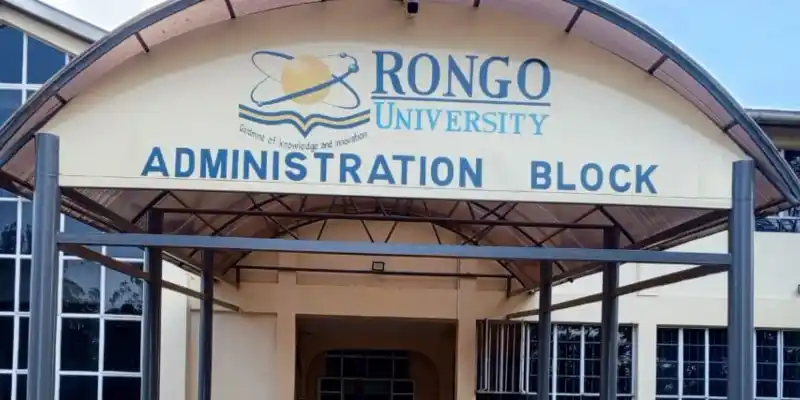
To download your Rongo University Admission Letters for the 2024/2025 academic year, follow these steps:

Requirements for Downloading Rongo University Admission Letters

Before you begin, ensure you have the following:

  1. KCSE Index Number: Essential for identifying your placement.
  2. Stable Internet Connection: To avoid interruptions during the download process.
  3. Device Access: Such as a smartphone or computer.

How to Download Rongo University Admission Letters Online

  1. Visit Rongo University Website:
    • Open your web browser and go to the Rongo University official website: https://rongovarsity.ac.ke.
  2. Navigate to KUCCPS Admission Letters:
    • At the top right of the homepage, locate and click on the menu item “Download your KUCCPS Admission Letters.”
    • Alternatively, you can scroll down and click on the image just below the schools labeled “KUCCPS admissions.”
  3. Access the Admissions Portal:
    • On the new page, click on “Download Your Admission Letter Here” to access the Rongo University Admissions Portal.
  4. Enter Your KCSE Index Number:
    • On the RU Admissions Portal, enter your KCSE index number followed by /2023. For example, if your index number is 1234567890, enter it as 1234567890/2023.
  5. Submit Your Details:
    • Click on “Submit” to proceed.
  6. Download Admission Letter:
    • After submitting your details, you will see options to download your admission letter and possibly other related documents such as a fee structure or medical form. Click on the appropriate links to download these documents.
  7. Save and Print Your Admission Letter:
    • Save the downloaded admission letter to your device. It usually downloads as a PDF file.
    • If needed, print out a copy of your admission letter. This might be necessary during your admission process or for your personal reference.
  8. Check for Additional Instructions:
    • Make sure to read any additional instructions provided on the website regarding the admission process or any further actions you need to take.
  9. Contact Rongo University for Support:
    • If you encounter any issues during the download process or have questions about your admission, use the contact information provided on the Rongo University website for assistance.

By following these steps, you should be able to successfully download your Rongo University Admission Letters for the upcoming academic year.

Tags: How ToRongo University Admission Letters
Share1Tweet1SendShareScanSharePinShareShare
Google Add as a Preferred Source on Google
Previous Post

Download Jaramogi Oginga Odinga University Admission Letters

Next Post

How to Download Kirinyaga University Admission Letters

NyongesaSande News Desk

NyongesaSande News Desk

Nyongesa Sande offers diverse content across news, technology, entertainment, and more, aiming to provide readers with a wide range of informative and engaging articles. NYONGESA SANDE's dedicated team provides our audience not only with the highly relevant news but also with outstanding interactive experience.

Related Posts

How to Weld a 2-Block Rectangular Hollow Block Mold: Measurements, Materials and Step-by-Step Guide
How To

How to Weld a 2-Block Rectangular Hollow Block Mold: Measurements, Materials and Step-by-Step Guide

2 months ago
How to Create a Facebook Account on iPhone App
How To

How to Fix Facebook Confirmation Email Not Received

2 months ago
How to Create a Facebook Account on iPhone App
How To

How to Fix Facebook Confirmation Code Not Received

2 months ago
How to Create a Facebook Account on iPhone App
How To

How to Confirm Your Facebook Email or Phone Number

2 months ago
How to Create a Facebook Account on iPhone App
How To

How to Understand Your Facebook Account and Profiles

2 months ago
How to Create a Facebook Account on iPhone App
How To

How to Fix Facebook Name Not Accepted

2 months ago
Load More
Next Post
Accredited Courses Offered At Kirinyaga University

How to Download Kirinyaga University Admission Letters

Kibabii University

How to Download Kibabii University Admission Letters

ADVERTISEMENT

Who We Are

Nyongesa Sande

NyongesaSande.com is a digital news and media platform covering breaking news, business, technology, AI, politics, sports, world affairs and African innovation.

News Sections

  • News
    • World
    • Africa
  • Politics
  • Business
  • Tech
  • AI
  • Telecom
  • Sports
  • Opinion
  • Lifestyle
  • Live
  • World Cup 2026
    • World Cup 2026 Standings
    • World Cup 2026

Editorial Standards

  • Editorial Policy
  • Fact Checking Policy
  • Corrections Policy
  • Ethics Policy
  • AI Usage Policy
  • News Tips
  • Submit Press Release

Legal

  • Privacy Policy
  • Terms of Use
  • Cookie Policy
  • Risk Disclaimer
  • Disclaimer
  • DMCA
  • Ad Choices

Our Company

  • About Us
    • Nyosake Designers
      • Nyosake Webmasters
      • Nyosake Investment
  • Contact Us
    • Newsroom Contact
  • Ownership Disclosure
  • Advertise
  • Privacy Policy
  • Terms of Use
  • Cookie Policy
  • Risk Disclaimer
  • Disclaimer
  • DMCA
  • Ad Choices

NyongesaSande.com is an independent digital news and media platform covering Africa, business, technology, AI, politics and global developments.

© 2026 NyongesaSande.com. All rights reserved.

No Result
View All Result
  • News
    • World
    • Africa
  • Politics
  • Business
  • Tech
  • AI
  • Telecom
  • Sports
  • Opinion
  • Lifestyle
  • Live
  • World Cup 2026
    • World Cup 2026 Standings
    • World Cup 2026

NyongesaSande.com is an independent digital news and media platform covering Africa, business, technology, AI, politics and global developments.

© 2026 NyongesaSande.com. All rights reserved.