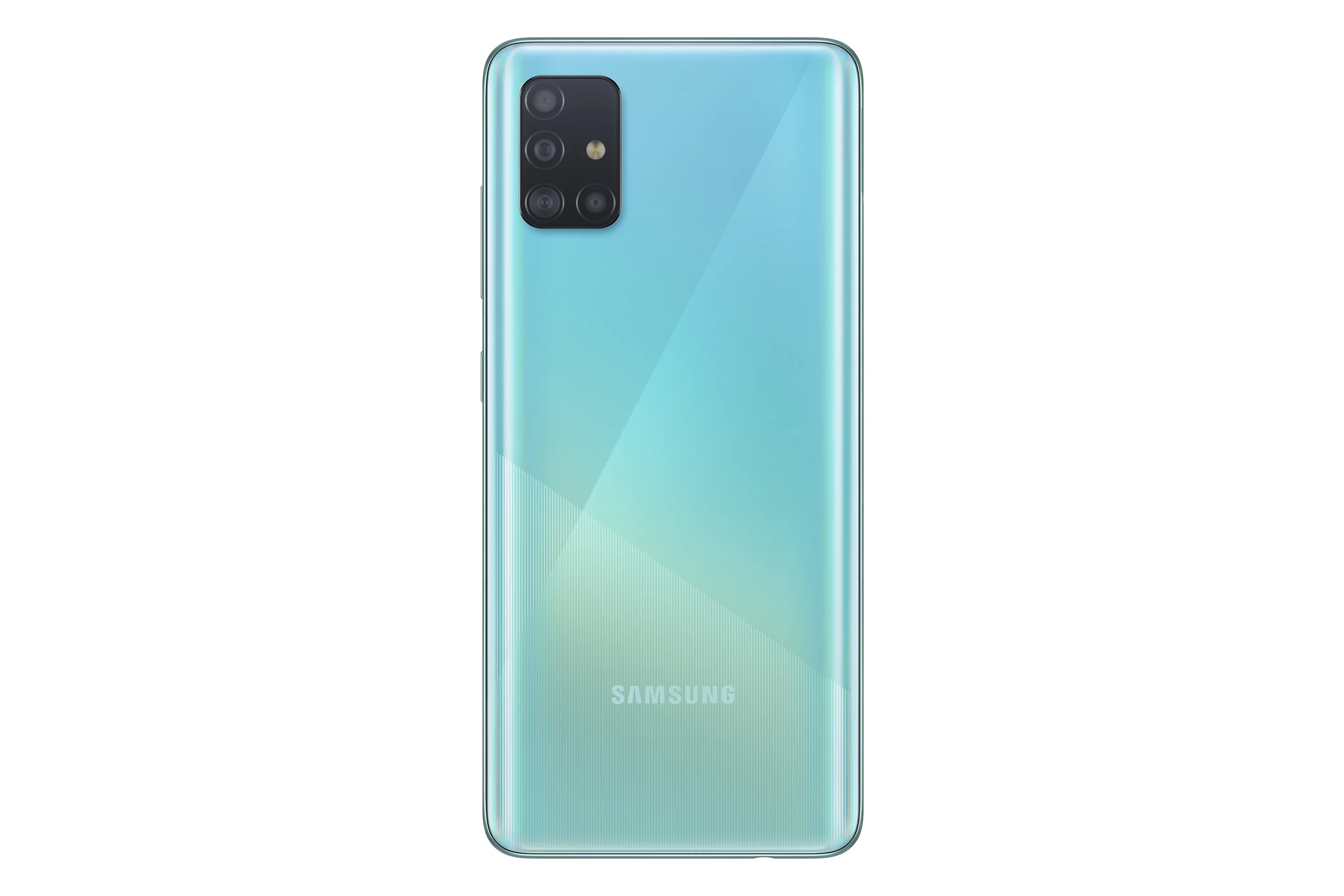
If you’re having issues with your SAMSUNG Galaxy A51 or just want to start fresh, performing a hard reset can restore the device to its original factory settings. This process will wipe all data, including screen locks, and optimize your phone for faster performance.
A factory reset, also known as hard reset or master reset, is a software restore of an electronic device to its original system state by erasing all data, settings, and applications that were previously stored on the device. This is often done to fix an issue with a device, but it could also be done to restore the device to its original settings.
Since a factory reset entails deleting all information stored in the device, it is essentially the same concept as reformatting[1] a hard drive. Pre-installed applications and data on the card’s storage card (such as a microSD card) will not be erased.[citation needed]
Factory resets can fix many chronic performance issues (such as freezing), but it does not remove the device’s operating system. Factory resets can also be used to prepare a device for sale, refurbishment, disposal, recycling, donation, or other transfers of ownership by removing personal data and settings associated with the previous owner.
Read Also: Samsung Hard Reset: Easy Methods to Restore Your Device to Factory Settings
Important Considerations:
- Data Backup: Before starting the hard reset, ensure that you back up your important files because all data on the phone will be erased.
- Google Account Lock: After the reset, you might need to verify your Google account if Factory Reset Protection (FRP) is enabled.
Reset Methods: Below, we’ll describe two ways to reset your Galaxy A51: using hardware keys and through the Android 9.0 Pie settings.
Method 1: Using Hardware Keys
- Prepare the Device: Ensure the phone is charged to at least 50%, then turn it off completely.
- Access Recovery Mode:
- Press and hold the Volume Down and Power buttons simultaneously until the screen turns off.
- Immediately switch to holding the Volume Up and Power buttons together.
- Enter Recovery Mode:
- Release all buttons when the Recovery Mode screen appears.
- Navigate and Select Wipe Data/Factory Reset:
- Use the Volume buttons to move through the options.
- Highlight Wipe Data/Factory Reset and press the Power button to confirm.
- Confirm Data Deletion:
- In the next menu, select Factory Data Reset using the Power button.
- Reboot the System:
- Once the process is complete, select Reboot System Now using the Power button.
Method 2: Using Android 9.0 Pie Settings
- Open Settings:
- Go to the Settings app on your Galaxy A51.
- Navigate to Reset Options:
- Scroll down to General Management > Reset.
- Factory Reset Option:
- Select Factory Data Reset.
- Confirm the Reset:
- Follow the on-screen instructions to confirm and reset the phone.
After the Hard Reset:
- Initial Setup: Your Galaxy A51 will reboot as if it’s a new device, ready for setup.
- Google Account Verification: If prompted, log in with the previously used Google account to complete the setup process.
Troubleshooting FRP Lock:
- If the device remains locked due to FRP (Factory Reset Protection), follow specific instructions for Unlocking FRP to regain access.
Now your SAMSUNG Galaxy A51 is restored to default settings and should operate smoothly.
Factory resets can be achieved in a variety of ways depending on the electronic device. For some devices, this could be done by going into the device’s Service Menu. Other devices may require a complete re-installation of the software. The following section lists a few common electronic devices and how they can be reset to factory settings.
Computer factory resets will restore the computer to its original operating system and delete all of the user data stored on the computer. Microsoft’s Windows 8, Windows 10 and Windows 11, and Apple’s macOS have options for this.
On devices running the Android operating system (mobile telephones, tablet computers, television receivers, etc.) there is a factory data reset option in Settings that will appear to erase all of the device’s data and reset all of its settings. This method is typically used when the device has a technical problem that cannot be fixed using other methods, or when the owner wants to remove all their personal data before selling, giving away, returning, or disposing of the device. Factory Reset Protection (FRP) is a security feature implemented in Android devices starting from Android 5.1 Lollipop and later. Its purpose is to prevent unauthorized access to a device that has been lost, stolen, or reset to factory settings. If the user does not recall the Google account information, alternative methods such as FRP bypass are utilized to unlock the Android device. After performing a study, Avast reported that the data is recoverable using forensics software that is fairly generic and publicly available. On Samsung smartphones, a factory reset operation does not affect the Knox Flag, and consequently does not reset the device to its original factory settings and is not a way to return the device to a state compatible with the manufacturer’s warranty. Data on the SIM card and the microSD memory card is not erased.
Many electronic devices have a menu with tools and settings called the service menu, which commonly includes a tool that performs a factory reset. This tool is most common in devices with displays, such as television sets and computer monitors. These menus are usually accessed through a sequence of button presses.
Game cartridges, particularly ones designed for Nintendo handhelds that maintain save data, may feature a factory reset option that can instantly delete all of such data from the cartridge, initiated either by selecting a particular setting in an options menu or by inputting a particular button combination during startup.
Read Also: How to Hard Reset the SAMSUNG Galaxy A34 5G