Nyongesa Sande
No Result
View All Result
  • News
    • World
    • Africa
  • Politics
  • Business
  • Tech
  • AI
  • Telecom
  • Sports
  • Opinion
  • Lifestyle
  • Live
  • World Cup 2026
    • World Cup 2026 Standings
    • World Cup 2026
Nyongesa Sande
  • About Us
    • Nyosake Designers
      • Nyosake Webmasters
      • Nyosake Investment
  • Contact Us
    • Newsroom Contact
  • Ownership Disclosure
  • Advertise
No Result
View All Result
Nyongesa Sande
No Result
View All Result
  • News
  • Politics
  • Business
  • Tech
  • AI
  • Telecom
  • Sports
  • Opinion
  • Lifestyle
  • Live
  • World Cup 2026
ADVERTISEMENT

Home » Essential iPhone Privacy Settings to Enhance Your Security

Essential iPhone Privacy Settings to Enhance Your Security

NyongesaSande News Desk by NyongesaSande News Desk
2 years ago
in iPhone
Reading Time: 4 mins read
A A
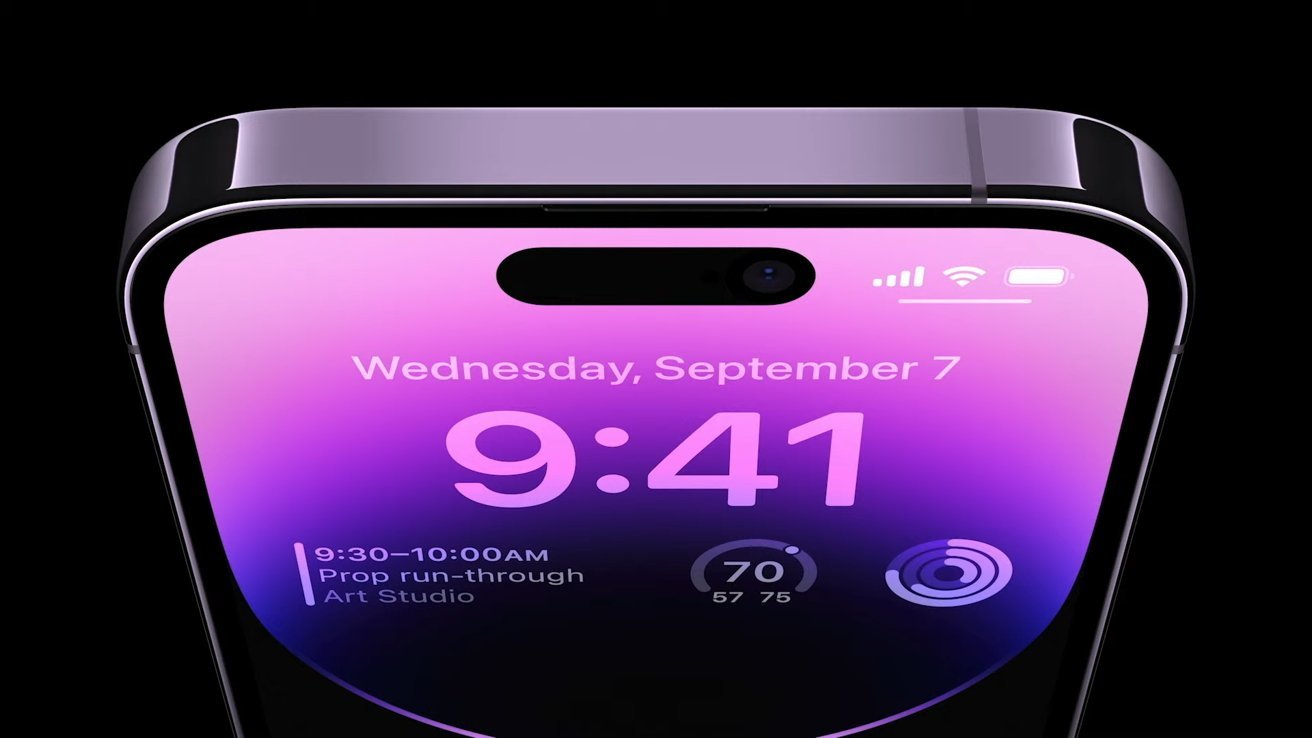
Delayed Arrival: Under-Screen Face ID Rumored for 2026 iPhone 18 Pro Models

iPhones are integral to our daily lives, thanks to advancing technology. However, this reliance increases privacy and security risks. Many users are unaware that certain default settings may expose personal information. Fortunately, Apple provides adjustable privacy controls that can bolster your iPhone’s security and protect your data.

    • Critical Settings to Adjust for Increased iPhone Security
    • Location Tracking Adjustments
    • Limiting Personalized Advertising
    • Controlling App Tracking
    • Summary Table of Key Privacy Settings
    • Additional iPhone Security Measures
    • Managing iCloud and Data Security
    • Siri and Voice Control Privacy
    • App Permissions and Data Access
    • Enhancing Device Access Security
  • Key Takeaways

Critical Settings to Adjust for Increased iPhone Security

Location Tracking Adjustments

Location tracking is a core function that can compromise your privacy. To manage this:

  • Navigate to Settings > Privacy & Security > Location Services.
  • Adjust permissions for each app to “Never,” “Ask Next Time,” or “While Using the App.”
  • Disable “Significant Locations” by going to System Services > Significant Locations and toggling it off.

Limiting Personalized Advertising

To reduce targeted advertisements:

ADVERTISEMENT
  • Go to Settings > Privacy & Security > Apple Advertising.
  • Turn off “Personalized Ads” to limit ad targeting based on your data.

Controlling App Tracking

Many apps track your activities across other apps and websites. To manage tracking permissions:

  • Access Settings > Privacy & Security > Tracking.
  • Here, you can deny tracking permissions to individual apps.

Summary Table of Key Privacy Settings

SettingPath to Disable
Location TrackingSettings -> Privacy & Security -> Location Services
Significant LocationsSettings -> Privacy & Security -> System Services -> Significant Locations
Personalized AdsSettings -> Privacy & Security -> Apple Advertising
App TrackingSettings -> Privacy & Security -> Tracking

These settings can be re-enabled if needed, but prioritizing privacy is recommended for maintaining safety.

ADVERTISEMENT

Additional iPhone Security Measures

Managing iCloud and Data Security

iCloud stores sensitive personal data. Enhance its security by:

  • Enabling Two-Factor Authentication for your Apple ID.
  • Selectively choosing which data to sync to iCloud under Settings > [Your Name] > iCloud.
  • Consider subscribing to iCloud+ for additional privacy features like Private Relay.

Siri and Voice Control Privacy

Siri can store and process your voice commands. To secure this feature:

  • Review and adjust Siri settings under Settings > Siri & Search.
  • Disable “Listen for ‘Hey Siri'” to prevent Siri from activating unintentionally.
  • Turn off Siri access from the lock screen for added security.

App Permissions and Data Access

Regularly review which apps can access your personal data:

ADVERTISEMENT
  • Go to Settings > Privacy to see and adjust app permissions.
  • Restrict access to sensitive data for apps that don’t require it to function.

Enhancing Device Access Security

Strong authentication methods prevent unauthorized access:

  • Set up Face ID or Touch ID under Settings > Face ID & Passcode or Touch ID & Passcode.
  • Enable attention-aware features for Face ID to ensure your device only unlocks when you directly look at it.
  • Regularly update your device passcode to a more complex one.

Key Takeaways

  • Regularly reviewing and adjusting your iPhone’s privacy settings can significantly enhance your security.
  • Stay informed about each iOS update as it may introduce new privacy features or settings adjustments.
  • By managing location services, ad settings, and app permissions, you protect your personal information from unauthorized access.

Always be proactive about your privacy settings to maintain control over your personal information and enhance your iPhone’s security posture.

Tags: iPhone Privacy Settings
Share1Tweet1SendShareScanSharePinShareShare
Google Add as a Preferred Source on Google
Previous Post

Anticipating the Arrival of Apple’s 11th Generation iPad: Insights and Rumors

Next Post

Essential Guide to Selecting the Ideal iPhone 15 Case for Style and Protection

NyongesaSande News Desk

NyongesaSande News Desk

Nyongesa Sande offers diverse content across news, technology, entertainment, and more, aiming to provide readers with a wide range of informative and engaging articles. NYONGESA SANDE's dedicated team provides our audience not only with the highly relevant news but also with outstanding interactive experience.

Related Posts

iPhone Ultra Concept Video Shows Apple’s Rumored Foldable
iPhone

iPhone Ultra Concept Video Shows Apple’s Rumored Foldable

3 days ago
iPhone 17 Leads Global Smartphone Sales in Q1
iPhone

iPhone 17 Leads Global Smartphone Sales in Q1

2 months ago
iPhone Fold hinge may use 3D printing
iPhone

iPhone Fold hinge may use 3D printing

3 months ago
Apple iPhone Air review
iPhone

iPhone Air Full Specs Review – Ultra-Thin Flagship Explained

3 months ago
Apple iPhone Air review
iPhone

iPhone Air Price in Kenya

3 months ago
iPhone 17e Rumors Point to Smart, Subtle Upgrades
iPhone

iPhone 17e Rumors Point to Smart, Subtle Upgrades

4 months ago
Load More
Next Post
Essential Guide to Selecting the Ideal iPhone 15 Case for Style and Protection

Essential Guide to Selecting the Ideal iPhone 15 Case for Style and Protection

How to Play Xbox Games on Your Laptop: A Gamer’s Guide

How to Play Xbox Games on Your Laptop: A Gamer’s Guide

ADVERTISEMENT

Who We Are

Nyongesa Sande

NyongesaSande.com is a digital news and media platform covering breaking news, business, technology, AI, politics, sports, world affairs and African innovation.

News Sections

  • News
    • World
    • Africa
  • Politics
  • Business
  • Tech
  • AI
  • Telecom
  • Sports
  • Opinion
  • Lifestyle
  • Live
  • World Cup 2026
    • World Cup 2026 Standings
    • World Cup 2026

Editorial Standards

  • Editorial Policy
  • Fact Checking Policy
  • Corrections Policy
  • Ethics Policy
  • AI Usage Policy
  • News Tips
  • Submit Press Release

Legal

  • Privacy Policy
  • Terms of Use
  • Cookie Policy
  • Disclaimer
  • Risk Disclaimer
  • DMCA
  • Ad Choices

Our Company

  • About Us
    • Nyosake Designers
      • Nyosake Webmasters
      • Nyosake Investment
  • Contact Us
    • Newsroom Contact
  • Ownership Disclosure
  • Advertise
  • Privacy Policy
  • Terms of Use
  • Cookie Policy
  • Disclaimer
  • Risk Disclaimer
  • DMCA
  • Ad Choices

NyongesaSande.com is an independent digital news and media platform covering Africa, business, technology, AI, politics and global developments.

© 2026 NyongesaSande.com. All rights reserved.

No Result
View All Result
  • News
    • World
    • Africa
  • Politics
  • Business
  • Tech
  • AI
  • Telecom
  • Sports
  • Opinion
  • Lifestyle
  • Live
  • World Cup 2026
    • World Cup 2026 Standings
    • World Cup 2026

NyongesaSande.com is an independent digital news and media platform covering Africa, business, technology, AI, politics and global developments.

© 2026 NyongesaSande.com. All rights reserved.