


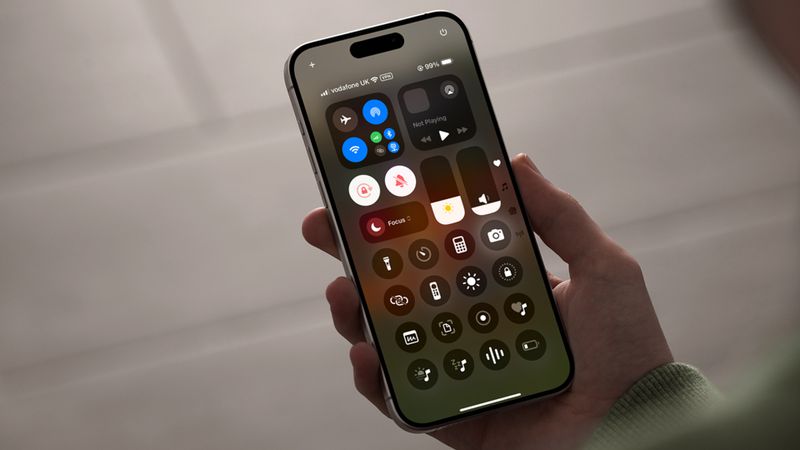
Your iPhone’s Control Center offers quick access to essential tools like Camera, Notes, Flashlight, and HomeKit controls—even when the device is locked. While this is super convenient, it can also be a privacy risk.
Imagine someone picking up your iPhone and accessing Instant Notes, toggling Airplane Mode, or opening your smart home controls—all without unlocking your device. Fortunately, iOS allows you to disable Control Center on Lock screen, keeping your data and controls secure.
Why You Should Disable Control Center on the Lock Screen
By default, iPhones allow Control Center access even when locked. That means:
- Anyone can swipe to access your camera or notes.
- They could disrupt your Wi-Fi, Bluetooth, or Home settings.
- Sensitive information like your Instant Notes could be exposed.
If you care about security, especially in public places or shared environments, it’s a good idea to lock this down.
How to Disable Control Center on Lock Screen
- Open the Settings app on your iPhone or iPad.
- Scroll down and tap Face ID & Passcode (or Touch ID & Passcode, depending on your model).
- Enter your device passcode when prompted.
- Scroll to the section titled Allow Access When Locked.
- Toggle Control Center to the OFF position.
✅ This setting immediately removes access to the Control Center from the Lock screen.
Does This Affect Everyday Use?
Not really. If your iPhone has Face ID, you’ll still have instant access to Control Center after unlocking the phone. The change only stops unauthorized access while the phone is locked.
Additional Security Tips
- Disable Notes Access from Lock Screen: Go to Settings ➝ Notes ➝ Access Notes from Lock Screen, and set it to Off or Resume Last Note with Authentication.
- Enable Guided Access: For extra control when lending your device.
- Use App Locking Shortcuts: Restrict specific apps behind authentication.
Conclusion
If you’re serious about privacy, it’s time to disable Control Center on Lock screen. This quick change can stop strangers from snooping through your tools and keeps your iPhone more secure—without sacrificing daily convenience.


