
Nyongesa Sande
No Result
View All Result
  • News
    • World
    • Africa
  • Politics
  • Business
  • Tech
  • AI
  • Telecom
  • Sports
  • Opinion
  • Lifestyle
  • Live
  • World Cup 2026
    • World Cup 2026 Standings
    • World Cup 2026
Nyongesa Sande
No Result
View All Result
Nyongesa Sande
No Result
View All Result
  • News
  • Politics
  • Business
  • Tech
  • AI
  • Telecom
  • Sports
  • Opinion
  • Lifestyle
  • Live
  • World Cup 2026
ADVERTISEMENT

Home » How to Customize the navigation Bar on your Galaxy Phone or Tablet

How to Customize the navigation Bar on your Galaxy Phone or Tablet

NyongesaSande News Desk by NyongesaSande News Desk
3 years ago
in How To
Reading Time: 4 mins read
A A
How to Customize the navigation Bar on your Galaxy Phone or Tablet

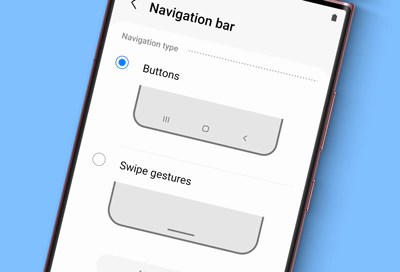
The Navigation bar is the menu that appears on the bottom of your screen – it’s the foundation of navigating your device. How to Customize the navigation Bar on your Galaxy Phone or Tablet. However, it isn’t set in stone; you can customize the layout and button order, or even make it disappear entirely and use gestures to navigate your device instead.

  • Use the Navigation buttons
  • Button order
  • Use Swipe gestures
  • Navigation bar location on the Galaxy Z Fold series

Note: Available screens and settings may vary by wireless service provider, software version, and device model.

Use the Navigation buttons

The classic Navigation bar has the Recents, Home, and Back buttons at the bottom of your screen. It is the default navigation method on all Galaxy phones and tablets. Here are what the three buttons do:

ADVERTISEMENT
  • Recents: The button to the far left. When you tap this, your recently opened apps will appear.
  • Home: The button in the very center. Tap this to be taken to the Home screen.
  • Back: The button to the far right. Tap this to go back to the previous screen.

Please be aware that the Navigation bar may disappear when using certain apps, such as gaming apps or video services. You can swipe up to temporarily see the bar when using these apps.

Button order

You can also adjust the order of the buttons on the Navigation bar.

ADVERTISEMENT

From Settings, tap Display, and then tap Navigation bar. Make sure Buttons is selected, and then you can choose your desired button setup at the bottom of the screen.

Note: This option will also affect the location you swipe from when using Swipe gestures. Customize the navigation Bar on your Galaxy Phone or Tablet

Use Swipe gestures

You can use gestures instead of buttons to navigate your device if that’s simpler, or if you just want to remove the buttons from your screen for a less cluttered appearance.

ADVERTISEMENT
  1. From Settings, tap Display.
  2. Tap Navigation bar, and then choose Swipe gestures.
  3. Turn on Gesture hint for help on where to swipe, and turn on Show button to hide keyboard to enable the buttons when using Portrait mode. Additionally, you can block gestures with the S Pen so you don’t accidentally activate a command when drawing or writing.
  4. Tap More options to edit the direction you need to swipe.

Here are the functions for each gesture:

  • Far left: When you swipe here, your recently opened apps will appear.
  • Middle: Swipe up in the center to be taken to the Home screen.
  • Far right: Swipe here to go back to the previous screen.

Navigation bar location on the Galaxy Z Fold series

The Navigation bar on the main screen of the Galaxy Z Fold series phone can be positioned to the left, right, or center. So, no matter how you want to navigate, we have you covered!

Note: The position of the Navigation bar is dependent on this feature being enabled or disabled. If the Navigation bar is enabled, you can only move it left or right on the main screen. If it’s disabled, the Navigation bar can only be positioned in the center.

  1. Navigate to Settings, and then tap Display.
  2. Tap Navigation bar, and then tap Button position.
  3. Select your desired position for the buttons.
Tags: How To
Share5Tweet3SendShareSharePin1Share1Share
Google Add as a Preferred Source on Google
Previous Post

How to change the Wallpaper and Icons on your galaxy Phone or tablet

Next Post

Application for a Kenyan Passport

NyongesaSande News Desk

NyongesaSande News Desk

Nyongesa Sande offers diverse content across news, technology, entertainment, and more, aiming to provide readers with a wide range of informative and engaging articles. NYONGESA SANDE's dedicated team provides our audience not only with the highly relevant news but also with outstanding interactive experience.

Related Posts

How to Weld a 2-Block Rectangular Hollow Block Mold: Measurements, Materials and Step-by-Step Guide
How To

How to Weld a 2-Block Rectangular Hollow Block Mold: Measurements, Materials and Step-by-Step Guide

2 months ago
How to Create a Facebook Account on iPhone App
How To

How to Fix Facebook Confirmation Email Not Received

2 months ago
How to Create a Facebook Account on iPhone App
How To

How to Fix Facebook Confirmation Code Not Received

2 months ago
How to Create a Facebook Account on iPhone App
How To

How to Confirm Your Facebook Email or Phone Number

2 months ago
How to Create a Facebook Account on iPhone App
How To

How to Understand Your Facebook Account and Profiles

2 months ago
How to Create a Facebook Account on iPhone App
How To

How to Fix Facebook Name Not Accepted

2 months ago
Load More
Next Post
Requirements for Replacement of a Lost Passport in Kenya

Application for a Kenyan Passport

How to Control Notifications on your Galaxy Phone or Tablet

How to Control Notifications on your Galaxy Phone or Tablet

ADVERTISEMENT

Who We Are

Nyongesa Sande

NyongesaSande.com is a digital news and media platform covering breaking news, business, technology, AI, politics, sports, world affairs and African innovation.

Our Brands

  • YouTube
  • Forums
  • Law Archive
  • Sandes Kitchen

News Sections

  • News
    • World
    • Africa
  • Politics
  • Business
  • Tech
  • AI
  • Telecom
  • Sports
  • Opinion
  • Lifestyle
  • Live
  • World Cup 2026
    • World Cup 2026 Standings
    • World Cup 2026

Editorial Standards

  • Editorial Policy
  • Fact Checking Policy
  • Corrections Policy
  • Ethics Policy
  • AI Usage Policy
  • News Tips
  • Submit Press Release

Legal

  • Privacy Policy
  • Terms of Use
  • Cookie Policy
  • Risk Disclaimer
  • Disclaimer
  • DMCA
  • Ad Choices
  • YouTube

Our Company

  • About Us
    • Nyosake Designers
      • Nyosake Webmasters
      • Nyosake Investment
  • Contact Us
    • Newsroom Contact
  • Ownership Disclosure
  • Advertise
  • Privacy Policy
  • Terms of Use
  • Cookie Policy
  • Risk Disclaimer
  • Disclaimer
  • DMCA
  • Ad Choices
  • YouTube

NyongesaSande.com is an independent digital news and media platform covering Africa, business, technology, AI, politics and global developments.

© 2026 NyongesaSande.com. All rights reserved.

No Result
View All Result
  • News
    • World
    • Africa
  • Politics
  • Business
  • Tech
  • AI
  • Telecom
  • Sports
  • Opinion
  • Lifestyle
  • Live
  • World Cup 2026
    • World Cup 2026 Standings
    • World Cup 2026

NyongesaSande.com is an independent digital news and media platform covering Africa, business, technology, AI, politics and global developments.

© 2026 NyongesaSande.com. All rights reserved.