


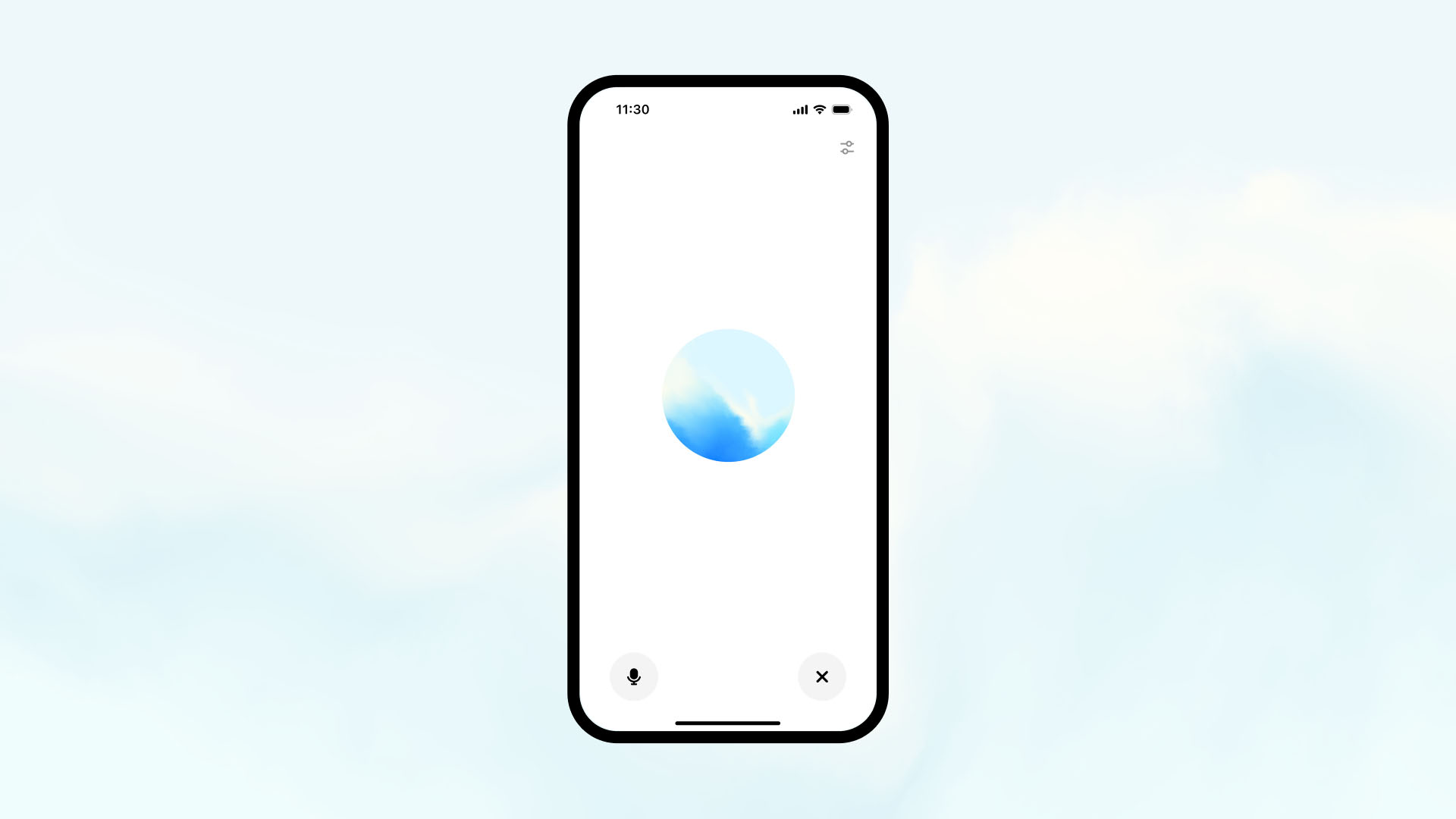
While ChatGPT is primarily a text-based AI, you can enhance your experience by adjusting voice settings for both voice input and voice output. These settings are not native to ChatGPT but can be customized through third-party tools and integrations. Here’s a guide on how to adjust these settings to improve your interaction with ChatGPT.
1. Adjusting Voice Input Settings
Voice input allows you to interact with ChatGPT by speaking rather than typing. To customize this feature, you’ll need to use speech-to-text tools or voice recognition apps. Here’s how you can adjust these settings:
- On Mobile Devices (iOS & Android):
- Enable Voice Dictation: Both iOS and Android devices have built-in speech-to-text functionality that allows you to dictate your messages to ChatGPT. To enable or adjust settings:
- On iOS: Go to Settings > General > Keyboard and toggle Enable Dictation.
- On Android: Go to Settings > Language & Input and enable Google’s Voice Typing feature.
- Speech Recognition Settings: If you’re using an app like Google Assistant or Dragon NaturallySpeaking, you can customize the voice input by adjusting the language, speed, and sensitivity of the speech recognition system. These tools can help improve accuracy and ensure better voice-to-text conversion.
- Enable Voice Dictation: Both iOS and Android devices have built-in speech-to-text functionality that allows you to dictate your messages to ChatGPT. To enable or adjust settings:
- Using Speech-to-Text Extensions in Browsers:
Browser extensions like Voice In for Google Chrome allow you to use voice input on websites, including ChatGPT. After installing, you can adjust the microphone sensitivity and speech recognition language directly within the extension’s settings.
2. Adjusting Voice Output Settings
Voice output refers to the ability to have ChatGPT’s responses read aloud. Although ChatGPT does not have built-in voice output, you can use Text-to-Speech (TTS) tools or screen reader functions to have ChatGPT’s responses spoken aloud. Here’s how you can adjust these settings:
- On Desktop (Windows/macOS):
- Windows TTS: On Windows, you can adjust TTS settings by going to Settings > Time & Language > Speech. Here you can choose different voices, adjust speed, and modify the volume of the speech.
- macOS TTS: On macOS, go to System Preferences > Accessibility > Spoken Content, where you can select the voice, rate, and volume for text-to-speech responses.
- On Mobile Devices (iOS & Android):
- iOS Voice Settings: Go to Settings > Accessibility > Spoken Content and adjust the Voices, Speaking Rate, and Volume. You can choose different voices for a variety of languages.
- Android Voice Settings: On Android, navigate to Settings > Accessibility > Text-to-Speech Output to adjust the speed, pitch, and language of the TTS voice.
- Browser-Based TTS Tools:
If you are using a browser for ChatGPT, there are TTS browser extensions like Read Aloud or Natural Reader that can be adjusted for speech output. These tools allow you to customize the voice type, speed, and volume for a better listening experience.
3. Using Third-Party Integrations for Full Voice Mode
For a more seamless voice experience with ChatGPT, you can integrate voice input and output through voice assistants or automation platforms:
- Google Assistant & Alexa Integrations:
- With platforms like Zapier, you can connect Google Assistant or Amazon Alexa with ChatGPT. You can set up triggers that allow you to speak to your voice assistant, which will then send the request to ChatGPT and read the response aloud.
- To adjust voice settings, you can tweak Google Assistant’s voice settings or Alexa’s speech output preferences to match your desired voice tone, pitch, and language.
- Voice-Controlled Chatbots:
Use platforms that offer voice-controlled chatbot capabilities, like integrating ChatGPT with Dialogflow or Rasa, to create more interactive, fully voice-enabled systems.
4. Limitations and Future Developments
While you can adjust voice settings using third-party tools, ChatGPT does not yet offer built-in voice customization features for input and output. However, as voice technology improves and OpenAI enhances its models, we may see more advanced voice settings directly integrated into future versions of ChatGPT.
Conclusion
Although ChatGPT doesn’t yet have native voice input and output settings, there are plenty of third-party tools and integrations that allow you to adjust voice settings for both input and output. Whether you’re using speech-to-text tools for voice commands or text-to-speech software for reading responses aloud, you can tailor your experience to suit your needs. As voice technology continues to evolve, ChatGPT’s voice interaction capabilities are likely to improve, offering an even more seamless experience in the future.










