


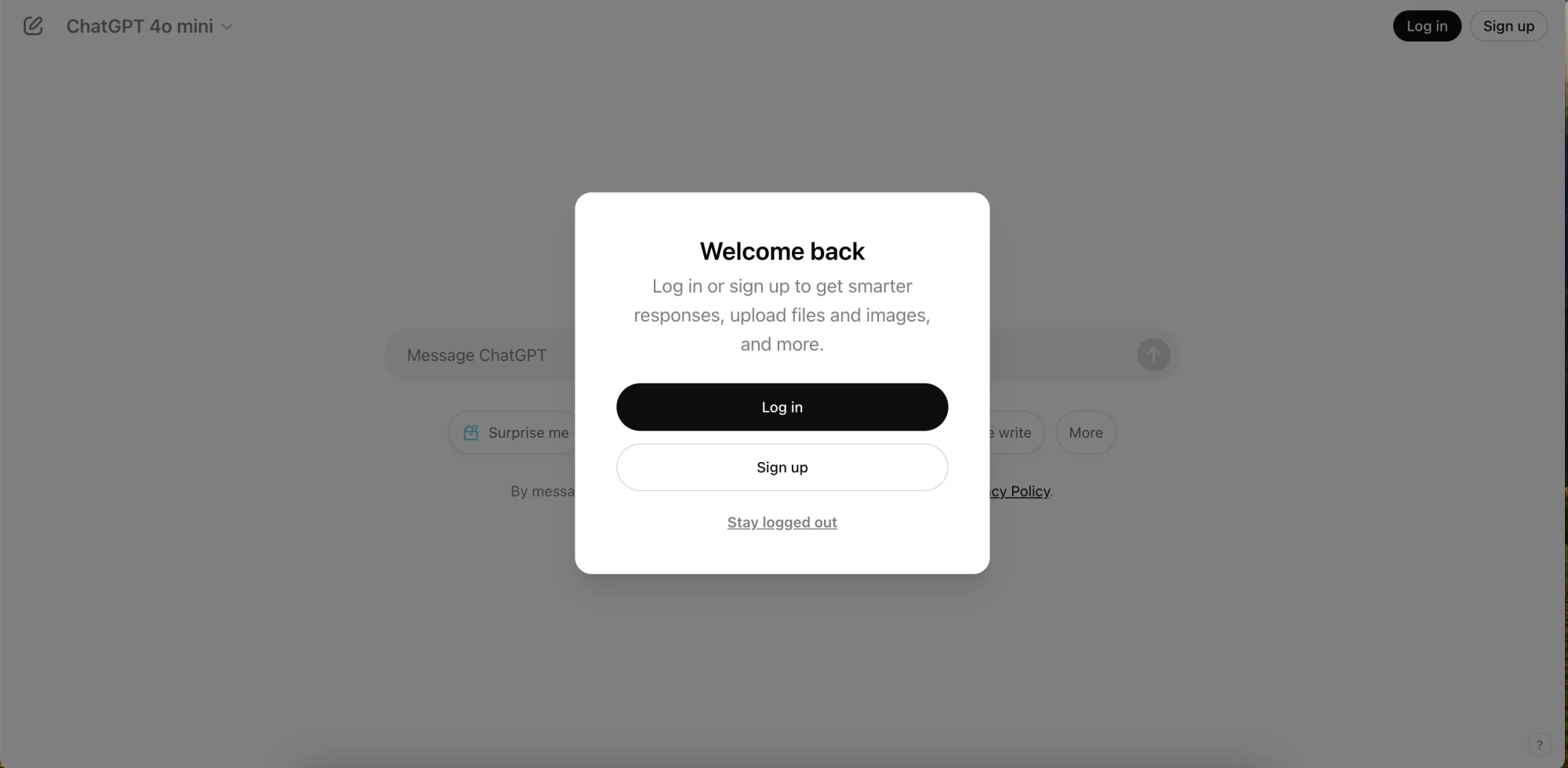
Accessing your saved chats in ChatGPT is essential when you want to review past conversations, reference useful information, or continue a discussion. Whether you’re using ChatGPT via a browser, mobile app, or desktop app, knowing how to access saved chats can improve your overall experience. In this article, we’ll guide you through the process of accessing saved chats and offer solutions to troubleshoot any issues that may arise.
1. Ensure Chat History Is Enabled
Before you can access your saved chats, you need to make sure that the chat history feature is enabled in your ChatGPT account settings. If chat history is disabled, previous conversations won’t be saved or accessible.
Solution:
- Enable Chat History: Go to your ChatGPT settings and check if the chat history feature is turned on. If it’s off, enable it so that future chats are saved automatically for later access.
- Review Platform-Specific Settings: If you’re using ChatGPT via a third-party platform, make sure chat history saving is enabled within the platform’s settings.
2. Accessing Saved Chats in Web Version (ChatGPT)
When using ChatGPT on a web browser, your saved conversations should be displayed in the chat history section, where you can easily access and review them.
Solution for Web (ChatGPT):
- Open ChatGPT in Your Browser: Visit the ChatGPT website at chat.openai.com.
- Log Into Your Account: Ensure you are logged into the correct OpenAI account where your saved chats are stored.
- Locate Your Saved Chats: On the left-hand side of the screen, you’ll see a panel that lists all your past conversations. Scroll through this list to find and click on any saved conversation to view it.
- Search for Specific Chats: If you have a long list of saved chats, use the search bar at the top of the chat history panel to locate specific conversations.
3. Accessing Saved Chats in the Mobile App (iOS & Android)
If you’re using the ChatGPT mobile app on your smartphone or tablet, accessing saved chats is just as simple. Make sure you’re logged into the same OpenAI account across all devices to ensure that your chats are synced.
Solution for Mobile (iOS/Android):
- Open the ChatGPT App: Launch the ChatGPT app on your device.
- Log In to Your Account: Ensure you are logged into the same OpenAI account used to save your chats.
- Access Chat History: Tap on the menu icon (usually in the top-left corner) to open the list of your saved chats. Scroll through the list and tap any chat to view its details.
- Search for Chats: Use the search function within the app to find specific conversations if needed.
4. Accessing Saved Chats in Desktop App (Windows/macOS)
If you’re using the ChatGPT desktop app, you can easily access your saved chats, similar to the web version.
Solution for Desktop:
- Open the Desktop App: Launch the ChatGPT desktop application on your computer.
- Log In to Your Account: Make sure you’re signed into the correct OpenAI account to access your saved chats.
- Find Chat History Sidebar: On the left side of the screen, you’ll find a sidebar displaying your saved conversations. Click on any of them to view the full chat.
- Scroll and Search: If you have multiple conversations saved, use the scroll feature or the search bar to find specific chats.
5. Manage and Organize Saved Chats
Once you’ve accessed your saved chats, you may want to manage or organize them. You can review, delete, or pin important chats for easy access in the future.
Solution:
- Review and Continue Chats: Click on any saved chat to continue from where you left off or review past interactions.
- Delete Chats: If you no longer need certain conversations, you can delete them by clicking the delete icon (usually a trash can) next to the conversation in the chat history panel.
- Pin Important Chats: Some platforms allow you to pin your most important conversations to the top of the chat history list for quick access.
6. Troubleshooting: Unable to Access Saved Chats
If you’re having trouble accessing your saved chats, there may be several reasons for this, such as incorrect login, server-side issues, or platform bugs.
Solution:
- Check Your Login: Make sure you are logged into the same account across all devices. If you’re logged into a different account, your saved chats won’t appear.
- Refresh or Restart the Platform: Try refreshing the page or restarting the app to reload your chat history.
- Clear Cache and Cookies: If you’re using a browser, clear the cache and cookies to resolve potential issues with session data.
- Update the App or Browser: Ensure you are using the latest version of the ChatGPT app or browser. Updates often include bug fixes and improvements.
- Check for Server Issues: Sometimes, server-side issues can prevent chats from syncing or displaying. Check the OpenAI status page for any ongoing outages.
7. Manually Save Important Chats for Future Access
If you want to ensure that you never lose important conversations, consider saving them manually.
Solution:
- Copy and Paste: After a conversation, copy the text and paste it into a text editor (e.g., Google Docs, Microsoft Word) for storage.
- Take Screenshots: For a visual record, take screenshots of the conversation and save them to your device or cloud storage.
- Use Cloud Storage: Save the text or screenshots to a cloud storage service like Google Drive or Dropbox for easy access across devices.
Conclusion
Accessing your saved chats in ChatGPT is simple once chat history is enabled and you’re logged into the correct account. By following the steps outlined above, you can view, manage, and organize your past conversations with ease. If you encounter any issues, troubleshooting steps such as ensuring you’re logged into the right account, refreshing the platform, or clearing cache can resolve most problems.
If you’re still unable to access your saved chats, consider reaching out to OpenAI support or the platform you’re using for further assistance.








