


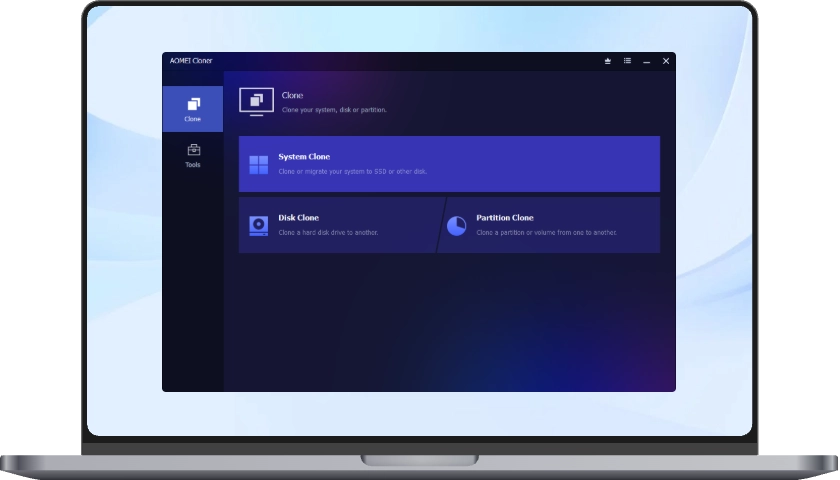
Upgrading your storage, swapping out an old drive, or protecting your data doesn’t have to be a complex process. With the right HDD cloning software, you can create an exact copy of your existing drive and transfer everything to a new disk with minimal effort. Follow this guide to find the best disk cloning software for Windows PC.
How to Choose the Right HDD Cloning Software
Selecting HDD cloning software isn’t just about popularity—it’s about finding a solution that delivers reliability, efficiency, and precision. These are the features that matter most:
Full Disk Cloning
A solid cloning tool should support disk-to-disk cloning, allowing you to duplicate an entire drive—including the operating system, installed programs, system files, and hidden partitions. This ensures a complete and functional copy without missing critical data.
OS Migration Capability
When upgrading to an SSD, OS migration becomes essential. This feature enables you to transfer only system-related components—such as Windows, boot files, and necessary partitions—without cloning unnecessary data, making the process faster and more space-efficient.
Multi-Partition and Selective Cloning
Not every situation requires cloning the entire disk. Good software allows you to clone:
· Specific partitions
· Selected data volumes
· Custom disk layouts
This flexibility helps save storage space and speeds up the cloning process.
Flexible Cloning Modes
High-quality tools typically offer two cloning methods:
· Sector-by-sector cloning: Replicates every sector of the disk, including unused space, for an exact duplicate.
· Intelligent cloning: Copies only the used data, reducing cloning time and allowing transfers to smaller drives.
Having both options gives you flexibility depending on your specific scenario.
SSD Optimization
When cloning to an SSD, proper alignment is critical for maintaining speed and longevity. Many tools include automatic SSD alignment and optimization features to ensure peak performance after migration.
File System Compatibility
Top-tier HDD cloning software supports multiple file systems such as NTFS, FAT32, exFAT, and ext variants. This ensures compatibility across Windows and Linux environments.
Bootable Media Support
A dependable cloning solution should let you create bootable media (USB or recovery disk). This is invaluable if your system fails to start, allowing you to access the cloning environment and recover your data independently of the installed OS.
Taking all these factors into account, AOMEI Cloner stands out as a reliable option. It supports Disk Clone, System Clone, and Partition Clone, and its user-friendly interface makes the entire process straightforward—even for beginners.
How to Clone Your Hard Drive Step by Step
Cloning a hard drive using AOMEI Cloner is a straightforward process that lets you transfer your entire system, including the OS, apps, and files, to a new disk without reinstalling anything. The instructions below show you how to clone hard drive to SSD with AOMEI Cloner:
Step 1: Prepare the Target Drive
· Connect the new SSD to your computer.
· Make sure it has enough space to hold the data from your current drive.
· Back up any important files on the target disk, as it will be overwritten during cloning.
Step 2: Install AOMEI Cloner and Select the Cloning Method
· Download and install AOMEI Cloner on your Windows PC.
· Launch the application to access its main dashboard.
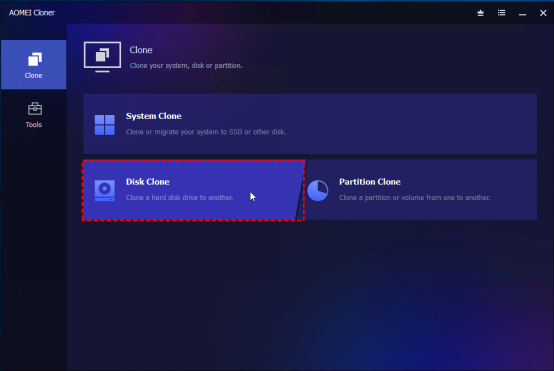
· Navigate to Clone > Disk Clone to create a full copy of your hard drive.
Step 3: Choose Source and Destination Disks
· Select your existing hard drive as the source.
· Choose the SSD as the destination.
Note: Double-check your selections carefully to avoid data loss.
Step 4: Adjust Cloning Settings
Before starting the process, configure options as needed:
· Enable SSD Alignment for improved performance.
· Use Sector-by-sector clone if you need an exact replica.
· Click Edit Partitions to resize partitions on the target disk.
Step 5: Start Cloning
Click Start Clone to begin. The process may take anywhere from a few minutes to several hours, depending on the size and speed of your drives.
Step 6: Boot from the New Drive
· Power off your computer after cloning completes.
· Replace the old drive or enter BIOS/UEFI to change the boot order.
· Set the new SSD as the primary boot device.
Once completed, your system should start normally from the cloned drive.
Final Words
This guide walks you through selecting the right HDD cloning software and safely cloning your hard drive. Whether you want a simple, beginner-friendly tool or more advanced customization options, AOMEI Cloner provides a reliable and efficient solution for seamless disk migration.
The Review
AOMEI Cloner
AOMEI Cloner is a powerful and efficient HDD and SSD cloning solution for Windows PCs. It enables users to transfer entire systems, upgrade storage devices, and protect critical data without reinstalling the operating system.With features like system clone, disk clone, partition clone, SSD optimization, and bootable environment support, it covers most real-world cloning scenarios. The software balances simplicity and advanced functionality, making it suitable for both everyday users and professionals.Overall, AOMEI Cloner stands out as a reliable, cost-effective tool for seamless disk migration, especially for users upgrading to SSDs or replacing aging hard drives.
PROS
- Easy-to-use interface suitable for beginners
- Full disk cloning including OS, apps, and system files
- Supports system, disk, and partition cloning
- SSD optimization and alignment for better performance
- Flexible cloning modes (sector-by-sector and intelligent cloning)
- Ability to clone to smaller SSDs (if data fits)
- Bootable media support for recovery and offline cloning
- Compatible with multiple disk brands and file systems
- Useful for IT deployment and multiple system setups
CONS
- Advanced features may require a paid version
- Interface design could be improved (some users mention readability issues)
- Cloning large drives can take significant time
- Limited extra features compared to full backup suites
- Not ideal for users needing cloud backup or sync tools
 AOMEI
AOMEI


